The 8 Best Screen Recording Software in 2026 (Compared)

Key facts8 tools compared: Screen Studio, Loom, OBS Studio, ScreenFlow, Tella, Camtasia, Snagit…
- 8 tools compared: Screen Studio, Loom, OBS Studio, ScreenFlow, Tella, Camtasia, Snagit, ScreenApp
- Screen Studio (best for: Polished demos, Mac users): $9/mo annual
- Loom (best for: Async team messages): Free / $18 user/mo
- OBS Studio (best for: Streamers, full control): Free
- ScreenFlow (best for: Mac editing in one app): $169 one-time
Most screen recordings look bad. The cursor jerks around, the audio peaks, and the viewer bails at the 20-second mark. The recording itself was never the hard part. Making it watchable is.
I record a lot of these: product walkthroughs, async updates for the team, the occasional tutorial that ends up on YouTube. Over the last few months I worked through the tools people keep recommending and the ones nobody talks about, and the gap between "captures your screen" and "makes you look like you know what you're doing" is wider than the pricing pages suggest.
If you want one answer: Screen Studio makes the best-looking videos with the least effort, and it's the one I reach for first. But it's Mac-only and it's not built for quick async messages, so the right pick depends on what you're actually making. Below are the eight I'd trust in 2026, with real prices and the honest downsides.
Quick comparison
| Tool | Best for | Price | Standout |
|---|---|---|---|
| Screen Studio | Polished demos, Mac users | $9/mo annual | Automatic zoom and cursor smoothing |
| Loom | Async team messages | Free / $18 user/mo | Instant share links, transcripts |
| OBS Studio | Streamers, full control | Free | No limits, no watermark, open source |
| ScreenFlow | Mac editing in one app | $169 one-time | Record and edit together |
| Tella | Creators, cross-platform | Free / $13/mo | Backgrounds, layouts, hosting included |
| Camtasia | Training and course content | from $182/yr | Deep timeline editor |
| Snagit | Quick captures and GIFs | $99/yr or one-time | Screenshots plus short clips |
| ScreenApp | AI summaries and notes | Free / $19/mo | Browser-based, AI transcripts |

Screen Studio: the one that makes you look professional
Screen Studio is a macOS app that automatically zooms in on whatever your cursor is doing and smooths every movement into something that looks animated rather than recorded. You hit record, click around like normal, and the output looks like a polished product demo without touching a timeline.
Who it's best for: Anyone shipping demos, launch videos, or social clips on a Mac who doesn't want to learn editing.
The pick for anyone shipping demos, launch videos or social clips on a Mac who does not want to learn editing, thanks to automatic zoom and cursor smoothing. It is Mac only and a local app rather than a sharing platform, so half of teams are out.
$20/month billed monthly, or $9/month billed annually, per the Screen Studio pricing page. It exports up to 4K at 60fps, plus GIF export.
The standout: The automatic zoom is the feature everyone copies and nobody matches. It anticipates where you're clicking and frames it. Add the cursor smoothing and built-in voice normalization, and a five-minute raw recording comes out looking like you spent an afternoon editing it.
The catch: Mac only. There's no Windows version and no public timeline for one, so half of teams are out immediately. It's also a local app, not a sharing platform, so you record and export rather than getting an instant link to send.

Loom: still the fastest way to send a video
Loom is the async messaging tool that made "I'll just send you a Loom" a sentence people say out loud. You record, and the moment you stop, a shareable link is in your clipboard with a transcript and viewer analytics attached. Nothing else is this fast for talking-head-plus-screen updates.
Who it's best for: Distributed teams replacing meetings with short recorded explanations.
Loom is still the fastest way to send a video, ideal for distributed teams replacing meetings with short recorded explanations, with an instant link, transcript and viewer analytics. The free plan is capped at 25 videos, and pricing has become less friendly.
The free Starter plan caps you at 25 videos per person and 5 minutes each at 720p. Business is $18/user/month, and Business + AI is $24/user/month with auto summaries, filler-word removal, and edit-by-transcript, per Loom's pricing page.
The standout: Speed and distribution. The link works instantly, the transcript is searchable, and you can see who watched. For replacing a status meeting with a three-minute video, nothing beats it.
Where it falls short: Atlassian bought Loom for $975 million in 2023, and in 2026 the pricing got less friendly. Some seats that used to be free are now billed at the full per-seat rate, and existing customers are seeing their first price increases. The free plan's 25-video and 5-minute caps fill up faster than you'd think.

OBS Studio: free, unlimited, and a little intimidating
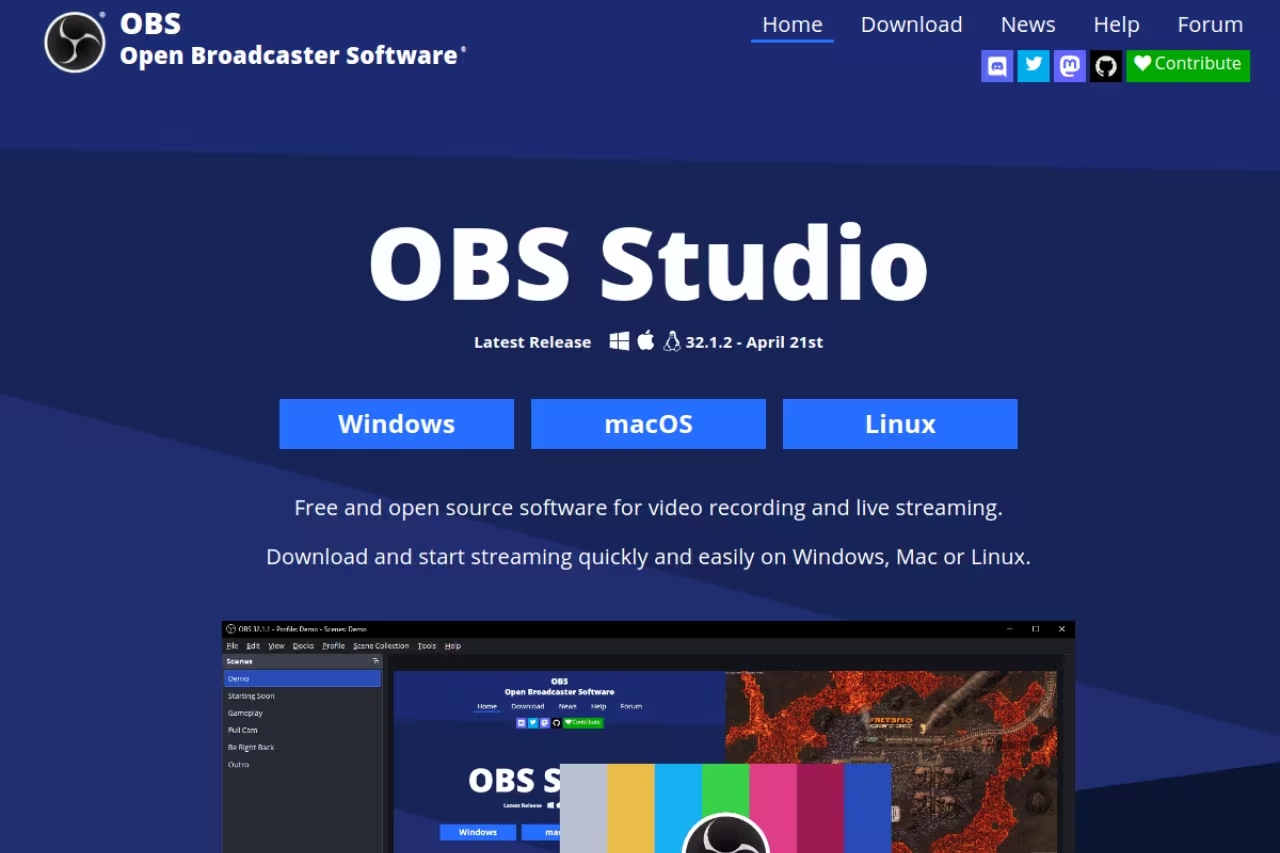
OBS Studio is the open-source recorder that streamers and YouTubers have run for years. It records full screen, a window, or a custom region, mixes multiple audio sources, handles scenes and overlays, and streams to Twitch or YouTube. No watermark, no time limit, no upsell, because there's no company trying to sell you anything.
Who it's best for: Streamers, gamers, and anyone who wants total control without paying a cent.
OBS Studio is for streamers, gamers and anyone who wants total control without paying a cent, with no watermark or time limit across Windows, macOS and Linux. The learning curve is steep, and there is no built-in editor or sharing link.
Free. It runs on Windows, macOS, and Linux. That's the whole story.
The standout: Output quality at 1080p 60fps is excellent and the resource hit is light if you configure it right. For multi-source setups, picture-in-picture, and live streaming, it does things paid tools charge monthly for.
The catch: The first launch is a wall of bitrate options, encoder choices, and audio routing. There's a real learning curve, and there's no built-in editor or sharing link, so OBS captures the raw file and the rest is on you. If quick polish matters more than control, this is the wrong tool. I cover gentler free options in our best free screen recorders guide.

ScreenFlow: record and edit without switching apps
ScreenFlow from Telestream is the Mac veteran that bundles a capable screen recorder with a full video editor in one window. You record, then drop straight into a timeline with transitions, annotations, and multi-track audio, no export-and-import shuffle between two tools.
Who it's best for: Mac users producing tutorials or course videos who want recording and editing in the same place.
Go with ScreenFlow if you are a Mac user producing tutorials or course videos and want recording and editing in one window for a one-time price around $169. It is Mac only, and the editor is overkill for a fast async clip.
A one-time purchase around $169, with discounted upgrade pricing for existing license holders. No subscription. It's optimized for Apple Silicon and supports 4K recording and ProRes export.
The standout: The editor is the reason to buy it. Most recorders make you take your footage somewhere else to polish it. ScreenFlow gives you a proper timeline, a stock media library, and animation tools right after you stop recording, and you pay once.
Where it falls short: Mac only, and the editor has a learning curve that's closer to a real NLE than a click-to-record toy. For a fast async clip it's overkill. The one-time price is great long-term but stings more upfront than a $9 month.
Tella: the cross-platform pick for creators
Tella is the cloud recorder that treats a screen recording like a designed asset. You add backgrounds, switch layouts between screen and camera, apply zoom effects, and hosting comes built in, so you record and Tella hands you a shareable link. It runs in the browser and as native Mac and Windows apps.
Who it's best for: Course creators, founders, and product teams who want polished video and aren't all on Macs.
Tella is the cross-platform pick for course creators, founders and product teams who want polished video without being all on Macs, with built-in hosting. It is cloud-first, so you record into its ecosystem rather than producing a local master file.
A free tier exists, with Pro at $13/month and Premium at $19/month (annual billing is roughly half the monthly rate). Pro covers unlimited videos, 4K export, and transcription in over 100 languages.
The standout: It splits the difference between Loom's hosting and Screen Studio's polish, and it works on Windows. The preset backgrounds and layout switching make plain screen captures look intentional, and the hosting means you're not exporting files and uploading them somewhere else.
The catch: It's cloud-first, so you're recording into Tella's ecosystem rather than producing a local master file. Branding removal and a custom domain sit behind the $19 Premium tier. It's less of a heavy editor than ScreenFlow or Camtasia if you need fine timeline control.
If you're building a video stack, it pairs well with the tools in our best AI video editors roundup for cleanup after recording.
Camtasia: the training and course workhorse
Camtasia from TechSmith is the tool that corporate L&D teams and course builders have leaned on for years. It's a screen recorder welded to a deep timeline editor, with quizzes, interactive hotspots, callouts, and a big library of assets aimed squarely at instructional video.
Who it's best for: Anyone producing structured training content, onboarding videos, or paid courses on Windows or Mac.
The training and course workhorse for anyone building structured onboarding videos or paid courses on Windows or Mac, with quizzes and a deep timeline editor. Subscription only, and the Starter tier watermarks your video, so the real entry point is Essentials at roughly €182/year.
Subscription only now, billed yearly. Plans run from a watermarked Starter tier around €40/year up through Essentials (about €182/year), Create, and Pro, per TechSmith's store. It supports both Windows 10/11 and macOS 14+.
The standout: The editor depth for instructional video. Quizzes that report results, interactive table-of-contents chapters, and a stock library mean you can build a full course module without leaving the app.
Where it falls short: TechSmith moved Camtasia to subscription, and longtime users who bought perpetual licenses are not thrilled. The Starter tier watermarks your video, so the real entry point is Essentials at roughly €182/year. For a quick demo it's far too much tool.

Snagit: the underrated quick-capture tool
Snagit, also from TechSmith, is the one I open most without thinking about it. It's built for screenshots and short clips: grab a region, annotate it, record a 30-second screen GIF, and paste it into Slack or a doc. It's not trying to be a video studio, and that's the point.
Who it's best for: Anyone who documents things all day. Support, product, ops, anyone pasting annotated captures into tickets and wikis.
Snagit is the underrated quick-capture tool for support, product and ops people who document things all day, with best-in-class annotation. It is a capture tool, not an editor, so anything longer than a quick clip needs a different app.
A free version exists, with Pro at $9.99/month or $99.99/year. TechSmith still offers perpetual licenses alongside the subscription, with volume discounts for teams of five or more.
The standout: The annotation tools are best in class. Arrows, callouts, blur for sensitive data, step numbering for instructions. For turning a screenshot into something a teammate actually understands, nothing's faster.
The catch: It's a capture tool, not an editor. Recordings cap out short and there's no real timeline, so anything longer than a quick clip needs a different app. Think of it as the screenshot tool that also does short video, not the other way around.
ScreenApp: AI notes baked into the recorder
ScreenApp is the browser-based recorder that bets on AI doing the work after you stop. Every recording comes with a transcript, an AI summary, auto chapters, action items, and a chat interface so you can ask questions about what was said. It runs on web, Chrome, iOS, Android, and Mac.
Who it's best for: People recording meetings, walkthroughs, or research who want notes and searchable transcripts more than visual polish.
ScreenApp suits people recording meetings, walkthroughs or research who want AI notes and searchable transcripts more than visual polish. The free tier's 3-recording cap is tight, and the visuals are plain next to Screen Studio or Tella.
The free plan allows 3 recordings with AI summaries and transcripts. Growth is $19/month (600 AI credits/year, unlimited recordings), and Business is $34/month with unlimited AI and video analysis, per ScreenApp's pricing.
The standout: The AI layer is the product. Recording, transcription, summarization, and chat live in one place, so a long walkthrough becomes a searchable document with action items pulled out automatically.
Where it falls short: The free tier's 3-recording cap is tight, and the visual output is plain compared to Screen Studio or Tella. You're paying for what happens after the recording, not for how the recording looks. The 600 AI credits on the Growth plan go fast if you record daily.
How to choose
Match the tool to the output, not the feature list.
- You want it to look polished and you're on a Mac: Screen Studio. Nothing else gets you there with this little effort.
- You're sending quick async updates to a team: Loom, or Tella if half your team is on Windows.
- You want power and zero cost, and don't mind a learning curve: OBS Studio.
- You're building courses or training videos: Camtasia for depth, ScreenFlow if you're on Mac and prefer paying once.
- You document all day in screenshots and short clips: Snagit.
- You mostly need transcripts, summaries, and searchable notes: ScreenApp.
One more filter: platform. Three of the best options (Screen Studio, ScreenFlow, and the polished side of the field) are Mac-only. If you're on Windows, your realistic shortlist narrows to Loom, OBS, Tella, Camtasia, Snagit, and ScreenApp before you even start comparing features.
If screen recording is one piece of a larger content workflow, it's worth looking at the best AI video generators and AI presentation tools that often sit next to a recorder in the same stack. For a wider view of what's worth paying for, our top tools directory tracks the categories AI teams actually adopt, and Dupple X curates the ones that earn a permanent spot in your setup.
FAQ
What is the best screen recording software in 2026?
For polished output with the least effort, Screen Studio wins on Mac. For quick async team messages, Loom is still the fastest to record and share. For free and unlimited recording with full control, OBS Studio is the standard. The best pick depends on whether you care most about polish, speed, or cost.
What is the best free screen recorder?
OBS Studio is the strongest free option with no watermark, no time limit, and no premium upsell, though it has a learning curve. Loom's free plan works for short clips but caps you at 25 videos and 5 minutes each. ScreenApp's free tier adds AI transcripts but only allows 3 recordings. See our best free screen recorders guide for more.
Is Loom still worth it after the Atlassian acquisition?
Loom is still the fastest tool for recording and sharing async videos, and the transcripts and analytics remain strong. The downside is pricing: since the $975 million Atlassian acquisition, some previously free seats are now billed at full rate and existing customers have seen price increases. If your team mainly needs quick async messages, it's still worth it. If budget is tight, Tella is a cheaper cross-platform alternative.
What screen recorder makes the most professional-looking videos?
Screen Studio produces the most polished videos automatically thanks to its automatic zoom and cursor smoothing, but it's Mac-only. Tella is the best cross-platform option for designed-looking recordings with backgrounds and layouts. For hands-on control over a professional edit, ScreenFlow and Camtasia give you a full timeline.
What's the best screen recorder for Windows?
OBS Studio is the strongest free Windows option, and it also runs on macOS and Linux. For polished, easy recordings on Windows, Tella and Camtasia are the best paid picks, since the most polished tool (Screen Studio) is Mac-only. ScreenApp also works on Windows through the browser and adds AI summaries.
Do I need a paid screen recorder or is free enough?
If you're recording occasional clips or live streams, OBS Studio's free tier handles it with no limits. Free becomes a problem when you need automatic polish (Screen Studio), instant team sharing at scale (Loom), or AI transcripts at volume (ScreenApp). Most professionals end up paying once recording becomes a regular part of the job rather than a one-off.
Related guides
Some offers on this page may be paid placements or contain affiliate links.