Best Free Screen Recorders in 2026 (No Watermark)

Key facts8 tools compared: OBS Studio, ScreenPal, Screenity, ShareX, ActivePresenter, Loom, macOS…
- 8 tools compared: OBS Studio, ScreenPal, Screenity, ShareX, ActivePresenter, Loom, macOS built-in, Windows built-in
- OBS Studio (best for: Power users, streamers, 4K): Free, open source
- ScreenPal (best for: Beginners, quick tutorials): Free (15-min cap)
- Screenity (best for: Browser-based recording): Free extension
- ShareX (best for: Windows GIFs and bug reports): Free, open source
Most "free" screen recorders are a sales funnel wearing a free tier. You record a quick demo, you go to export, and a watermark slaps itself across the corner. Or the clip cuts off at five minutes. Or it nags you to upgrade before you can download your own footage.
I got tired of that, so I compared the ones people actually recommend: what each one records, whether system audio and the webcam are supported, and the current pricing pages instead of trusting last year's reviews. Plenty of plans changed in 2026.
The short version: if you want maximum control and zero limits, OBS Studio is still the one to beat, and it costs nothing. If you want to hit record without learning anything, ScreenPal is the gentlest landing. And if you live in the browser, Screenity records full tabs with no sign-in. Below is everything I'd actually use, plus the catch on each one.
Quick comparison
| Tool | Best for | Price | Standout |
|---|---|---|---|
| OBS Studio | Power users, streamers, 4K | Free, open source | No limits, multi-source scenes |
| ScreenPal | Beginners, quick tutorials | Free (15-min cap) | Genuinely no watermark |
| Screenity | Browser-based recording | Free extension | Records tabs, no account |
| ShareX | Windows GIFs and bug reports | Free, open source | Region-to-GIF in two clicks |
| ActivePresenter | Training videos, editing | Free edition | Full editor, unlimited length |
| Loom | Async team messages | Free (5-min, 25 videos) | Instant shareable links |
| macOS built-in | Mac users, quick clips | Free, pre-installed | Nothing to download |
| Windows built-in | Windows clips and trims | Free, pre-installed | Snipping Tool now records |
How these rate, aggregated across platforms
Scores from Toolradar, aggregated across G2 and Capterra rather than quoted from a single site.
| Tool | Aggregated rating | Reviews |
|---|---|---|
| OBS Studio | 4.7 | 1,210 |
| Loom | 4.7 | 5,060 |
| ScreenPal | 4.5 | 234 |
Two things stand out.
OBS Studio, free and open source, is rated 4.7, identical to Loom, which is the commercial leader in this space with a sample four times larger. Free and open source does not mean second best here, it means a different distribution model.
Screenity, ShareX, ActivePresenter and the built-in macOS and Windows recorders have no aggregated ratings at all. Browser extensions, open-source utilities and features bundled with an operating system produce no verified purchase for a review directory to index, so their absence measures how they reach you rather than how good they are. The built-in recorders in particular are the right answer for a lot of people and will never appear in any comparison table with a score attached.
For context on the paid end, Camtasia sits at 4.6 across 1,227 reviews.

OBS Studio: the free tool nothing else beats
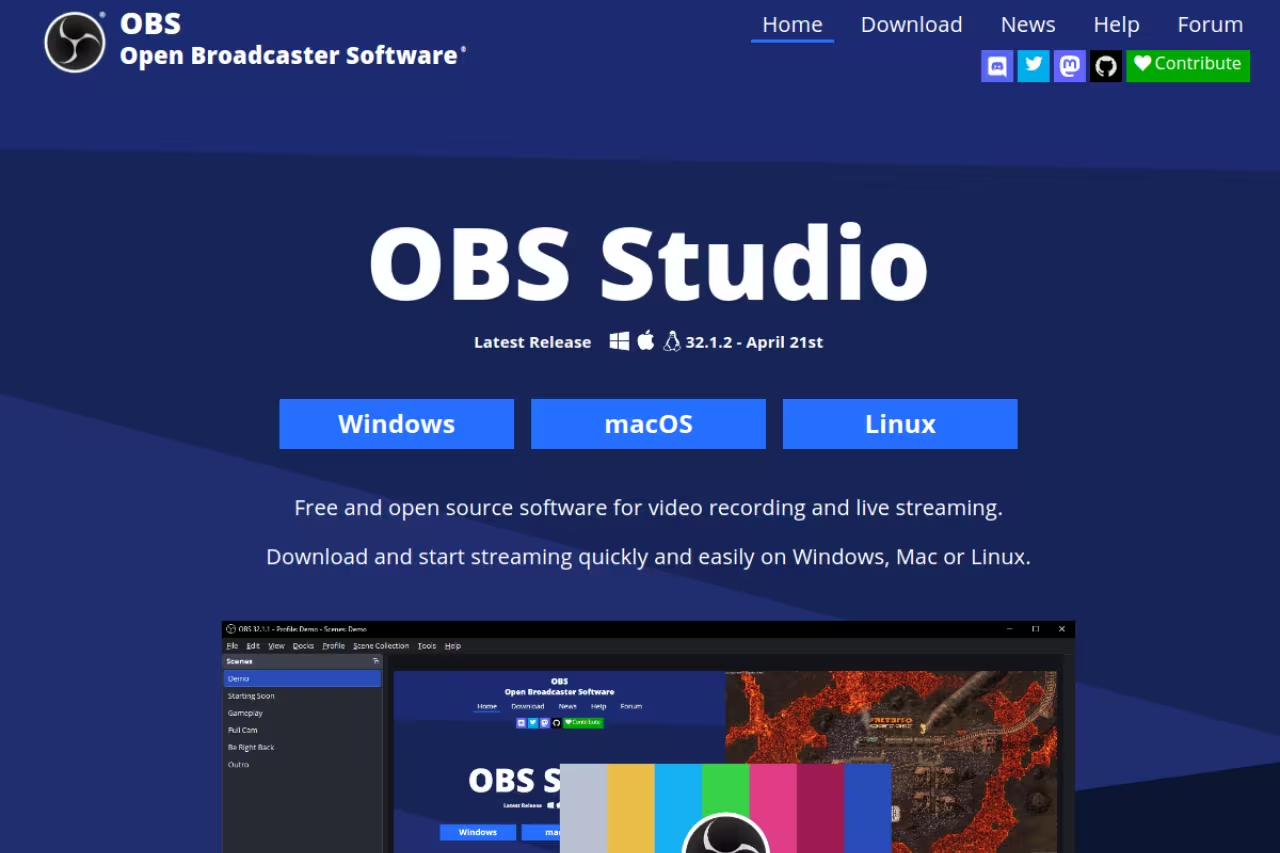
OBS Studio is open-source software for recording and live streaming, and it has been the default answer for serious creators for years. It runs on Windows 10 and 11, macOS 12 or newer (Intel and Apple Silicon), and Linux. There is no watermark, no time limit, no account, and no premium tier dangling features in front of you. The whole thing is genuinely free, maintained by contributors on GitHub.
Who it's best for: anyone recording gameplay, courses, or polished demos who wants 4K at 60fps and full control over every source on screen.
Go with OBS Studio for gameplay, courses and polished demos where you want 4K at 60fps and full control over every source. It is completely free, but expect a steep first launch and a separate editor for trims.
free. It always has been.
The standout: scenes. You build a layout from multiple sources at once (a window capture, your webcam, a logo, on-screen text) and switch between arrangements mid-recording. Nothing else on this list gives you that without paying.
The catch: OBS does not hold your hand. The interface throws scenes, sources, audio mixers, and a settings panel at you on the first launch. There is an auto-configuration wizard that gets a basic recording going in a couple of minutes, but if you want a "hit one button and share a link" experience, this is not it. You also edit nothing inside OBS, so you'll need a separate editor for trims.

ScreenPal: the easiest free recorder with no watermark

ScreenPal (formerly Screencast-O-Matic) is what I hand to people who freeze up at OBS. You launch the recorder straight from the website, pick screen or screen-plus-webcam, and record. The interface explains itself.
The watermark question came up a lot in my research because older reviews still claim there is one. The official recorder page is explicit: "ScreenPal's screen recorder does not place watermarks on any recordings." I exported a clip to confirm, and it came out clean. No badge, no outro.
Who it's best for: beginners, teachers, and anyone making tutorials under 15 minutes who wants a clean file fast.
The easy option for beginners, teachers and tutorials under 15 minutes, with no watermark and no account needed. The free plan caps recordings at 15 minutes and there is no Linux desktop app.
the free plan covers screen and webcam recording, the basic editor, and hosting. Paid Solo plans start at $3/month billed annually to remove the 15-minute cap and unlock the full editor, per ScreenPal's pricing.
The standout: no account required. You can record without signing up, which is rare for a hosted tool.
The catch: the 15-minute-per-recording limit. That covers most tutorials, but it kills longer webinars or course modules unless you upgrade. There's also no Linux desktop app (Windows, Mac, Chromebook, iOS, and Android only), though a browser recorder fills the gap.

Screenity: the best free browser recorder
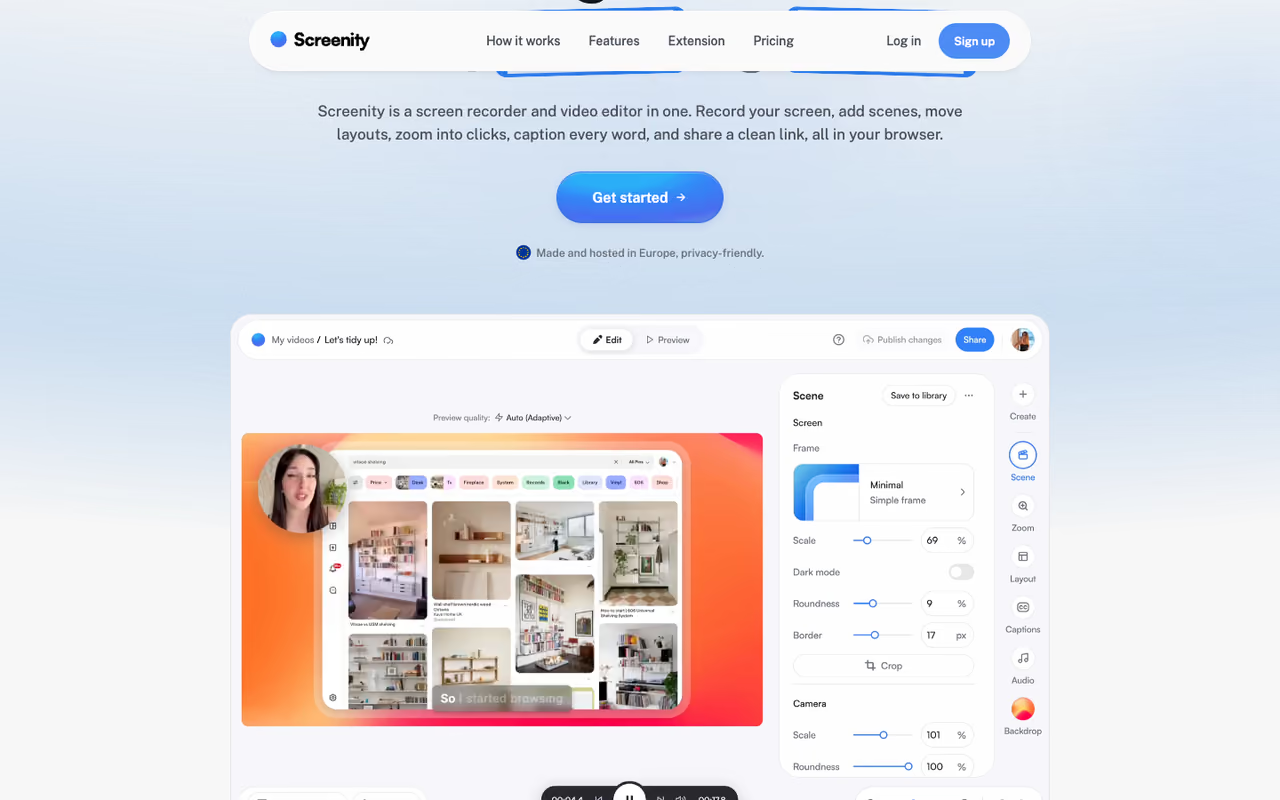
If most of your work happens in Chrome, Screenity is the one to install. It's a free, open-source extension (GPLv3) that records your tab, a custom area, the full desktop, or just your camera. No sign-in, no watermark, no limits on the free extension, and your recording stays on your device.
Who it's best for: developers filing bug reports, support teams, and anyone who records web apps and SaaS dashboards all day.
The one to install if you live in Chrome, such as developers filing bug reports and support teams recording web apps. It is free with strong annotation tools, but tied to Chrome and paywalls the advanced editing.
the Chrome extension is free and the company says it stays free. There's a separate paid editor with auto-zoom, captions, and share links, but the recorder itself costs nothing.
The standout: the annotation tools. You can draw on the screen mid-recording, blur sensitive fields, highlight clicks, and use push-to-talk. For walkthroughs of an interface, that beats recording a sterile clip and editing later. Exports include MP4, GIF, and WebM, or save straight to Google Drive.
The catch: it's tied to Chrome. If you need to record a native desktop app outside the browser, Screenity isn't your tool. The advanced editing features are also where the paywall lives, so the free version is record-and-export, not record-and-polish.
If you're recording product demos to send to teammates, the right tool plus a quick async workflow saves real time. That's the same philosophy behind tools we cover in Dupple X: less busywork, more output.
ShareX: the Windows power tool for GIFs
ShareX is a free, open-source Windows app that's been around since 2007, and it's the fastest way I know to turn a screen region into an animated GIF. Select an area, hit record, and it spits out a GIF that's perfect for a bug report, a Slack message, or documentation. Under the hood it uses FFmpeg (version 20 ships with FFmpeg 8.0) for MP4 recording with sound and real-time compression.
Who it's best for: Windows users, developers, and anyone who lives in screenshots and quick GIFs rather than full videos.
A Windows-only Swiss Army knife and the fastest route from a screen region to a GIF, free with no tiers or watermark. The settings menus are dense and the GIF recorder captures no audio.
free, no tiers, no watermark.
The standout: the sheer breadth. Beyond recording it does screenshots, OCR, a color picker, QR codes, and over 80 upload destinations including Imgur, Dropbox, and custom endpoints. It's a Swiss Army knife that happens to record.
The catch: Windows only, and the settings menus are dense. There's no dedicated support line because it's community-run, and the GIF recorder captures no audio. For long-form video you'll want OBS or ActivePresenter instead.
ActivePresenter: a free editor hiding in a recorder
ActivePresenter by Atomi Systems is the rare free tool that pairs unlimited recording with a real multi-track editor, on Windows and macOS. The free edition has no watermark and no time limit, and it captures system audio and microphone at the same time.
Who it's best for: people making training videos and e-learning content who need to record and edit in one place.
A good fit for training and e-learning creators who want to record and edit on separate tracks in one place, with no watermark or time limit in the free edition. The interface feels heavy for simple clips, and advanced exports are paid.
the free edition is genuinely usable for standard exports without watermarks. Paid editions add interactive e-learning features and SCORM/HTML5 output for course builders.
The standout: the editor. You layer screen capture, webcam, mic, and system audio on separate tracks with independent levels, then add cursor highlights, spotlight effects, and zoom-and-pan. That's editing you'd normally pay for.
The catch: the interface is built for course authoring, so it feels heavier than a simple recorder. It's overkill if all you want is a 90-second Loom-style clip. And some advanced export and interactivity features are reserved for the paid tiers.

Loom: fastest path from recording to link
Loom is the tool for async video messages. Record, stop, and you instantly get a shareable link with a viewer, reactions, and comments. It's cloud-based, integrates with Slack and Google Workspace, and is the reason "send me a Loom" became a verb.
Who it's best for: teams that replace meetings and long emails with quick screen-and-face videos.
Loom is the quickest way from recording to a shareable link, ideal for teams replacing meetings with screen-and-face videos. The free plan caps recordings at 5 minutes and 25 videos, so it works more like a trial.
the free Starter plan caps recordings at 5 minutes and allows up to 25 videos per person, per Loom's pricing. Business is $12.50 per creator/month billed annually for unlimited videos, and Business + AI is $20/user/month for AI summaries and transcript editing.
The standout: speed to share. No exporting, no uploading. The link exists the moment you stop recording, and you can see who watched.
The catch: the 5-minute free limit is the tightest on this list, and the 25-video ceiling means it's really a trial more than a free tier. Everything also lives in Loom's cloud, so if you want a local file to edit elsewhere, this isn't built for that.
macOS built-in: already on your Mac
You don't need to download anything on a Mac. Press Cmd + Shift + 5 to open the Screenshot toolbar and record the full screen or a selected area. macOS Tahoe 26 added a Record Selected Window mode that grabs a single app window on its own.
Who it's best for: Mac users who want a quick, clean clip with zero setup.
Already on your Mac and enough for a quick clean clip with zero setup, via Cmd + Shift + 5. It cannot capture internal system audio and has no picture-in-picture webcam, so serious work needs another tool.
free and pre-installed.
The standout: it's already there, it never nags, and the files are clean QuickTime recordings.
The catch: two real gaps. It can't capture internal system audio on its own, so recording sound from an app or video needs a third-party tool. And there's no picture-in-picture webcam, so you can't film your screen and your face at once.
Windows built-in: the Snipping Tool grew up
Windows 11's Snipping Tool now records video, not just screenshots. Press Windows + Shift + R to jump straight into recording mode. As of version 24H2 it captures both microphone and system audio, and it lets you trim the clip before saving. There's also Xbox Game Bar (Windows + G) for app and gameplay clips.
Who it's best for: Windows users who want a fast clip without installing anything.
Windows 11's Snipping Tool is enough for a fast clip with no install, capturing microphone and system audio and trimming before saving. Xbox Game Bar cannot record the desktop or File Explorer, and neither option does multi-source scenes.
free and built into the OS.
The standout: the Snipping Tool's built-in trim. Drag the handles to cut the start or end, no separate editor needed for quick clean-up.
The catch: Xbox Game Bar can't record the desktop or File Explorer by design, so the Start button greys out there. For full-desktop capture you're pushed to the Snipping Tool or a third-party app, and neither built-in option does multi-source scenes.
How to choose
Skip the feature-list paralysis and answer two questions.
First, where do you record? If it's all inside Chrome, install Screenity and stop reading. If it's native desktop apps or games, you want a desktop recorder: OBS, ActivePresenter, or your built-in OS tools.
Second, what happens after you stop? If you just need a quick clip to share, the macOS or Windows built-in tools (or Loom for a link) are the least friction. If you need 4K, multiple sources, or streaming, OBS is the answer and the learning curve is worth it. If you need to record and edit in one app without paying, ActivePresenter wins. And if you want the simplest watermark-free experience with a tiny editor attached, ScreenPal is the soft landing.
One honest note: "free" should mean you keep your footage clean. Every tool above lets you export without a watermark on the free tier (Loom hosts rather than exports, but the recording is clean). If a recorder won't give you an unmarked file, walk away. There are too many good free options to settle.
Want a faster way to find tools like these without testing twenty of them yourself? Our Dupple X yearly trial curates the AI and productivity stack worth your time, and you can browse our top tools anytime.
FAQ
What is the best free screen recorder with no watermark?
For most people it's OBS Studio. It's open source, has no watermark, no time limit, and records up to 4K at 60fps. If OBS feels like too much, ScreenPal records watermark-free clips up to 15 minutes with no account, and Screenity does the same inside Chrome.
Can I record my screen for free without a time limit?
Yes. OBS Studio, ShareX, ActivePresenter, and Screenity all record with no time cap on their free versions. The tools that limit you are the hosted ones: ScreenPal caps free recordings at 15 minutes, and Loom's free plan stops at 5 minutes.
How do I record my screen with sound for free?
On Windows, the Snipping Tool (version 24H2 and later) captures both microphone and system audio. On Mac, the built-in toolbar records the mic but not internal system audio, so you'll need OBS or a similar tool for app sound. OBS, ShareX, and ActivePresenter all capture system audio and mic together on the free tier.
Is OBS Studio really completely free?
Yes. OBS Studio is free and open source, funded by contributors and sponsors rather than a paid tier. There's no premium version, no watermark, and no feature locked behind a paywall. You can record and live stream at no cost on Windows, macOS, and Linux.
What's the best free screen recorder for a Chromebook?
ScreenPal supports Chromebook directly, and Screenity works in Chrome on any platform including ChromeOS. Both record without a watermark on their free versions, which makes them the practical picks when you can't install heavier desktop software. For more AI and productivity picks, see our guide to the best AI assistants.
Related guides
Some offers on this page may be paid placements or contain affiliate links.