

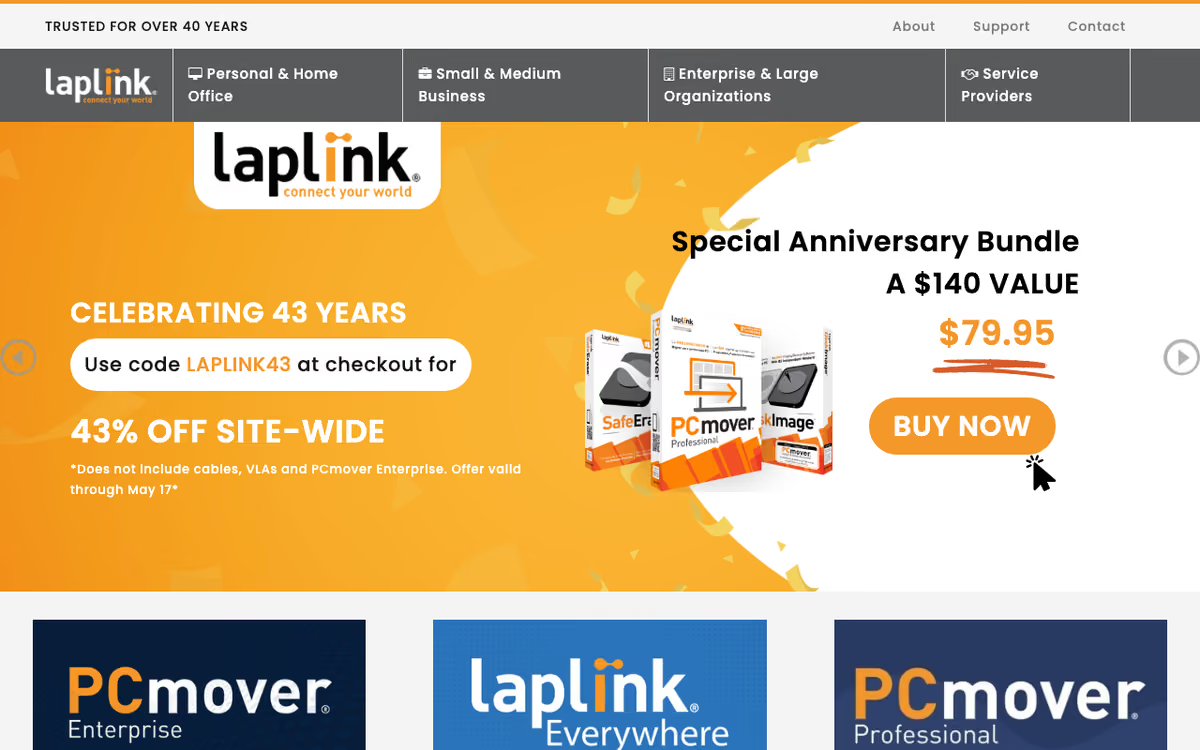
What Is Laplink?
Laplink is the PC migration and data transfer software company best known for its PCmover product line. Founded in 1983, Laplink has been transferring data between PCs for over four decades, making it one of the longest-running software companies in the consumer and SMB space.
The pitch is painless PC upgrades. Buying a new PC traditionally means losing applications, settings, and customizations. PCmover transfers everything from the old PC to the new one: files, installed programs with settings, user accounts, browser bookmarks, and email configurations. The old PC stays intact; the new PC arrives ready to use.
For IT departments rolling out new laptops to employees, this saves hours per device. For consumers buying a new PC, it eliminates the dread of starting over with fresh software installs.
Try PCmover Get started →How Laplink Works
Install PCmover on both PCs (the old source PC and the new target PC). Connect them through Wi-Fi, ethernet cable, or external drive. PCmover scans the source PC, identifies transferable content, and lets you select what to move.
The transfer covers files, folders, user profiles, installed applications with their settings, registry entries, and personalized configurations. Most applications work on the new PC after transfer without reinstallation or license re-activation, though some software (especially DRM-protected) requires re-activation.
The Enterprise version adds management features: deployment via Group Policy, mass migration for IT projects, transfer reporting, and integration with deployment tools like SCCM. IT teams use it for OS refreshes and hardware replacements at scale.
For consumers, PCmover Home covers personal migrations. PCmover Professional adds application transfer and works for individual or small business use.
Laplink Pricing in 2026
Perpetual license model rather than subscription.
PCmover Home: $59.95 one-time. Transfers files, settings, user accounts. Does not transfer applications.
PCmover Professional: $79.95 one-time. Adds application transfer including installed programs.
PCmover Business: From $129.95 per seat. For IT departments and SMBs.
PCmover Enterprise: Custom pricing for IT departments running 50+ migrations.
The perpetual license model is unusual in 2026 when most software has moved to subscriptions. Laplink's pricing means you pay once per migration; if you upgrade PCs every 3-5 years, this works out cheaper than subscription alternatives.
Get Laplink PCmover Get started →Where Laplink Wins
- Application transfer: most migration tools handle files and settings; PCmover transfers installed apps too.
- Perpetual license: pay once per migration, no recurring fees.
- Battle-tested: 40+ years of PC migration experience.
- Enterprise IT support: integrates with deployment tools for mass migrations.
- Source PC remains intact: low-risk, reversible process.
Where It Falls Short
- Windows-only: no Mac support.
- Some applications resist transfer: DRM-protected, hardware-tied, or 32-to-64-bit incompatible apps may need reinstall.
- UI is functional but dated: works well but visually older.
- License re-activation needed for some apps: Office, Adobe, and similar software may need fresh activation.
Laplink vs Manual Migration vs Windows Easy Transfer
PC migration options, pricing from vendor sites, November 2026, USD list prices
| Option | Starting price | Pricing model | Best for |
|---|---|---|---|
| Laplink PCmover Professional | $69.95 per download | One-time license | Moving apps, files and settings to a new PC |
| Manual migration | Free | Your own time | Few apps and plenty of patience |
| Windows Easy Transfer | Discontinued | No longer offered | Nobody on current Windows |
| Mac Migration Assistant | Included with macOS | Built in | Moves between Macs |
Manual transfer is free but slow. Copy files via USB drive, reinstall every application, reconfigure settings. Takes 4-12 hours per PC depending on complexity.
Windows Easy Transfer existed in Windows 7-8 but Microsoft retired it. Modern Windows offers limited built-in migration through OneDrive sync and Windows backup, which lacks application transfer.
Mac users use Migration Assistant built into macOS. Free, polished, works well within the Apple ecosystem.
Who Should Use Laplink
Anyone upgrading from old PC to new PC: especially with many installed applications.
IT departments refreshing employee laptops: Enterprise version saves hours per migration at scale.
SMBs replacing aging hardware: less downtime than fresh installs and reconfigurations.
Power users with customized environments: settings, configurations, and applications that took years to set up.
Skip it if: you do clean installs intentionally (some IT pros prefer this for performance), you use mostly cloud apps (less to migrate), or you migrate Mac-to-Mac (use Migration Assistant).
How Laplink works
Laplink is a Windows PC migration and lifecycle vendor, and its flagship is PCmover, described as "the ONLY software that automatically transfers, restores, and upgrades all selected files, folders, settings, user profiles, and even applications from an old PC to a new PC or operating system." The claim that matters is the last one: it moves installed applications so they run on the new machine, not just documents and settings. The catalog runs from consumer to enterprise: PCmover Express, Home, Professional, Business and Enterprise, plus Profile Migrator, Image & Drive Assistant, SafeErase for secure wipes, DiskImage for backup and imaging, transfer cables, and Laplink Everywhere, a newer cloud PC-fleet monitoring and lifecycle product for SMBs and MSPs.
In practice you install PCmover on both the old and the new PC and choose what moves: applications, files, folders, settings and user profiles, with per-application and per-folder selectivity from Professional up. The two machines connect over the network with automatic PC discovery, over Wi-Fi Direct (the software picks the optimal connection type), or through a physical Laplink cable included with boxed versions. Professional adds domain user transfer and file-based transfer; Home cannot move domain users. Undo is available on Home and above. Business and Enterprise add policy-file support for scripted deployments, with FIPS enforcement and encryption in Enterprise only, aimed at "light-touch or zero-touch" rollouts run by IT teams and MSPs. Image & Drive Assistant works the other direction, restoring an old PC image or rescuing a dead machine's drive onto new hardware.
Consumer pricing is published: Express $34.95, Home $44.95, Professional $69.95, Image & Drive Assistant $39.95, with Professional volume packs at $230 for five, $420 for ten and $900 for twenty-five. Business and Enterprise are quote-only. A 30-day money-back guarantee and free 24/7 transfer assistance are included.
Where Laplink wins
- Application transfer is the actual differentiator. Installed programs arrive working on the new PC instead of sending you hunting for install media and license keys.
- The exclusion list is published, not buried. Laplink names what will not move: antivirus and anti-spyware, hardware drivers, DRM-protected files needing reactivation, some copy-protected programs, and trial versions where a full version already exists.
- Transparent consumer pricing with volume packs, plus a 30-day money-back guarantee and free 24/7 transfer assistance included rather than upsold.
- Wide OS reach for a migration tool: Windows 11, 10, 8.1, 8 and 7 are supported, with older versions available on request from customer service.
- The enterprise tier is genuine, not a rebadged consumer build: policy files, technician licenses, FIPS enforcement and encryption in Enterprise, plus Profile Migrator for same-PC profile moves.
- Multiple connection paths (network auto-discovery, Wi-Fi Direct, physical cable) so one broken route does not block the migration.
Where it falls short
- Windows only across the entire PCmover line. There is no macOS or Linux migration path in this catalog.
- Licensing is per-migration-pair. One license covers one source PC to one destination PC, so cost scales linearly across a fleet refresh.
- Downgrade migrations are not supported, and applications may still demand license re-entry or reactivation after the move, so this is not hands-off for licensed software.
- Express does not transfer applications at all, which is the one reason most buyers look at PCmover. The useful tiers start at Home, and at Professional for domain-joined machines.
- Business and Enterprise pricing and exact Windows version matrices are withheld pending a sales conversation, and Laplink Everywhere's pricing is described only as "tiered plans."
- Older programs may simply be incompatible with the newer OS on the target machine, which no migration tool can fix.
Who should use Laplink
Laplink earns its price for anyone replacing a Windows PC who has years of installed applications and no install media left. The same logic scales up for IT teams and MSPs running a Windows 10 end-of-support refresh, where the Business and Enterprise policy files turn a repetitive manual job into a scripted one and Professional volume packs keep per-seat cost down.
Skip it if you are on Mac or Linux, since nothing in the catalog serves you. Skip it too if you are only moving documents, where cloud sync or the cheaper Express tier already covers the job. And check the math before buying: if you need dozens of separate single licenses rather than a volume pack, the per-pair licensing model gets expensive fast.
Frequently Asked Questions
Does it transfer software licenses?
Application data transfers; license re-activation may be needed for some software with DRM (Office, Adobe, etc.).
What if my old PC is broken?
PCmover supports transferring from a backup or external drive of the old PC.
Can I undo a migration?
The old PC remains untouched, so you can return to it. The new PC can have its profile rolled back if needed.
Does it work for Windows 11?
Yes. Supports migrations to and from Windows 7 through 11.
How long does a migration take?
Typically 2-6 hours depending on data volume and transfer method. Ethernet is fastest; Wi-Fi or external drive slower.