

Ask anyone who runs projects, at an agency, an engineering firm or an internal IT team, where their numbers live, and you usually get three answers. The plan for next month is in one tool. The hours people actually worked are in a second one. And whether a project is making money? That lives in a spreadsheet someone rebuilds at the end of every month, when it's too late to change anything.
Beebole is built around a simple idea: those three things are the same data, so they should live in the same place. You plan who works on what, people track time against that plan, managers approve it, and the reports compare what you planned with what happened, in hours and in money.
To see how well that holds up, we joined a 40-minute live walkthrough with a Beebole product specialist. This review follows the same path a real team would: set up people and projects, plan the work, track time, approve it, then read the numbers.
What is Beebole?
Beebole is a planning and time tracking tool, on the market since 2008 and used by over 1,000 companies in 60+ countries. It connects resource planning, timesheets and project financial reporting in one place.
It suits any organization that needs to know where its time and money go across projects, from agencies and consultancies to engineering firms, IT teams and internal departments that charge time back. Finance gets costs and margins, operations gets resource visibility, project managers get budgets and HR gets time off, all in the same tool.
How We Evaluated Beebole
Our team attended a 40-minute live demo covering setup, planning, timesheets, approvals, reporting, budgets, Beebole AI and account configuration, recorded and reviewed for this article. All screenshots come from that session, on a demo account. We checked pricing and plan details against Beebole's official pricing page in November 2026. Features we did not see in the demo are marked as Beebole's own description. Beebole sponsored this review and checked it for factual accuracy, but the assessment is ours.
Why Beebole Stands Out
- One data set from plan to profit. The plan pre-fills timesheets, approved timesheets feed the reports, and the reports compare planned and actual hours, budgets and margins. No exporting to reconcile.
- Timesheets built to get done. Planned work, calendar events and AI suggestions show up as entries people can accept, so tracking time is mostly confirming, not typing.
- Financial reports most time trackers don't have. Planned vs. Real, Budget Status, Revenue at Risk and Billable Utilization come ready-made.
- Permissions run through everything. A manager and an admin see the same screens, but each only sees the people, projects and rates they are allowed to.
Step 1: Set Up People, Projects and Rates
Everything in Beebole starts with two lists: people and projects. You don't build them from scratch: a new account starts with a ready-made structure (client, internal and activity categories, a department tag, four roles, PTO and sickness, and sample reports), a Getting started checklist shaped by your signup answers walks you through the rest, and people and projects can be pasted straight from a spreadsheet. You can start tracking time on day one and add rates, budgets and approvals when you need them.
For each person you set a role, custom fields and a cost rate. Cost rates can be hourly, daily or a fixed fee, and a fixed fee can repeat on a schedule (every month, for example), which covers salaries and retainers. That is what later makes margin reporting possible. Beebole ships with four built-in roles (employee, administrator, people manager and project manager), and on the Advanced plan (or with the matching add-on) you can add your own. A common example: two kinds of managers, where one can see rates and the other only sees hours.
Projects are organized under clients, and the hierarchy can go as deep as you need: client, project, subproject, milestone, phase. Each level can carry a billing rate (hourly, daily, a one-off or recurring fixed fee, or non-billable), a budget and a project manager. Beebole adds that rates can carry effective dates, so a mid-contract rate change doesn't rewrite past figures.
Tags tie it together. You use them to group people by department, region or skill. On the Advanced plan (or with the matching add-on), tag settings such as rates, work schedules and approval rules pass down to everyone under a tag, so a new hire inherits the right setup automatically.
Step 2: Plan Who Works on What
Planning is optional, and plenty of customers only track time. But this is the part that makes the rest of Beebole click.
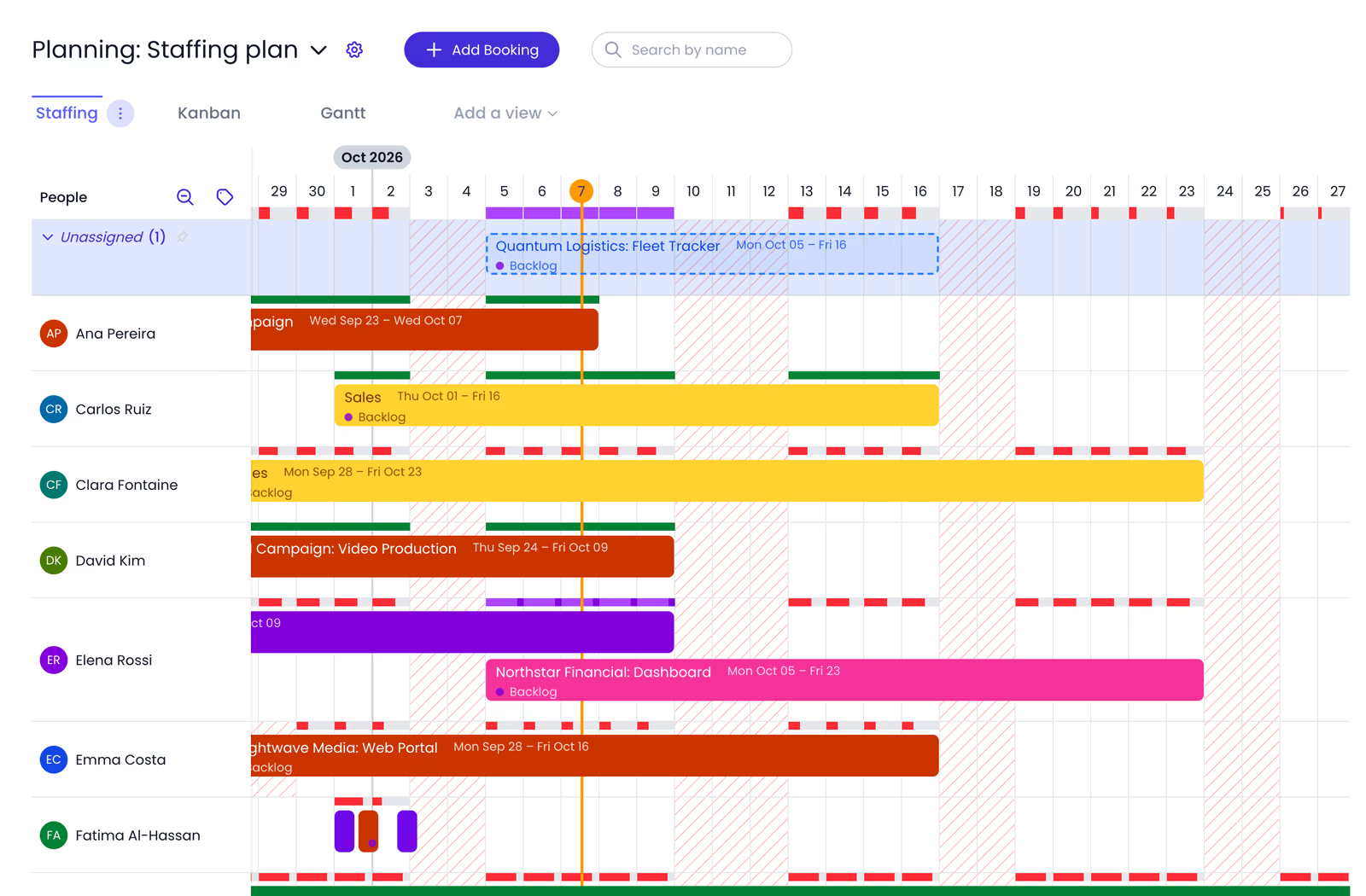
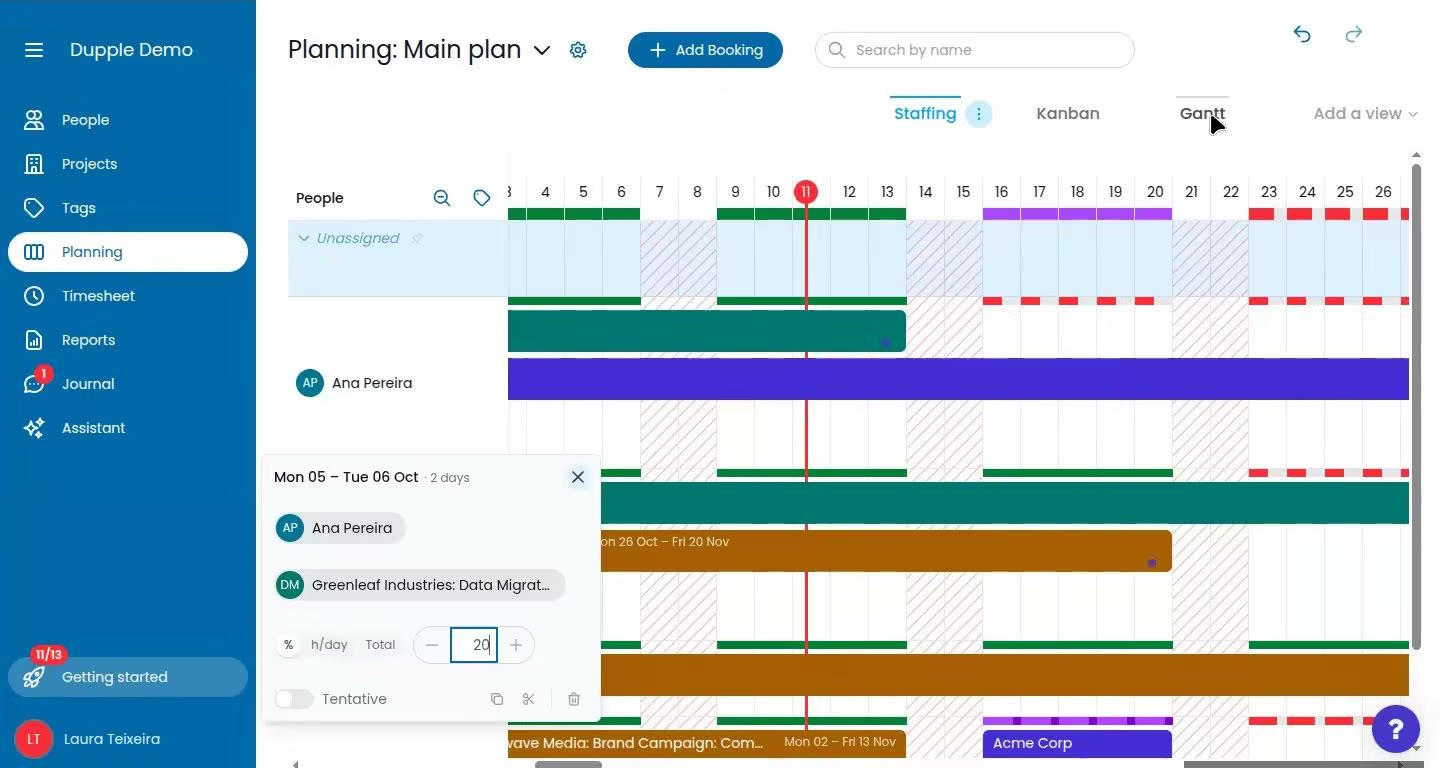
The Staffing view lists your people down the side and their bookings across a calendar. You book someone onto a client or a specific project as a percentage of their time, hours per day or a total number of hours, say 75% on one project and 25% on another until the end of the month. Color bars flag who is fully booked, who is overbooked and who still has hours free. The bar at the top summarizes the whole team and changes from green as soon as one person needs attention, so you can spot an overbooked week before it starts. Find capacity filters people by free time or overbooking, vacant positions sit on an Unassigned row until someone is staffed, and tentative bookings hold someone's time for work that isn't confirmed yet, without showing in reports until they are confirmed.
Teams that work in tasks rather than allocations can switch views. The Gantt view shows tasks on a timeline and can be grouped by project or client, and a Kanban board moves tasks from backlog to done. People who are allowed to manage tasks can mark a task as done straight from their timesheet, while other status changes happen on the Kanban board or in the task itself. Most teams pick one style rather than using both. Views can be filtered by department, region or any tag, and according to Beebole, planned capacity accounts for time off and public holidays.
Step 3: Timesheets That Mostly Fill Themselves
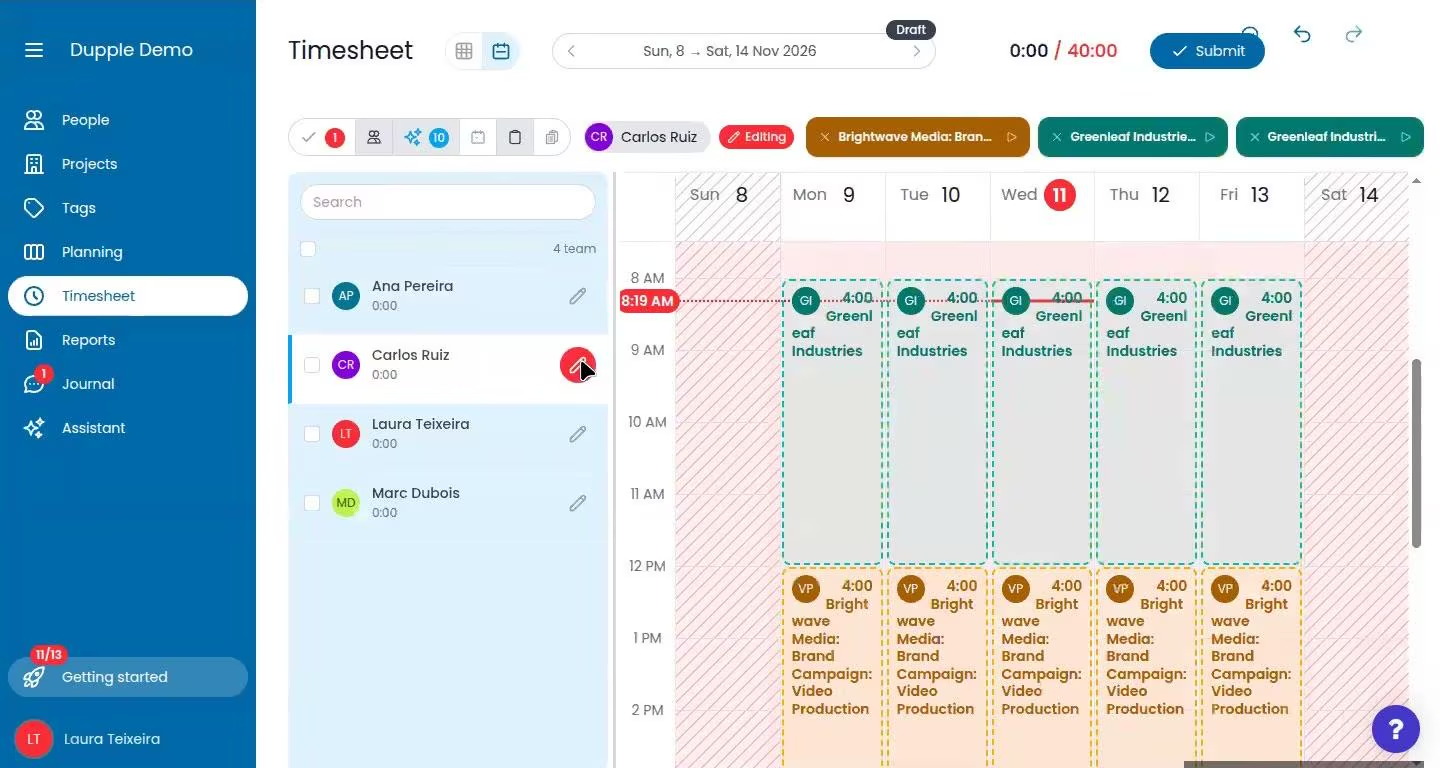
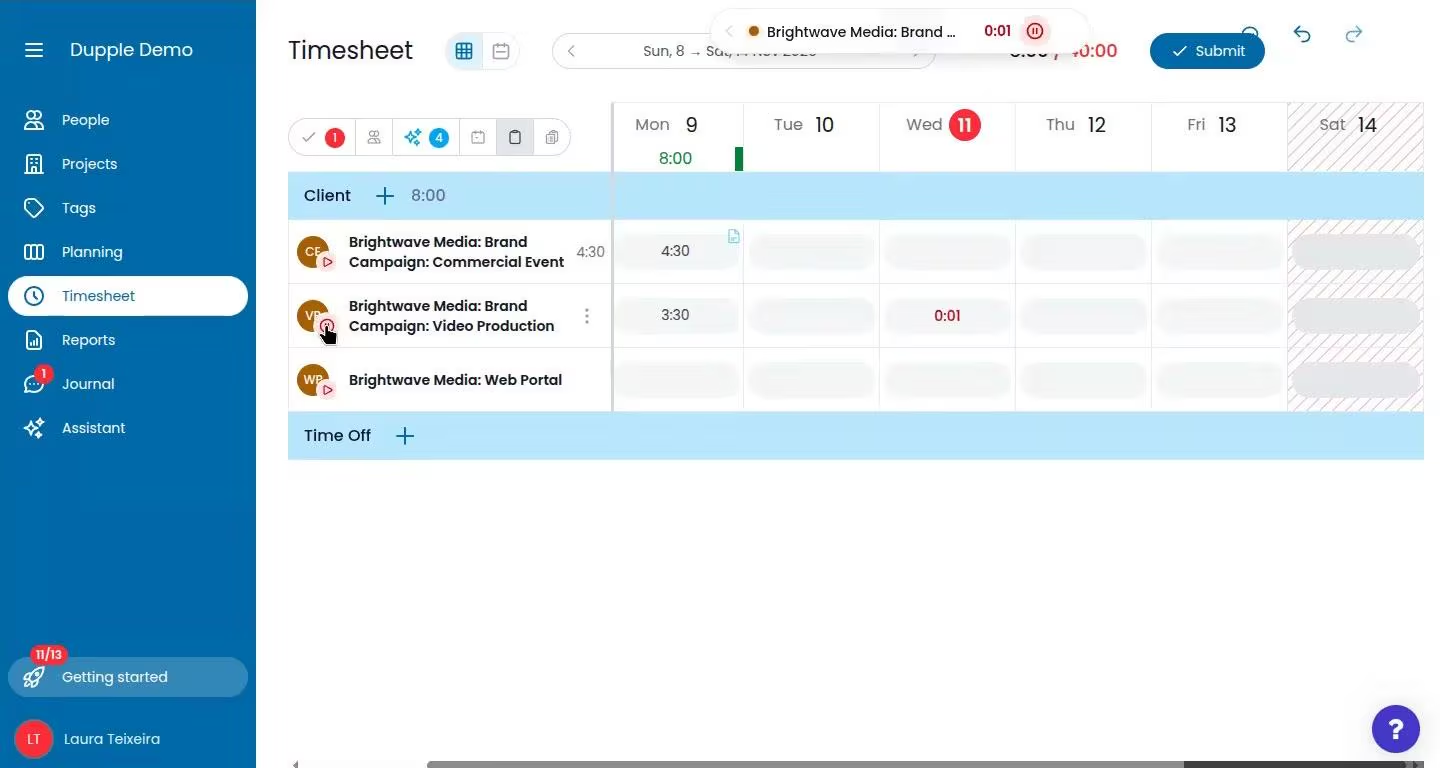
Then the week happens, and people need to log their time. Beebole gives them two layouts. The default calendar view shows each day by the hour, and entries can be dragged and resized, which suits people who switch between clients during the day. The grid view is the classic timesheet: projects down the side, days across the top, type in the hours.
A few details matter more than they sound:
- Daily targets. Each day is checked against the person's work schedule, so they can see if they are short of or over their hours.
- Timers. Every entry can run a timer, and you can run more than one at once. Timed entries round up to the minimum increment you set, from 15 minutes down to one minute.
- Billable flags. If you allow it, employees can mark an entry as non-billable, which then shows up as an exception in reports.
- Comments and start/end times, switched on or off depending on how much detail you want.
The real time-saver is suggestions. If a person was planned at 50% on a project this week, those planned hours appear as suggested entries. They accept, adjust or dismiss each one. If the plan was only at the client level, Beebole asks which project the time was actually for. Connect Google or Microsoft calendar, and meetings show up the same way, ready to turn into time entries. Moving a task on the Kanban board or working with a connected AI assistant creates suggestions too. Favorite projects, which people pin themselves, sit at the top so they can be dragged onto any day.
Beebole says its AI also suggests entries based on each person's own habits and on activity from its desktop app and browser extension, and that suggestions stay private to the employee until they accept them. Activity tracking is opt-in and reads only application names and window titles, never the screen. That activity stays on the computer and is deleted after 7 days, and Beebole takes no screenshots and does no GPS tracking, so each person decides what actually gets logged. The mobile app (installed straight from the browser, no app store needed) covers time logged away from the desk.
Step 4: Submit and Approve
When someone submits a timesheet, Beebole checks it against your rules first, like missing time or overtime, so mistakes get fixed before they reach a manager.
Approval workflows are fully customizable. You can route timesheets through a project manager, then a team lead, then HR or an admin, and see at each step who has approved and who is pending. Each approval stage can require sign-off from all of its approvers or from just one of them. Managers see their direct reports by default and can switch to their entire hierarchy, which helps when someone is covering for an absent manager. They can open any timesheet, edit it, and approve or reject whole timesheets, one at a time or for several people at once. A rejection always needs a reason, which the person sees when the timesheet comes back to them. When a corrected timesheet is resubmitted, only the managers of the projects that changed are asked to approve again. Approvers can also approve by replying "approve" to the notification email, and Beebole says a review digest flags weekend work, overtime, after-hours time and unusual totals before anyone approves.
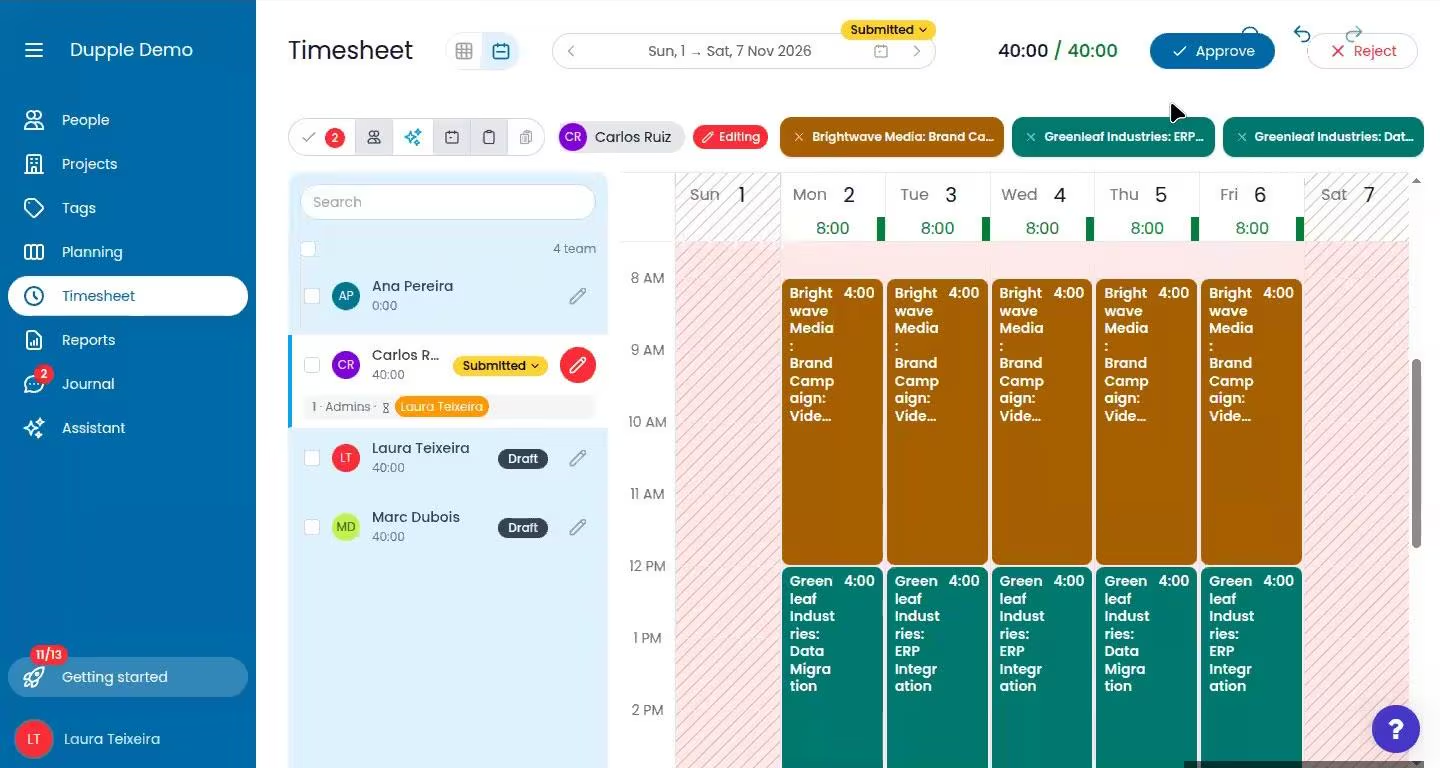
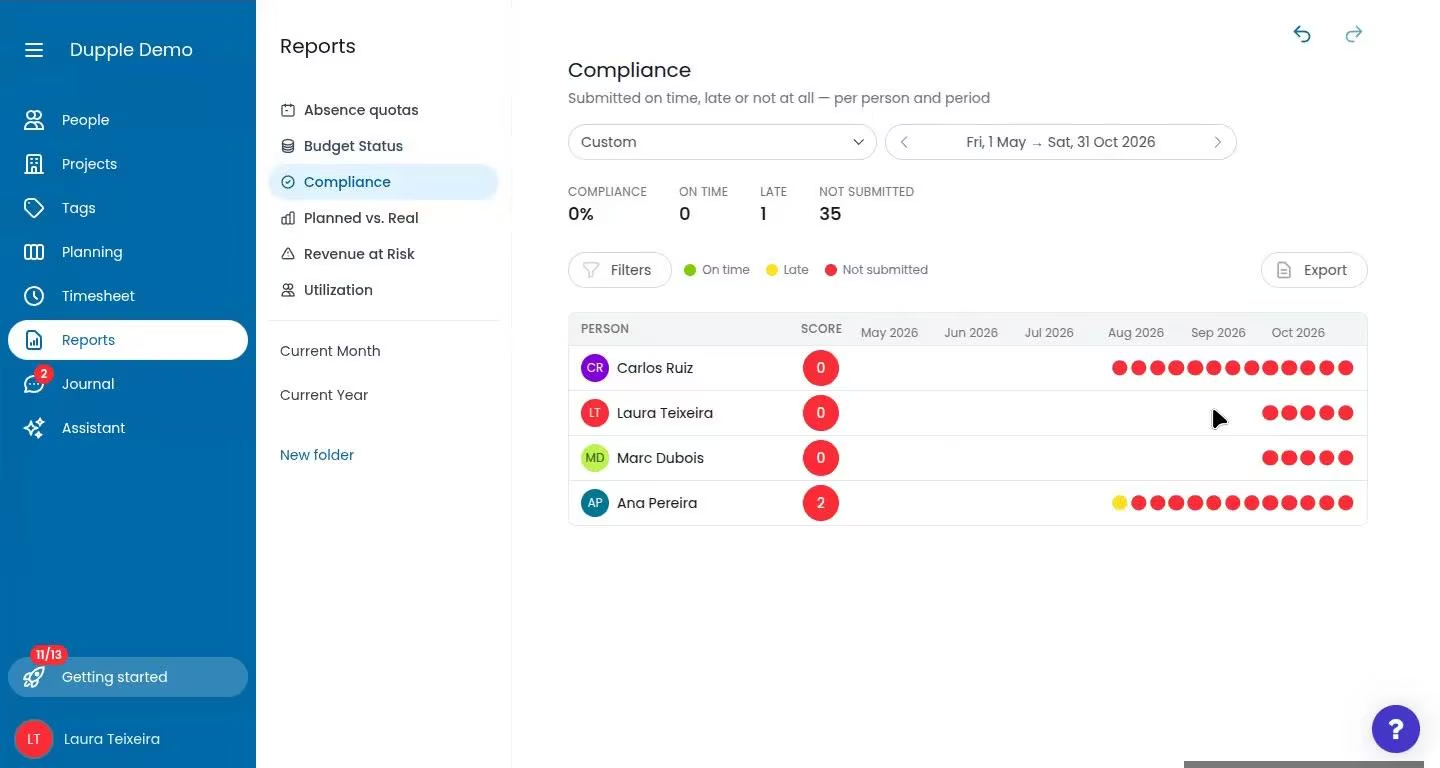
To keep submissions on time, people get automatic reminders to submit their timesheet, approvers get reminders to approve, and auto-submit can close a period on its own a set number of days after it ends. The Timesheet compliance report then gives management a baseline of who submits reliably: each person gets a score from 0 to 100 based on on-time, late and missed submissions and rejections. The Beebole team told us some customers run an end-of-year award for the most compliant team members.
Step 5: Time Off in the Same Place
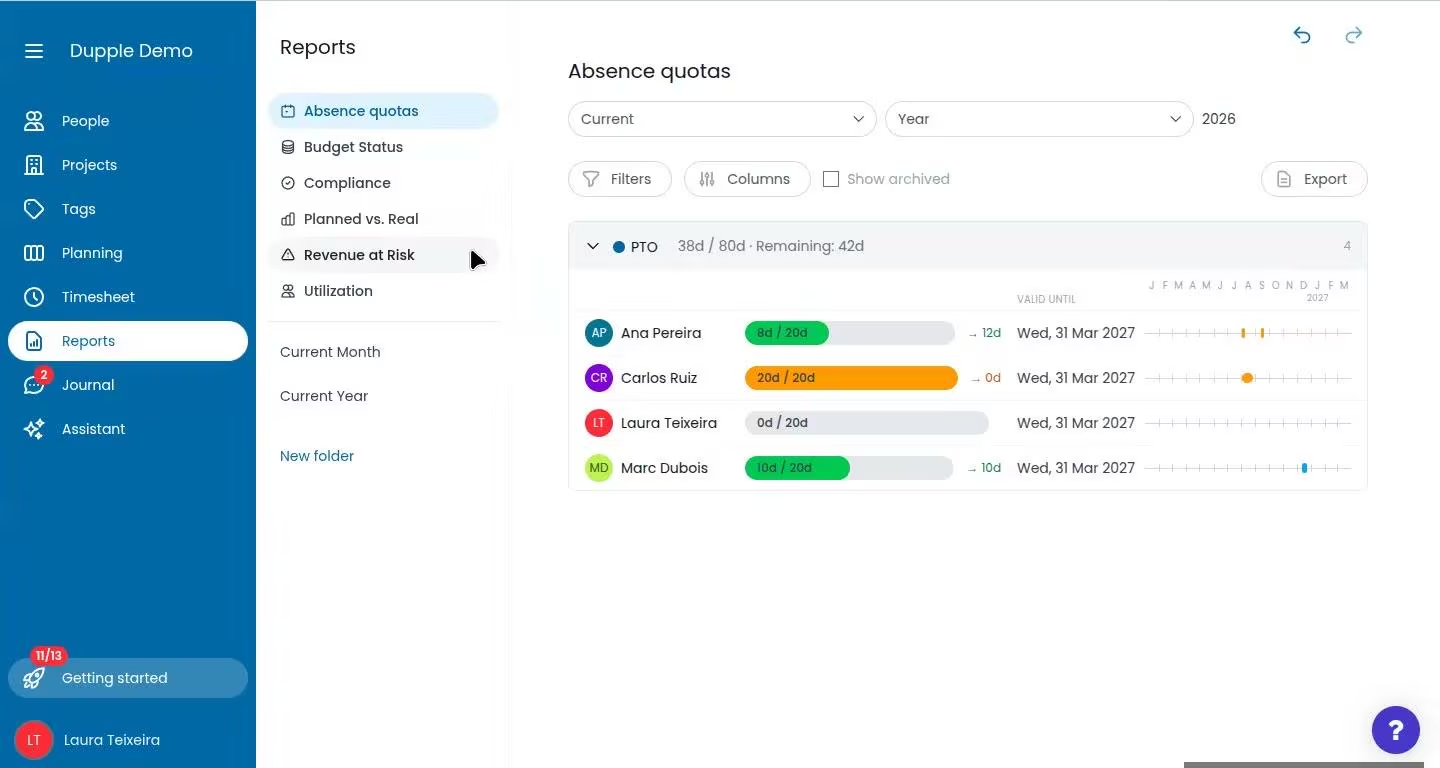
Time off is logged in the same timesheet and approved along with it, so there is no separate leave request process. On the Essential and Advanced plans, you define allowances (in the demo, 20 days of PTO per person), and the Absence quotas report shows each person's balance next to a calendar of upcoming leave, so a manager can see who else is out that week before approving a timesheet. The Free plan includes basic time off tracking. Beebole says country public holiday calendars are built in too.
Step 6: Budgets That Warn You Early
This is where Beebole pulls away from simpler time trackers. Any client or project can have a budget in hours, billing amount or cost, starting from any date. You can keep it global, or split it by subproject or by person, for example 40 hours for one consultant and 10 for another. Beebole says expenses count against project budgets too. Budgets and expenses are on the Advanced plan, or on Essential with the Costs, Expenses & Budgets add-on.
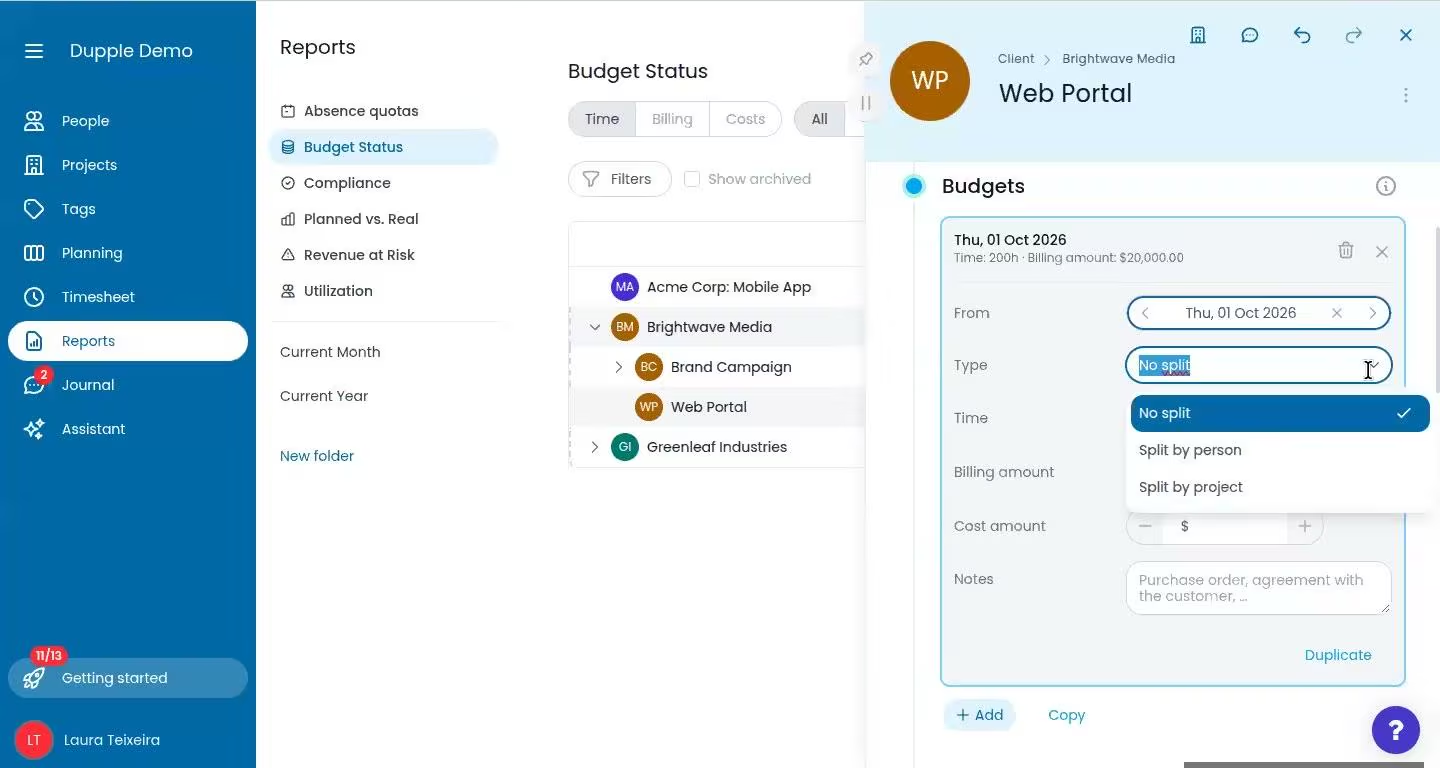
The Budget Status report then works like a traffic light: green while less than 80% is used, yellow from 80%, red once you pass 100%. It also forecasts from planned work: it adds the hours already logged to the planned hours not yet logged, so it flags a budget that's on track to go over before it actually does. Each line shows how much is left or how far over you are, and you can switch between time, billing and cost. With dozens of projects running, the most useful button is the filter that shows only budgets in danger or already over.
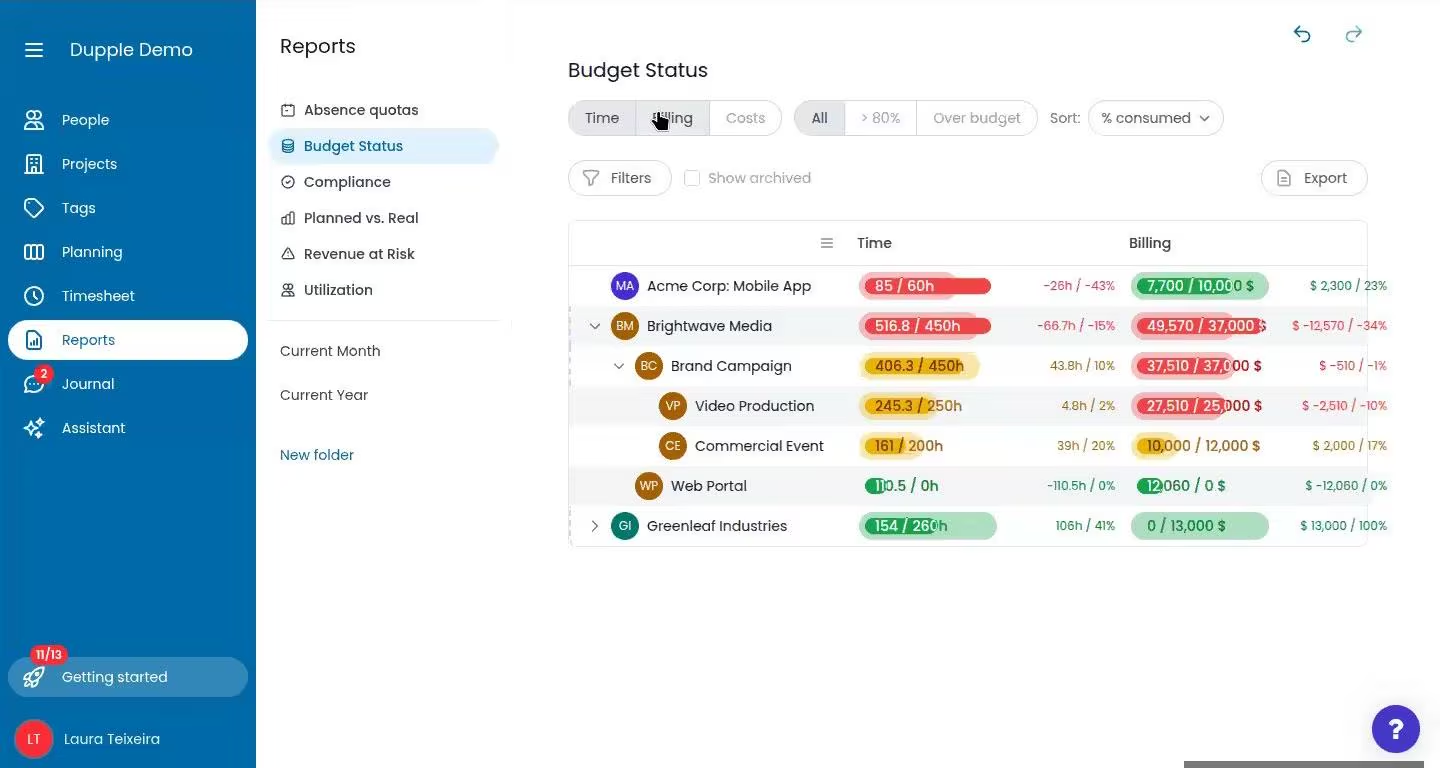
A small but welcome detail: almost everything in Beebole can be undone, which we saw in action when budget values were changed during the demo. Press Ctrl+Z (⌘+Z on Mac) or use the undo button. Bulk changes are undone in one step, deleting something shows an Undo button, and on a phone a Last action bar offers undo and redo.
Step 7: Reports for Project Profitability
Reports are where all of this pays off. Every report switches between a table and a chart, with 11 chart types to choose from. Reports are saved in folders, and each folder sets a rolling period (this month, last quarter, year to date, the last 12 months and so on), so the reports inside it stay up to date on their own. A single report can use a different period when needed.
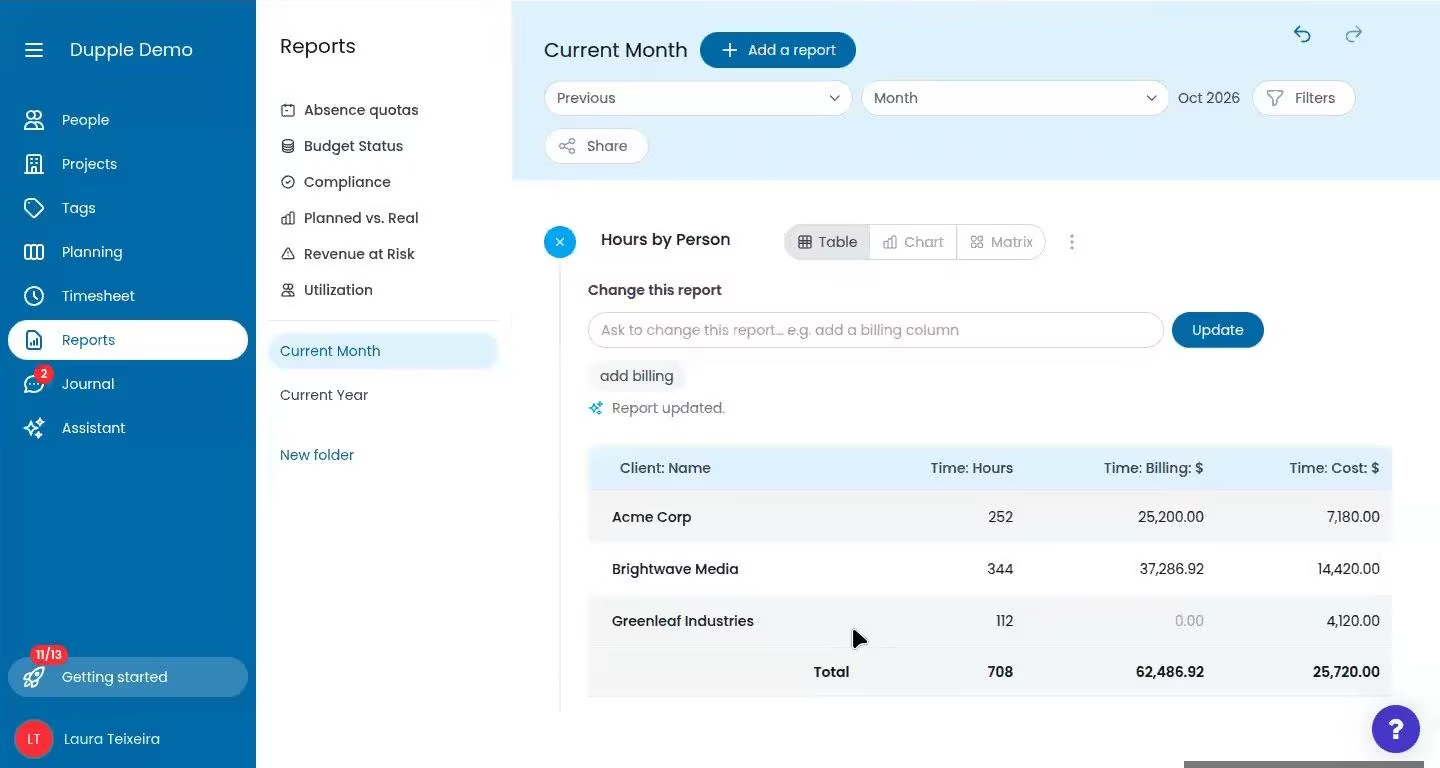
You can build and edit reports by hand, adding columns, grouping by person, project or client, and filtering by tags like department. Or you can type a request into Beebole AI, the built-in assistant. In the demo, typing "add billing" added the billing column instantly. The AI only sets up the report: the numbers come from Beebole's reporting engine, not from the AI model, and the model never sees time records. Adding cost and margin columns turned a basic hours report into a profitability view per client in a few clicks. If a project is missing a rate, you can fix it from inside the report without leaving the screen.
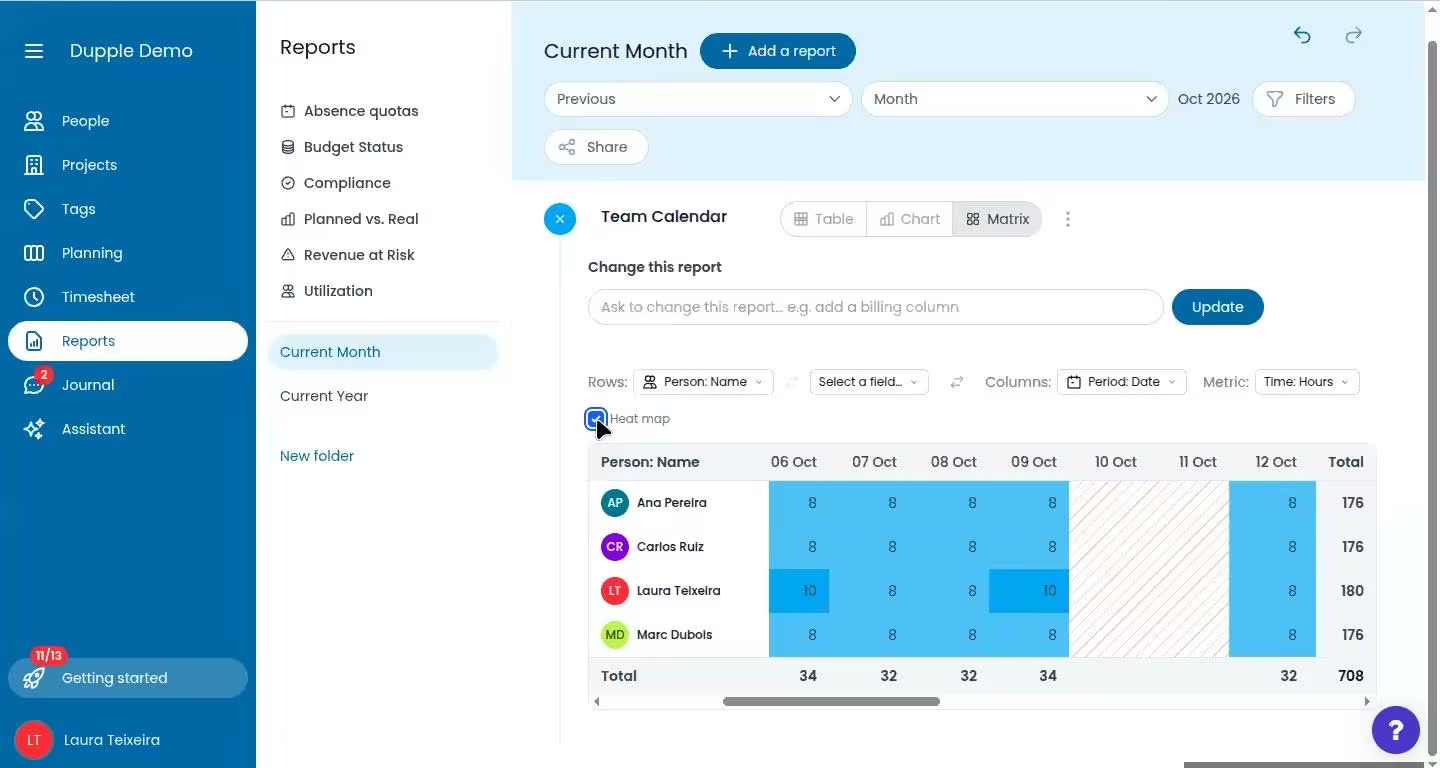
Matrix reports, a report type of their own, can be switched to a heat map that highlights where the numbers differ, such as which person is logging the most hours on a client. Reports export to many formats, and add-ins for Excel and Google Sheets pull Beebole data straight into a spreadsheet.
Sharing is well thought out. An admin can build a folder of reports and share it with specific people, roles or tags. Tags are how Beebole groups people, projects and tasks (by department, region, skill or cost center, for example, but they're completely customizable for your organization's set-up), and sharing with a tag reaches everyone under it, including sub-tags. What gets shared is the report's configuration, not its data: each person sees only what they are allowed to. A manager without access to rates still sees hours and people. Billing and cost figures are hidden from anyone who isn't allowed to see them.
In addition to custom reports, Beebole includes ready-made financial reports:
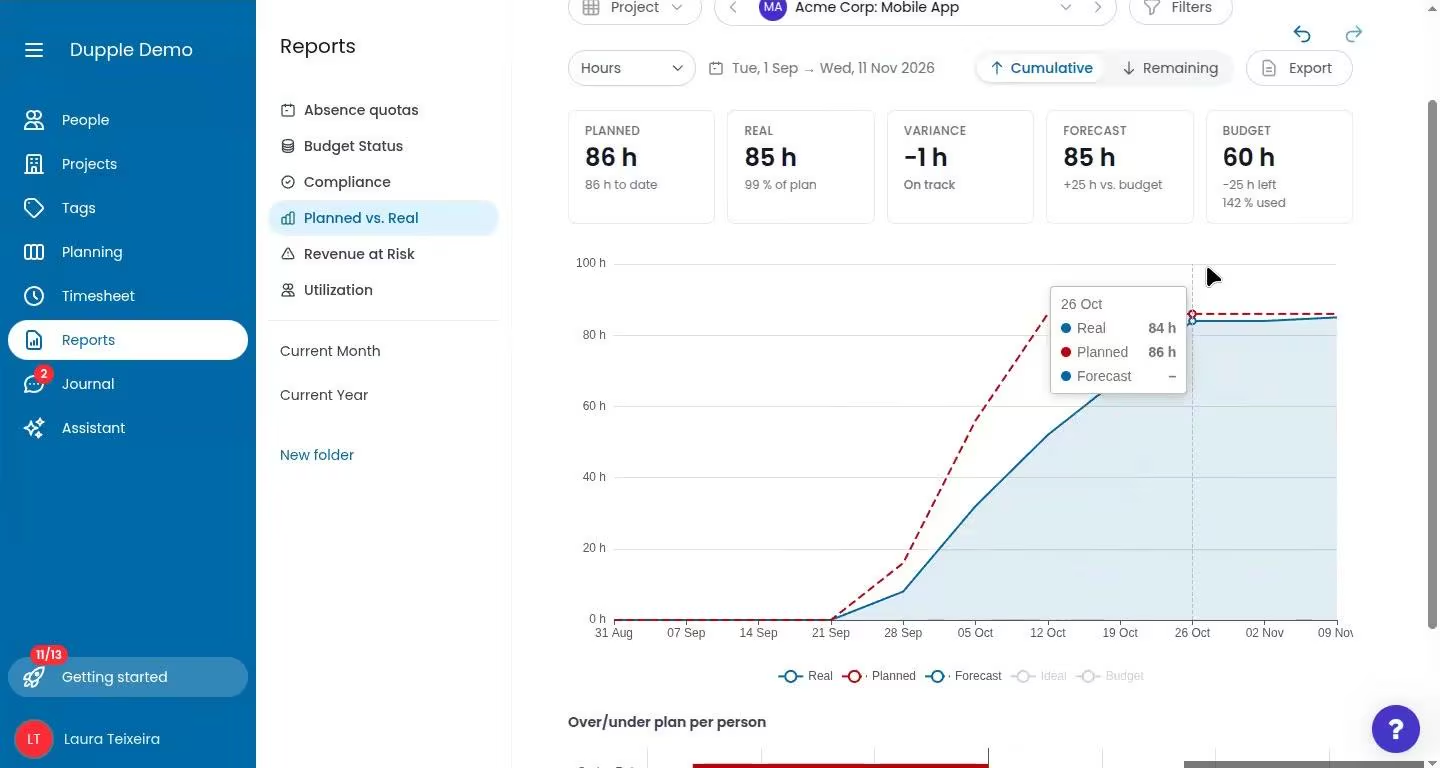
- Planned vs. Real charts planned hours against tracked hours, by project or by person, with variance, forecast and budget figures. It shows at a glance whether a project is behind, on track or ahead, and who is working more or less than planned.
- Budget Status, covered above.
- Revenue at Risk lists the projects at risk of not using their budgeted hours before their end date, with the total revenue at risk.
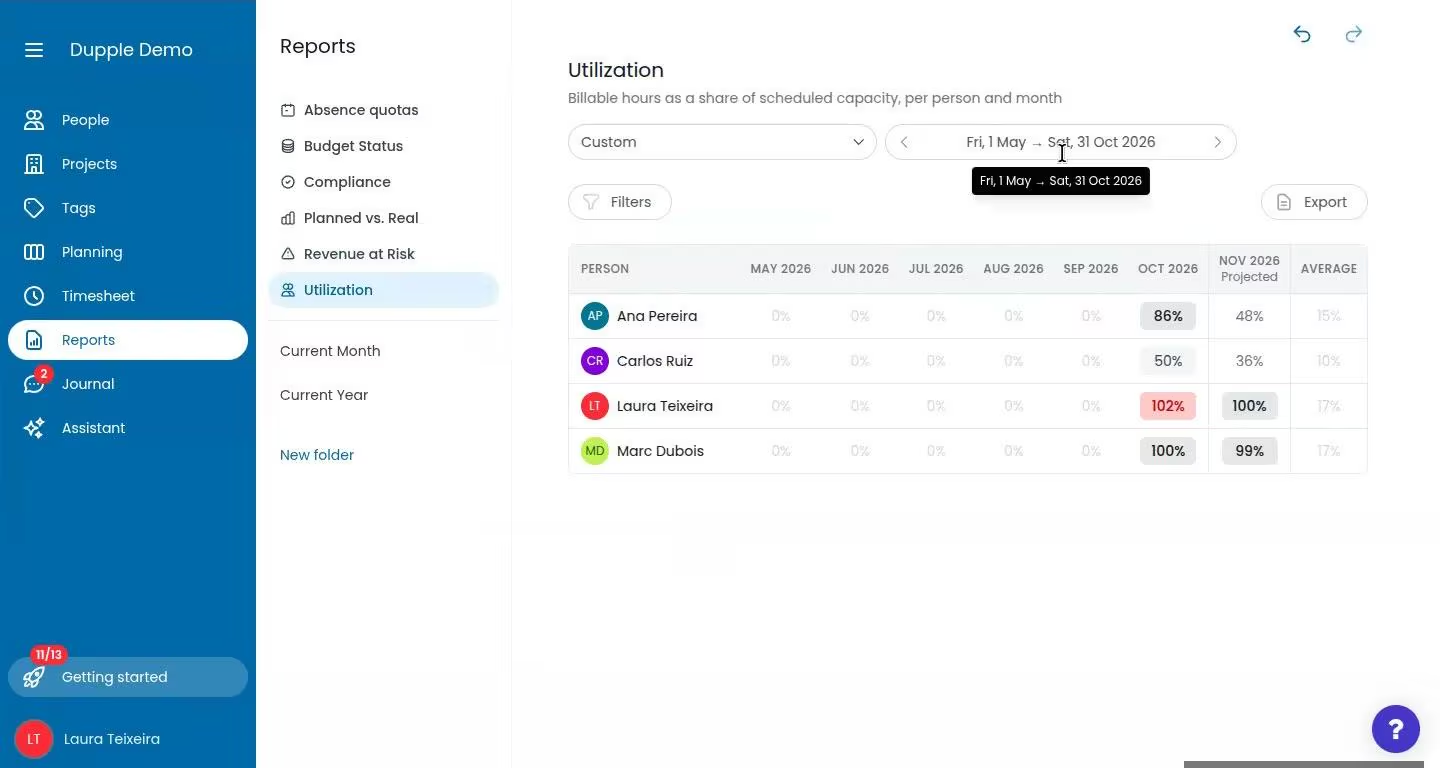
- Billable Utilization shows each person's billable hours as a share of their scheduled capacity, month by month, with recorded time off taken out, plus a projection for the coming month.
Beebole AI and Privacy
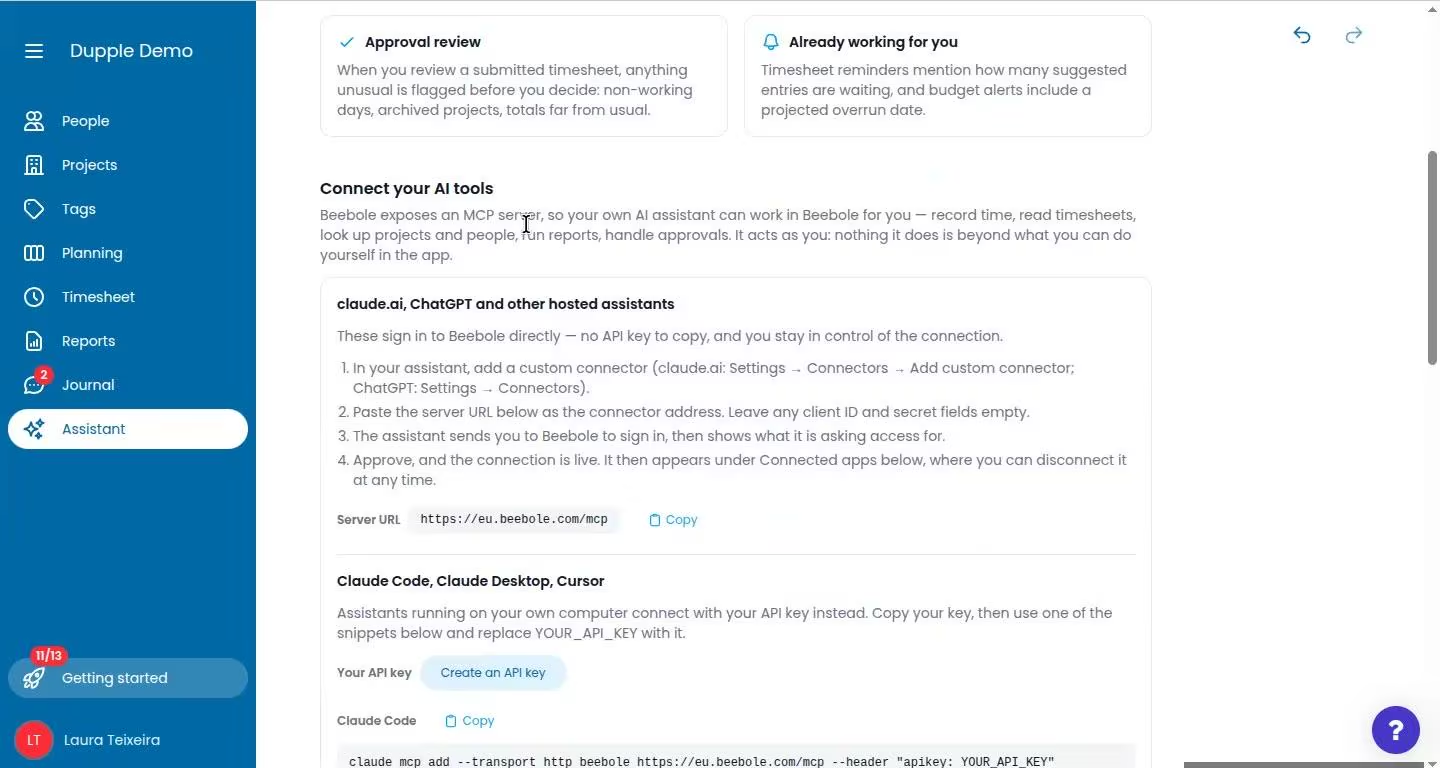
The app has its own Beebole AI section. Besides creating reports from plain-language requests, it gives you the setup instructions for Beebole's MCP server, so Claude, ChatGPT and other assistants can work with your Beebole data. According to Beebole, each connection uses that person's own permissions, so an assistant can't see more than the person using it. Beebole also says its built-in AI runs on its own servers and nothing is sent to third-party AI providers unless you connect them yourself, a meaningful point for firms handling client data.
Compliance and Security
Beebole covers the controls that larger and regulated organizations usually ask about:
- An audit trail built for DCAA compliance on the Essential and Advanced plans, plus a DCAA setting that turns on the matching rules in one click: only the owner or an admin can edit entries, and only time off can be logged in the future.
- Lock dates and entry rules on every plan, including Free.
- A GDPR data processing agreement and a public list of sub-processors.
- Hosting on Google Cloud, in the EU (Frankfurt) for European organizations and in the US for US organizations.
- Encryption at rest (AES-256) and in transit (TLS), daily encrypted backups and a 99.9% uptime SLA.
Configuration and Integrations
Account settings cover the rest: work schedules, custom fields, expense types, the interface language, and your API key, plus custom roles on the Advanced plan (or with the matching add-on). For international teams, there are 10 interface languages, multiple currencies (Essential and up), and time zone, date and number formats per person.
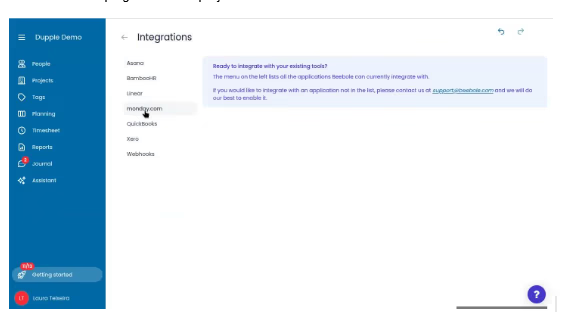
In the demo account, the integrations screen listed Asana, BambooHR, Linear, monday.com, QuickBooks, Xero and webhooks, on top of the Google and Microsoft calendar connections and the Excel and Google Sheets add-ins. The Xero integration creates an invoice from a client's time and expenses, and QuickBooks receives exported time with billing rates. A free API covers anything else. A built-in Journal works like a lightweight message feed inside the app, handy for nudging someone to finish their timesheet or keeping notes on a project.
Pricing
Beebole has a free plan and two paid plans, according to its pricing page in November 2026:
- Free: $0 for up to 5 users. Includes project time tracking, resource planning, basic time off tracking, custom reports, integrations, Beebole AI features and API access.
- Essential: $9/user/month billed annually, or $10 monthly. Adds billing rates and revenue tracking, time off allowances and balances, multi-currency, multi-level approvals, custom SSO and audit trail.
- Advanced: $18/user/month billed annually, or $20 monthly. Adds costs and profitability, expenses, real-time project budgets, custom fields, custom roles and permissions, advanced tag configuration, custom integrations and a dedicated account manager.
Every paid plan starts with a 30-day free trial with all features and no credit card required, after which you can pick a plan or drop to Free. Essential users can add these features with add-ons instead, such as Costs, Expenses & Budgets at $4.50/user/month billed annually. Every plan, Free included, comes with live human support, and paid plans add 1:1 onboarding sessions.
The free plan is genuinely usable for a small team that only needs tracking and planning. Billing rates are already on Essential. If you want costs, budgets and profitability, plan on Advanced, or Essential with the Costs, Expenses & Budgets add-on.
Start your 30-day free trial Get started →Pros and Cons
What works well:
- Planning, timesheets, approvals, time off and financials share one data set, so planned and actual hours line up without a spreadsheet.
- Suggested entries from the plan and the calendar make tracking time mostly a matter of confirming.
- Ready-made financial reports like Planned vs. Real, Budget Status and Revenue at Risk go well beyond typical time trackers.
- Shared reports respect each viewer's permissions, down to hiding rates.
- A real free plan for up to 5 users, a 30-day trial with no credit card, and live human support on every plan.
What to keep in mind:
- You can track time from day one, but the financial reports need rates and budgets set up first.
- Budgets, costs and profitability sit on the Advanced plan (or as add-ons to Essential), so the full financial picture costs more than the entry price.
- It is built for project and client time. Teams that only need hourly staff to clock in and out will find simpler tools.
Beebole vs. the Competition
Pricing from vendor sites, November 2026, USD list prices on annual billing.
| Tool | Starting price | Free plan | Best for |
|---|---|---|---|
| Beebole | $9/user/mo (Essential) | Up to 5 users, 30-day free trial | Organizations where several teams rely on the same time data |
| Toggl Track | $9/user/mo (Starter) | Up to 3 users | Freelancers and small agencies tracking billable hours |
| Harvest | $9/seat/mo (Teams) | 1 seat, 2 projects | Time tracking connected to invoicing |
| Float | $7/person/mo (Starter, no time tracking) | No, 30-day trial | Resource scheduling first, time tracking second |
Toggl Track is easy to pick up for individual billable tracking, but capacity planning and time off are paid add-ons. Harvest ties time to invoicing well but has no real resource planning. Float is strong at scheduling, with time tracking only on its Pro plan. Beebole's edge is having planning, approvals, budgets and financial reporting together. Among its customer stories, Olsys switched from Harvest, Cevotec replaced Excel spreadsheets and InData Labs replaced Jira for cost and billing tracking. For a wider look at the category, see our guide to the best time tracking software.
Who It's For (and Who It's Not)
A strong fit if several people in your organization rely on the same time data, whether or not the work is billed to clients: finance for costs and margins, operations for resource visibility, project managers for budgets and HR for time off. That includes agencies and consultancies, but also engineering firms, IT teams and internal departments that charge time back. It also suits larger organizations that need multi-stage approvals, custom roles, audit trails and control over where their data goes.
Look elsewhere if you mainly need hourly employees to clock in and out for payroll, or you are a solo freelancer who just wants a timer. Beebole can do both, but you would be paying for depth you won't use.
Frequently Asked Questions
Is Beebole free?
Yes, for up to 5 users. The free plan includes time tracking, resource planning, basic time off tracking, custom reports and integrations. Billing rates, budgets and multi-level approvals need a paid plan.
Can Beebole fill in timesheets automatically?
Mostly. Planned hours and calendar events appear as suggested entries that people accept or adjust, and Beebole says its AI also suggests entries based on each person's habits. Nothing is logged until the employee accepts it.
Does Beebole send my data to AI providers?
Beebole says its built-in AI runs on its own servers and nothing is sent to third-party AI providers unless you connect them yourself. If you connect an assistant like Claude or ChatGPT through its MCP server, the assistant sees only what your own permissions allow.
Does Beebole integrate with accounting and project tools?
Yes. Integrations include QuickBooks and Xero for accounting, Asana, Linear and monday.com for projects, BambooHR for HR, plus Google and Microsoft calendars, Excel and Google Sheets add-ins, webhooks and a free API.
How long does it take to set up Beebole?
You can start tracking time on day one. A new account comes with a ready-made structure (client, internal and activity categories, a department tag, four roles, PTO and sickness, and sample reports), a Getting started checklist walks you through the rest, and people and projects can be pasted from a spreadsheet. Rates, budgets and approvals can be added when you need them, with live human support on every plan and 1:1 onboarding sessions on paid plans.
Bottom Line
Beebole is one of the most complete options for organizations that need to know where their time and money go across projects. The plan feeds the timesheets, the timesheets feed approvals, and everything feeds reports that show whether projects are on plan and on budget while there is still time to act. You can start tracking time on day one and add rates, budgets and approvals as you need them. For agencies, engineering firms, IT teams and internal departments tired of reconciling three tools every month, it's worth a close look. The free plan and 30-day trial make it easy to test with real projects first.
Try Beebole free for 30 days Get started →