Best Free PDF Editor for Mac (2026): 8 Tools Compared
Key facts8 tools compared: PDFgear, Apple Preview, Sejda, Skim, LibreOffice Draw, Smallpdf, UPDF, PDF24
- 8 tools compared: PDFgear, Apple Preview, Sejda, Skim, LibreOffice Draw, Smallpdf, UPDF, PDF24
- PDFgear (best for: Full editing without paying): Free
- Apple Preview (best for: Annotating and signing): Free (built in)
- Sejda (best for: Occasional edits, no install): Free (3 tasks/hour)
- Skim (best for: Researchers and academics): Free, open source
Adobe Acrobat Pro runs about $20 a month, and most of us only open a PDF to fix a typo, sign a contract, or merge two files before sending them off. Paying for a full subscription to do that feels absurd. The good news for Mac users: you don't have to.
The catch is that "free PDF editor" covers a wide range. Some apps only let you scribble on top of a PDF without touching the underlying text. Others let you rewrite paragraphs, run OCR on a scan, and export to Word, all without a paywall or a watermark stamped across your document. I downloaded and used the main contenders on macOS to see which ones actually do what they promise.
If you want the short version: PDFgear is the best truly free desktop editor for most people because it edits real text, runs OCR, and never asks for money. If you only annotate and sign, the Preview app already on your Mac is all you need. Below is how the rest stack up, who each one is for, and where each falls apart.
Quick comparison
| Tool | Best for | Price | Standout |
|---|---|---|---|
| PDFgear | Full editing without paying | Free | Edits real text + OCR + AI assistant |
| Apple Preview | Annotating and signing | Free (built in) | Already on your Mac |
| Sejda | Occasional edits, no install | Free (3 tasks/hour) | Edits original text in the browser |
| Skim | Researchers and academics | Free, open source | Note-taking on papers |
| LibreOffice Draw | Reflowing layout and text | Free, open source | Treats a PDF like an editable doc |
| Smallpdf | Quick conversions | Free (2 tasks/day) | Clean web tools |
| UPDF | A near-Acrobat experience | Free trial, $49.99/yr | AI features, polished UI |
| PDF24 | Batch utilities | Free | Dozens of small tools |

PDFgear (best free desktop editor)
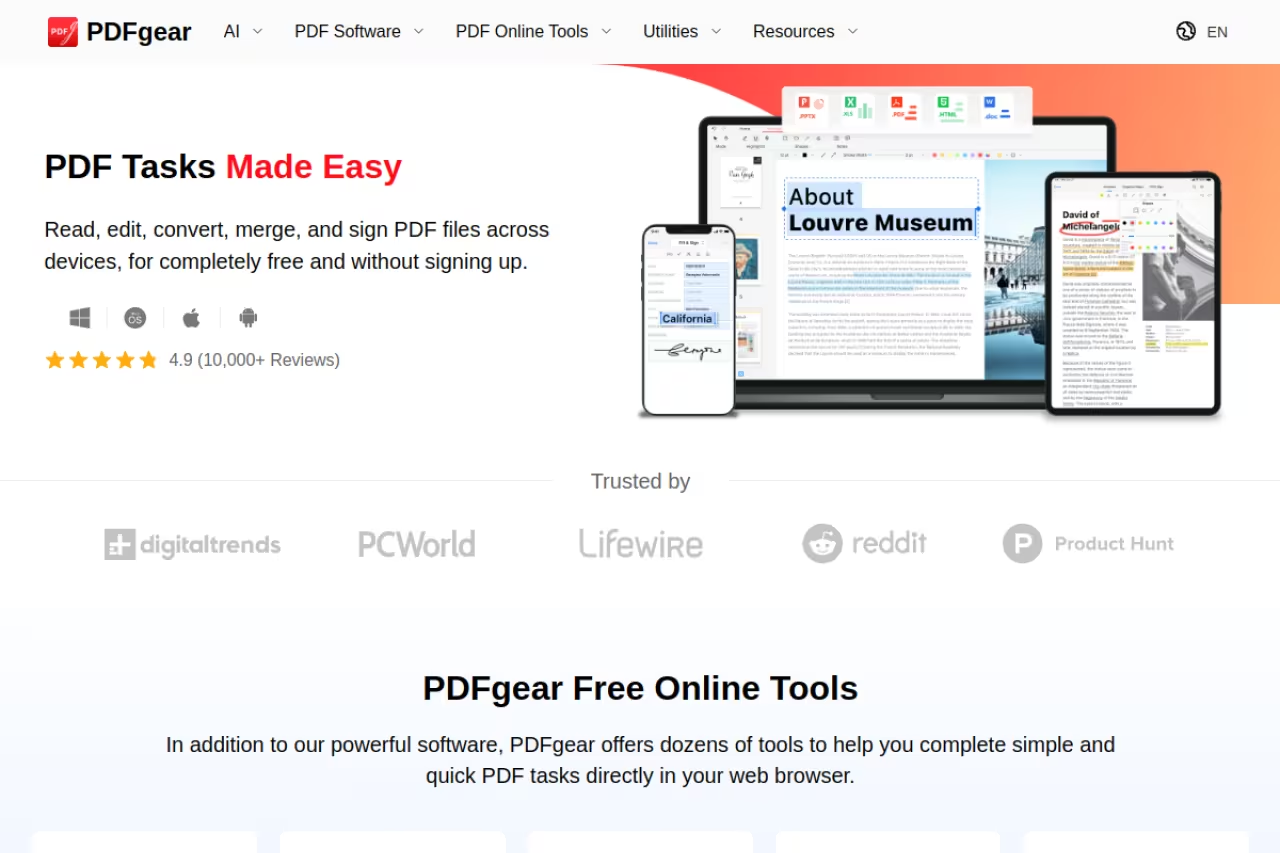
PDFgear is the closest thing to a free Acrobat I found. It's a native Mac app that edits the actual text inside a PDF, inserts images and shapes, fills and creates form fields, and runs OCR in over 30 languages to turn a scan into editable text or a Word file.
Who it's for: anyone who needs to do more than annotate and doesn't want to pay or hit a daily limit. I rewrote a paragraph in a contract, merged three files, and exported to .docx without seeing a single upsell.
Pick PDFgear if you need more than annotation and don't want to pay or hit a daily limit: it edits real text, runs OCR and is entirely free. The trade-offs are doubts about long-term support, a cloud AI assistant, and messy reflow on complex layouts.
Pricing is the headline. According to its G2 profile, PDFgear is "entirely free to use" with no watermarks and no account required, and it holds a 4.8 out of 5 rating there. It also ships a GPT-powered "Copilot" that summarizes documents and answers questions about them, which is genuinely useful for long reports.
The catch: a fully free tool with no clear business model always makes me a little nervous about long-term support, and the AI assistant runs in the cloud, so don't feed it anything confidential. Text reflow on complex, multi-column layouts can also get messy, which is true of every editor in this list.
Apple Preview (best for annotation and signing)
Preview is already sitting in your Applications folder. For markup it's excellent: highlight, underline, add text boxes, draw shapes, insert a signature you've saved (or sign with your trackpad), reorder and delete pages, and fill out forms. For 90% of everyday PDF tasks, this is the answer, and you don't install anything.
Who it's for: people who sign documents, mark up drafts, or rearrange pages and never need to touch the original text.
The catch is the big one. As Apple's own support docs state, you "can't edit the text of a PDF in Preview." You can lay annotations on top, but you can't fix a typo in the existing copy. Preview also won't run OCR on a scanned document, so an image-only PDF stays uneditable. The moment you need to change actual words, you've outgrown it.
Already on your Mac and excellent for signing documents, marking up drafts and rearranging pages. It cannot edit existing text or run OCR on scans, so the moment you need to change actual words you have outgrown it.
Sejda (best browser editor, no install)
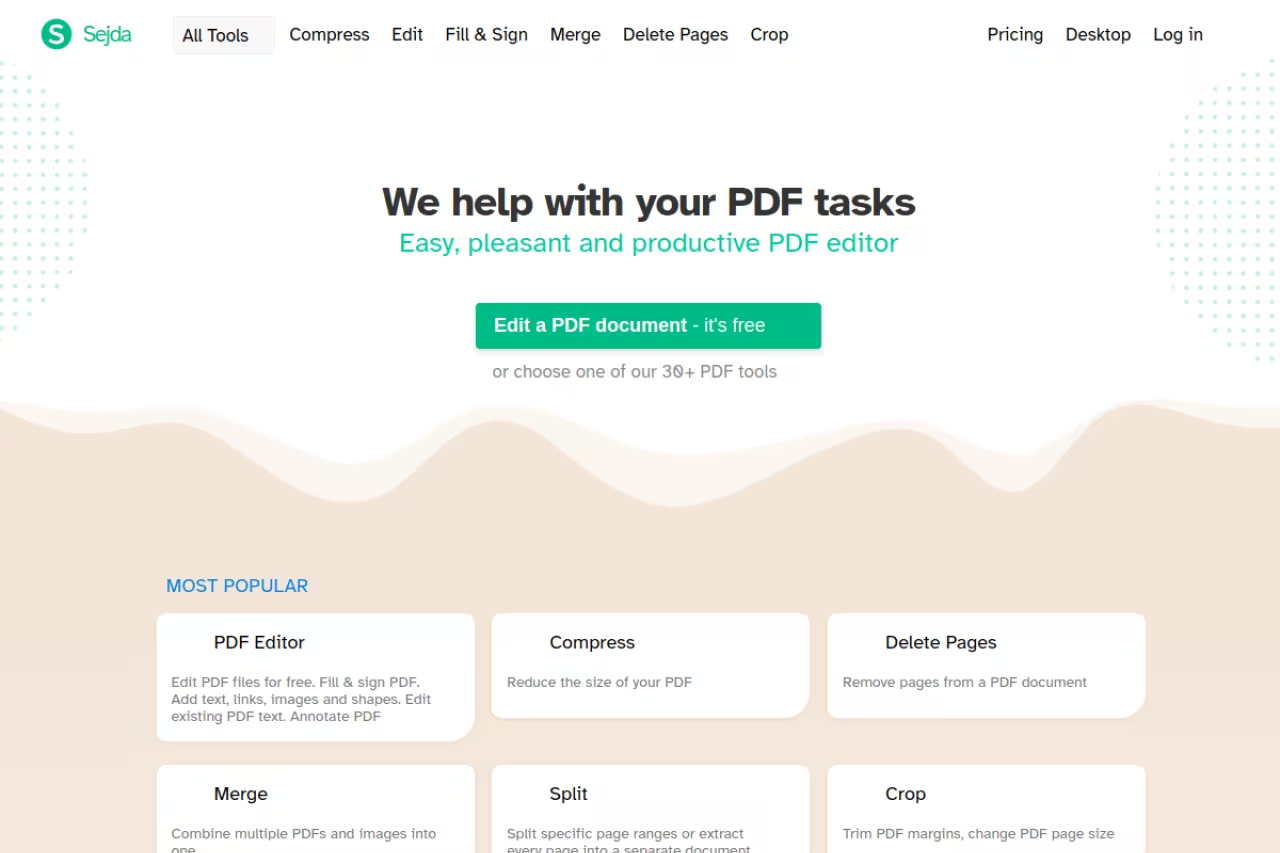
Sejda is the rare web tool that edits the original text in a PDF, not just overlays. Open it in Safari or Chrome, click into a line, and retype. It also handles merging, splitting, compressing, signing, and form filling. There's a desktop app too, but the browser version is what makes it convenient.
Who it's for: someone who edits PDFs occasionally and would rather not install software. It works straight from the browser, no install, so a quick contract amendment takes minutes.
The browser editor for occasional users who want to edit original text with no install. The free tier caps you at 3 tasks per hour, and uploading files is a privacy trade-off, so use a desktop app for anything sensitive.
Pricing is where you need to read the fine print. The free tier caps you at 3 tasks per hour on the web (3 per day on desktop), with files limited to 50MB or 200 pages. That's fine for one-off jobs and frustrating for a busy day.
The catch: uploading documents to a web server is a privacy trade-off. Sejda says it deletes files after a few hours, but for anything sensitive I'd reach for a desktop app like PDFgear or Preview instead.
Skim (best for researchers)
Skim is a free, open-source PDF reader and note-taker built specifically for macOS, and it's beloved by academics. It excels at reading and annotating papers: highlight, add notes, draw boxes, take "snapshots" of a region, and view every annotation in a side panel you can export as text. It plays nicely with LaTeX, SyncTeX, and BibDesk.
Who it's for: grad students and researchers who live in PDFs of journal articles and want fast, structured note-taking.
The catch: Skim is a reader and annotator, not an editor. It stores notes separately and never changes the source file, which is great for preserving originals but means you can't edit the document's actual text or content. If your job is reading and marking up papers, it's perfect. If you need to alter the PDF itself, look elsewhere.
The researcher's tool: a free, open-source reader and note-taker for grad students who live in journal PDFs, with a side panel of exportable annotations. It is an annotator, not an editor, so look elsewhere to alter the document.
LibreOffice Draw (best for reflowing text and layout)
LibreOffice is the free, open-source office suite, and its Draw module opens a PDF as an editable document. Because it treats text as objects you can move, resize, and retype, it's better than most tools when you need to change wording and have the layout adjust. It's completely free with no limits and no watermark.
Who it's for: people who occasionally need to substantially rework a PDF's text and don't mind a learning curve.
The catch: fidelity. Multi-column layouts, tables, and graphics-heavy files often don't import cleanly, so you'll spend time fixing fonts and spacing. The interface also feels dated next to PDFgear or UPDF. Treat it as a free workhorse for text-heavy edits, not a precision tool.
A free workhorse for people who occasionally need to rework a PDF's text and don't mind a learning curve. Fidelity is the catch, since multi-column layouts and tables often import badly and the interface feels dated.
If you spend a lot of time wrangling documents like this, it's worth auditing your whole stack. We keep a running list of the top AI tools we'd actually pay for, and Dupple X bundles the premium ones into a single membership if you'd rather not subscribe to each separately.

Smallpdf (best for quick conversions)
Smallpdf is a clean set of web-based PDF tools: convert to and from Word, compress, merge, split, and a basic editor for adding text and shapes. The interface is the friendliest on this list, and you can chain a few tools together quickly.
Who it's for: someone who needs a fast one-off conversion or compression and wants zero friction.
A good choice for a fast one-off conversion or compression with zero friction, and the friendliest interface on the list. The free plan allows roughly 2 tasks per day, paid starts around $9 a month, and its text editing is lighter than Sejda's.
Pricing has tightened. The free plan now limits you to roughly 2 tasks per day across all tools, so a compress plus a merge can use up your daily quota. Paid plans start around $9 a month.
The catch: the free tier is too thin for regular use, and like any web tool it requires uploading your files. Smallpdf's text editing is also lighter than Sejda's: it leans toward adding text rather than rewriting what's there.
UPDF (best paid app with a free trial)
UPDF is the most polished editor on this list, with a modern interface that rivals Acrobat. It edits text and images, runs OCR, converts, organizes pages, and adds AI features that summarize and translate documents. The free version lets you test everything, but it applies limits and watermarks until you pay.
Who it's for: people who want a near-Acrobat experience and are willing to spend a little. At $49.99 a year (a flat rate, not monthly) it undercuts Adobe substantially.
The catch: it's not actually free. The free version is a trial, so for a permanently free editor PDFgear is the better pick. But if you edit PDFs daily and want something that feels premium, UPDF is the best value among the paid options.
The most polished editor here, for people who want a near-Acrobat experience and will spend a little. At $49.99 a year it undercuts Adobe, but the free version is a trial with limits and watermarks, so PDFgear wins if you want free.
PDF24 (best for batch utilities)
PDF24 is a free German-made toolkit with dozens of small utilities: merge, split, compress, convert, OCR, rotate, watermark, and more. There's a web version and a Windows desktop app; on Mac you'll mostly use the browser tools. Everything is free with no task limits, which is unusual.
Who it's for: people who need to batch-process files, like compressing 20 PDFs or running OCR across a stack of scans.
The catch: it's a utility belt, not a true editor. The text-editing experience is weak compared to PDFgear or Sejda, and the desktop app skips macOS. Use it for the mechanical jobs and edit elsewhere.
Pick PDF24 for mechanical batch jobs like compressing 20 PDFs or running OCR across a stack of scans, all free with no task limits. It is a utility belt, not a true editor, and the desktop app skips macOS.
How to choose
Match the tool to the job instead of hunting for one app that does everything.
- You only annotate, sign, or reorder pages: stop reading and use Preview. It's already installed and it's better at markup than people expect.
- You need to edit the actual text, free, on the desktop: PDFgear. It's the only fully free native Mac app here that edits real text and runs OCR.
- You edit rarely and don't want to install anything: Sejda in the browser, as long as the file isn't sensitive and you stay under 3 tasks an hour.
- You read and mark up research papers: Skim, every time.
- You want premium polish and AI and will pay: UPDF at $50 a year beats Adobe on price.
One privacy rule cuts through all of it: for anything confidential, keep it on a desktop app (Preview, PDFgear, Skim) rather than uploading to a web tool. The convenience of browser editors isn't worth it for a signed contract or anything with personal data.
If you live inside documents all day, automating the boring parts pays off fast. A membership like Dupple X gives you the premium AI tools that summarize, draft, and extract from PDFs without juggling eight separate subscriptions.
FAQ
What is the best free PDF editor for Mac?
For full editing without paying, PDFgear is the best free PDF editor for Mac. It's a native app that edits real text, runs OCR in 30+ languages, and never adds watermarks or asks for an account. If you only need to annotate and sign, the built-in Preview app is all most people need.
Can I edit PDF text on a Mac for free?
Yes. PDFgear, Sejda (in the browser), and LibreOffice Draw all let you edit the original text in a PDF for free. Note that Apple's Preview cannot edit existing text, only add annotations on top, which is a common surprise for new Mac users.
Does Mac have a built-in PDF editor?
Yes. Every Mac includes Preview, which opens, annotates, signs, fills forms, and rearranges pages in PDFs at no cost. Its main limit is that it cannot edit the existing text inside a PDF or run OCR on scanned documents.
How do I edit a PDF for free without a watermark?
Use a tool with no watermark on its free tier. PDFgear, LibreOffice Draw, and Apple Preview never stamp watermarks on your file. Be careful with free trials of paid apps like UPDF, which can add watermarks until you upgrade.
Is PDFgear actually free, or is there a catch?
PDFgear is genuinely free with no watermarks, no account, and no task limits, and it earns strong user ratings. The trade-offs are that it has no obvious paid business model and its AI Copilot processes documents in the cloud, so avoid sending it anything confidential.
What's the best free PDF editor for students?
For reading and annotating papers, Skim is the favorite among researchers and students because of its fast note-taking and exportable annotation list. If you also need to edit document text or fill forms, pair it with PDFgear or Preview.
Related guides
Some offers on this page may be paid placements or contain affiliate links.