The 8 Best Free Photo Editors in 2026
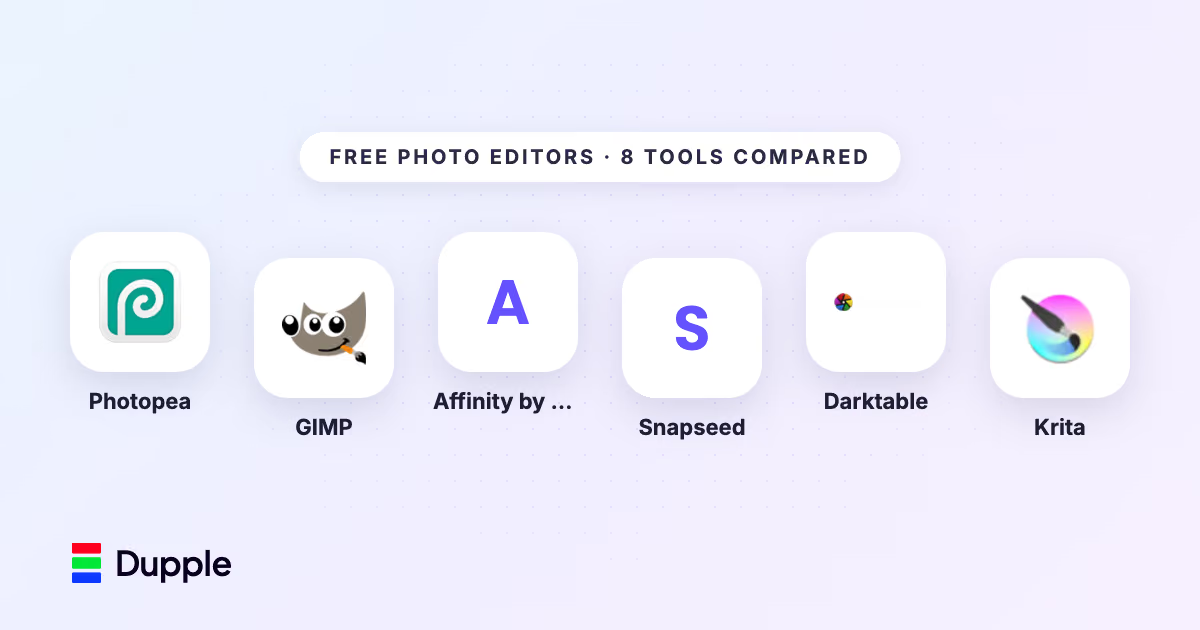

Key facts8 tools compared: Photopea, GIMP, Affinity by Canva, Snapseed, Darktable, Krita, Pixlr, Canva
- 8 tools compared: Photopea, GIMP, Affinity by Canva, Snapseed, Darktable, Krita, Pixlr, Canva
- Photopea (best for: Photoshop refugees who want zero install): Free with ads, $5/mo to remove
- GIMP (best for: Power users who want a real desktop app): Free, open source
- Affinity by Canva (best for: Pros who want a paid-grade app for $0): Free with Canva account
- Snapseed (best for: Mobile editing on the go): Free, no ads, no IAP
The case for paying Adobe $23 a month to crop a few photos has never been weaker. In 2026, the free tier of photo editing got genuinely good. The biggest shift: Canva bought Affinity and made the whole professional suite free, which means a tool that cost $169 last year now costs nothing.
So the question is no longer "is there a free Photoshop alternative." There are eight strong ones, and they split cleanly by job. Some replace Photoshop's layers and retouching. Some replace Lightroom's RAW workflow. Some live in your browser so you never install anything. Picking wrong means fighting the tool instead of editing.
If you want one answer for skimmers: Photopea is the editor most people should open first. It runs in a browser tab, opens PSD files, and feels close enough to Photoshop that the muscle memory carries over. This guide is for founders, marketers, and operators who need to fix product shots, build social graphics, or process a shoot without a creative-cloud bill. I compared each one on documentation, feature lists, and how well they handle the common jobs: RAW editing, product photo retouching, and social banner creation.
Quick comparison
| Tool | Best for | Price | Standout |
|---|---|---|---|
| Photopea | Photoshop refugees who want zero install | Free with ads, $5/mo to remove | Opens and saves PSD in the browser |
| GIMP | Power users who want a real desktop app | Free, open source | 3.x rebuild fixed the old clunky UI |
| Affinity by Canva | Pros who want a paid-grade app for $0 | Free with Canva account | Frequency separation, HDR merge, RAW |
| Snapseed | Mobile editing on the go | Free, no ads, no IAP | 29 tools and selective masking on phone |
| Darktable | Photographers shooting RAW | Free, open source | Full Lightroom-style library and pipeline |
| Krita | Illustrators and digital painters | Free, open source | Best brush engine in any free tool |
| Pixlr | Fast browser edits with AI | Free tier, $1.99/mo Plus | One-click background remove, free heal |
| Canva | Non-designers making social content | Free, $15/mo Pro | Templates plus light AI photo tools |
How these rate, aggregated across platforms
Scores below are aggregated by Toolradar across G2, Capterra and SourceForge rather than quoted from one site.
| Editor | Aggregated rating | Reviews |
|---|---|---|
| Photopea | 4.6 | 130 |
| GIMP | 4.4 | 4,971 |
| Pixlr | 4.4 | 861 |
| Krita | 4.4 | 143 |
GIMP's 4.4 across 4,971 reviews is the only large sample here, and it is a striking number for a piece of software with a reputation for being hard to use. What it tells you is that the people who commit to it stay satisfied, which is different from it being easy to start with.
Photopea's 4.6 comes from only 130 reviews, and Krita's 4.4 from 143. Both are free tools distributed outside any commercial purchase, so their absence from the directories reflects how they reach users rather than how good they are. Affinity, Snapseed and Darktable have no aggregated ratings in our data at all for the same reason.
The practical read: ratings confirm GIMP is a serious tool worth the learning curve, and say almost nothing about the rest. Judge those on what you can test in ten minutes, which in this category is everything that matters.

Photopea: the closest thing to free Photoshop
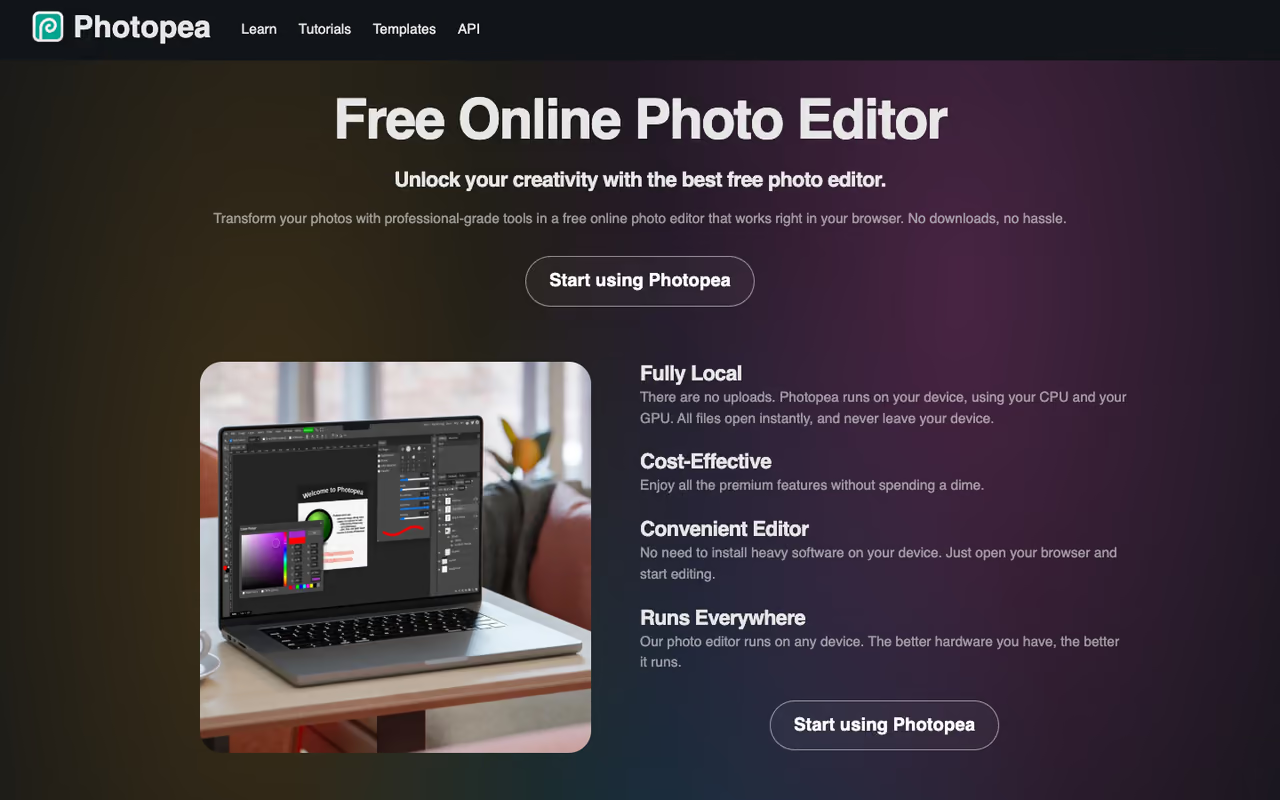
Photopea is a full image editor that runs entirely in your browser. No download, no account required. Open the tab and you get a layers panel, a toolbar, and a menu structure that mirror Photoshop closely enough that anyone coming from Adobe starts working in about a minute.
Pick Photopea if you already know Photoshop and want out of the subscription: it opens PSD, Sketch, XD and XCF files in a browser tab with no install. The trade-off is a single-page web app that strains on heavy files and has no catalog.
It opens and saves PSD files, plus Sketch, XD, and GIMP's XCF, which makes it the natural pick when clients hand you layered Adobe files.
Pricing is free, supported by a banner ad on the right side. Premium runs $5 a month or $50 a year, which kills the ads, adds more cloud storage, and unlocks generative fill, per Photopea's pricing. Your files never upload to a server, so privacy is not a concern even on the free tier.
The standout is that it does layer-based editing, masks, smart objects, and RAW in a browser tab with no install. I edited the product shot with adjustment layers and a layer mask and it behaved exactly like the desktop tool.
The catch: it is a single-page web app, so a heavy file with 40 layers will lean on your machine and the occasional ad placement is mildly annoying. It also has no library or catalog, so it is an editor, not a photo manager.

GIMP: the open-source workhorse that finally feels modern
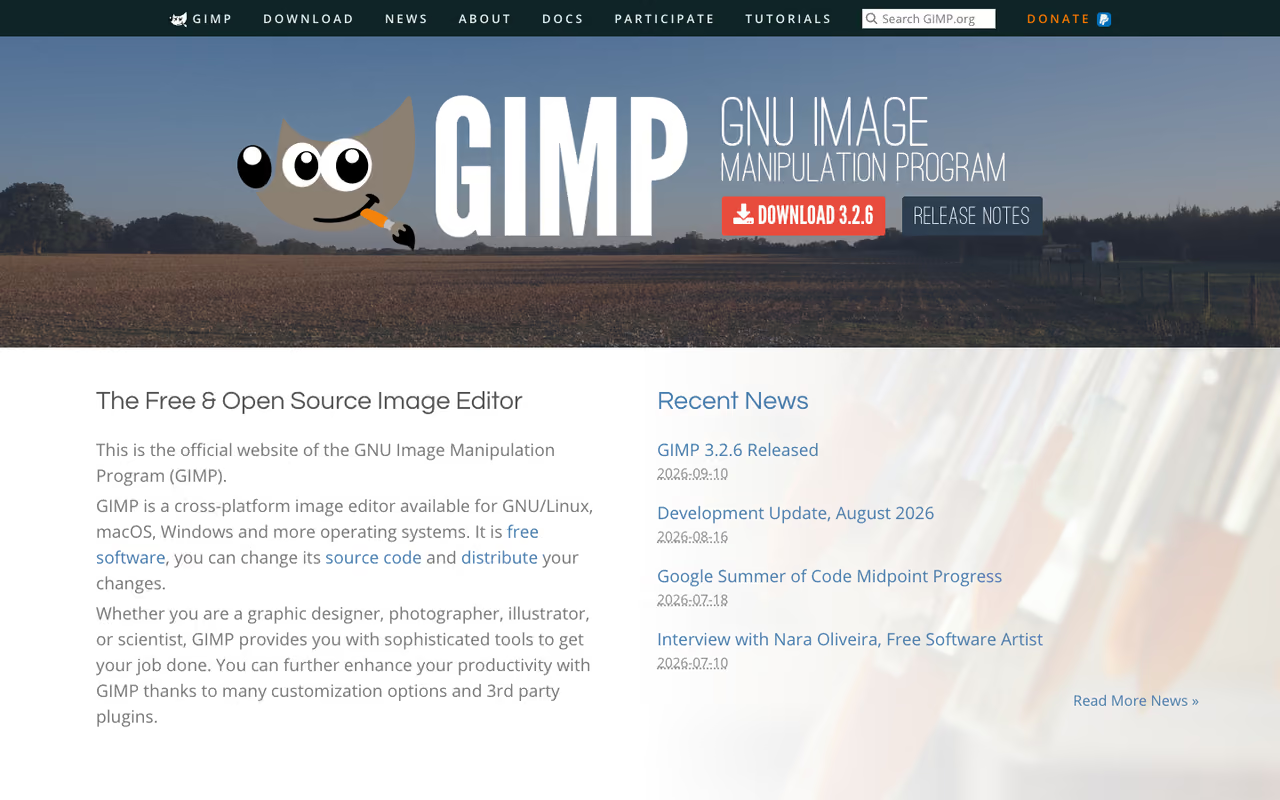
GIMP is the longest-running free Photoshop alternative, and for years the knock against it was a cluttered, dated interface. The 3.x rebuild fixed most of that. The current release (3.2.4 at the time of writing) brings non-destructive editing, better high-DPI scaling on Mac, and a cleaner default layout.
The free desktop editor for power users and Linux fans who want an app they own outright, and the 3.x rebuild made it far less dated. Expect a steep learning curve, since Adobe tutorials do not map cleanly and you should budget an afternoon.
It is genuinely cross-platform across Windows, macOS, and Linux.
Pricing is the easiest part: free, open source under the GPLv3 license, no tiers, no account, no upsell. You can read and modify the source if you care to.
The standout is extensibility. GIMP scripts in Python and Scheme, has a deep plugin ecosystem, and plays nicely with Inkscape and Scribus, so it slots into a fully open-source design pipeline. For repetitive batch work, a short script saves real time.
The catch: the learning curve is still steep, and some workflows that are one click in Photoshop take three steps here. The terminology differs too, so tutorials written for Adobe do not map cleanly. Budget an afternoon to get comfortable.
Affinity by Canva: pro-grade editing that just went free
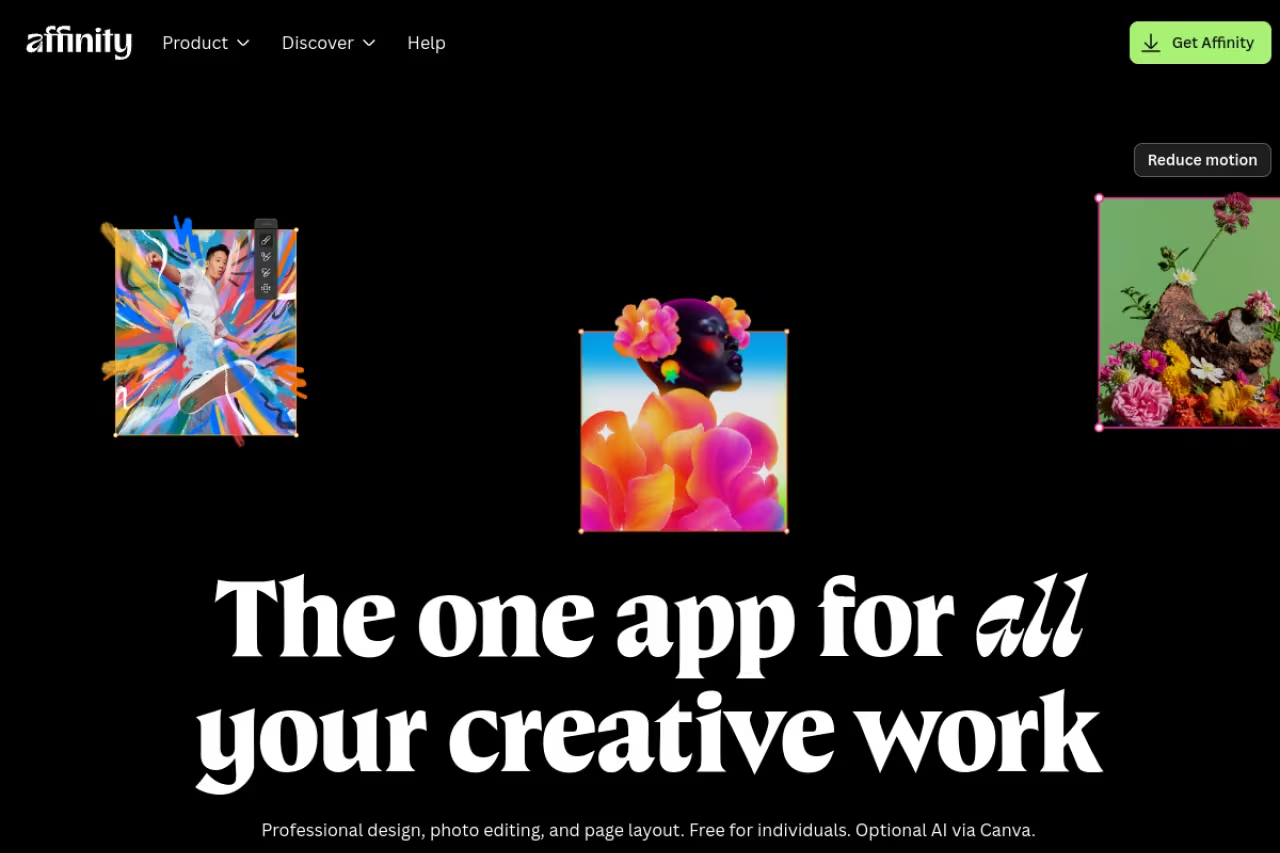
This is the biggest story in photo editing this year. Affinity was a one-time $169 purchase that competed directly with Photoshop. After Canva acquired Serif, the company released a unified Affinity app that combines photo, vector, and layout editing, and made the core professional toolset free. You only need a free Canva account to activate it.
Best for: photographers and designers who want a fast, native, paid-grade application without paying. The retouching tools are serious: frequency separation, liquify, non-destructive RAW, HDR merge, panorama stitching, focus stacking, and strong PSD compatibility.
Go with Affinity if you want a fast, paid-grade editor for photos and layouts at $0, with serious retouching and RAW tools. You must activate it online with a free Canva account, and the generative AI extras stay paywalled.
Pricing is $0 for the core app. Canva layers optional AI features on top (generative fill, AI background removal, expand) that require a Canva premium plan, but you can ignore those entirely and still get a complete editor.
The standout is performance. Affinity was always faster than Photoshop on large files, and that engineering did not change when the price dropped to nothing.
The catch: you need to be online to download and activate the license against your Canva account, which rubs some people the wrong way for a "free" desktop app. And the AI extras are paywalled, so the free version is the classic toolset, not the buzzy generative stuff.
If your team is leaning on AI image work alongside traditional editing, it is worth understanding how the paid generative features compare. We break that down in our guide to the best AI image generators, and a tool like Dupple X helps you keep track of which AI tools are worth the spend.
Snapseed: the best free mobile editor, still
Snapseed is Google's mobile photo editor, and it remains the only fully free, ad-free, no-in-app-purchase pro editor from a major company. The May 2026 4.0 update modernized the interface and added batch editing, an in-app camera, and one-touch masking.
The strongest free editor for quick selective fixes on your phone, ad-free with no purchases and a 29-tool kit. It is mobile only, so heavy compositing still needs a real computer.
The selective tool lets you tap a spot and drag to change brightness, contrast, or warmth in just that area, which is better than most paid mobile apps.
Pricing is free with nothing attached. No ads, no subscription, no upsell screen ever. For a Google product in 2026, that is rare.
The standout is the 29-tool kit including RAW support, a healing brush, and the selective masking, all running smoothly on mid-range phones. I fixed a crooked horizon and dodged a shadow on the product shot in under two minutes.
The catch: it is mobile only, so there is no desktop version, and the editing history, while non-destructive, is fiddly to manage on a small screen. For heavy compositing you will still want a real computer.

Darktable: free Lightroom for RAW shooters
If your problem is processing a full shoot of RAW files, not retouching a single image, Darktable is the answer. It handles the whole photographer workflow: import, library browsing, culling, editing, and export, in one app, just like Lightroom.
A Lightroom-style, catalog-based RAW workflow for photographers who want to skip Adobe's subscription, free under GPLv3 with more than 60 processing modules. The learning curve is steeper than Lightroom, so it is overkill for a few photos a month.
It runs on Windows, Mac, and Linux.
Pricing is free forever under GPLv3, funded only by donations. There is no paid tier to upsell you into.
The standout is the editing pipeline: more than 60 processing modules and a 32-bit floating-point engine give you control that rivals or beats Lightroom on color and tone. Working photographers ship paid client work on it, so this is not an amateur compromise.
The catch: the learning curve is steeper than Lightroom, and the mental model is different enough that Adobe muscle memory works against you at first. The interface is dense. If you only edit a few photos a month, it is overkill.

Krita: the painter's editor
Krita was built for digital artists rather than photographers, but that focus makes it the best free choice for anyone who draws, paints, or does heavy illustration alongside photo work.
Choose Krita if you draw or paint on a tablet: full pressure sensitivity, deep layers and a brush engine that beats other free tools. It is a painting app first, so skip it for RAW processing or batch-fixing a wedding shoot.
It has full pressure sensitivity, a deep layer system, and even basic frame-by-frame animation tools.
Pricing is free and open source. You can optionally pay on the Windows Store or Steam to fund development, but the download from the site costs nothing and is identical.
The standout is the brush engine, which is the best in any free tool and competitive with paid painting apps. The customizable brushes and stabilizers make line work feel natural in a way GIMP and Photopea cannot match.
The catch: it is a painting app first, so photo-specific tools like RAW processing and advanced retouching are thinner than in a dedicated editor. Use it for art and compositing, not for batch-fixing a wedding shoot.

Pixlr: fast browser edits with free AI extras
Pixlr is a browser editor built around speed and a few genuinely useful AI tools. It is lighter than Photopea and aimed at quick fixes rather than deep layer work.
Pixlr suits quick browser fixes, like removing a background or healing a blemish in 30 seconds, with both costing zero AI credits. The free AI credits run out fast and the ads nudge you toward upgrading.
Two of its best features, background removal and the heal tool, cost zero AI credits, so they stay free no matter what.
Pricing: the free tier has ads and limited AI credits. Plus runs $1.99 a month, Premium $7.99 a month with 1,000 monthly AI credits, per Pixlr's pricing page. For occasional edits the free version is fine.
The standout is the free AI background remover. For e-commerce product shots or quick social posts, one click isolates the subject cleanly, and you are not burning a credit allowance to do it.
The catch: the free tier's AI credit limits run out fast if you lean on generative fill or object removal, and the ads push you toward upgrading. For serious layer work, Photopea is the stronger free browser option. If background removal is your main job, compare dedicated options in our roundup of the best AI background removers.
Canva: not a photo editor, but the easiest one
Canva is a design platform, not a true photo editor, but its free tier covers enough basic editing that it belongs here for one audience: non-designers making social content fast.
Canva earns its place for marketers and founders who need an on-brand social post in minutes using 250,000-plus templates. It is a design tool, not a pixel editor, so treat it as a complement and expect Pro for the background remover.
The 250,000-plus templates do most of the work.
Pricing is free with a generous template library and basic editing. Pro is $15 a month or $120 a year and unlocks the background remover, magic eraser, magic resize, and the Magic Studio AI tools with 500 monthly AI credits.
The standout is speed to a finished, shareable asset. You are not editing pixels so much as assembling a design, and for that job nothing free is faster.
The catch: the free tier locks the background remover and most AI tools behind Pro, and you do not get pixel-level control. It is a complement to a real editor, not a replacement. For deeper photo-specific AI features, our guide to the best AI photo editors covers the dedicated tools.
How to choose
Pick by the job, not the brand:
- You know Photoshop and want zero install: Photopea. The interface match means no relearning.
- You want a real desktop app you own: GIMP if you want open source and scripting, or Affinity by Canva if you want pro-grade speed for free and do not mind a Canva login.
- You shoot RAW and process whole shoots: Darktable. It is the only one here with a true Lightroom-style library.
- You edit on your phone: Snapseed. Nothing free touches it on mobile.
- You paint or illustrate: Krita, no contest.
- You just need fast social graphics: Canva for assembly, Pixlr for quick background removal.
The honest summary: most people should install Photopea and Affinity by Canva, use Photopea for browser convenience and Affinity for heavier native work, and add Snapseed for the phone. That covers about 90% of real editing needs for $0. For comparing the broader set of design tools beyond photos, see our best free graphic design software breakdown, and browse the full list of editors we track in top tools.
FAQ
What is the best free photo editor in 2026?
For most people it is Photopea, because it runs in a browser, opens PSD files, and closely mirrors Photoshop so the learning curve is minimal. If you want a native desktop app, Affinity by Canva is now free and gives you pro-grade retouching and RAW. For RAW-heavy photography workflows, Darktable is the best free Lightroom alternative.
Is there a completely free alternative to Photoshop?
Yes, several. GIMP and Photopea are the closest in feature set, and both are free, with Photopea opening and saving native PSD files directly. Affinity by Canva is also free now and competes with Photoshop on retouching and performance. None of them require a subscription.
Is Affinity really free now?
Yes. After Canva acquired Serif, the maker of Affinity, the company released a unified Affinity app and made the core professional photo, vector, and layout tools free. You need a free Canva account to download and activate it. Optional AI features like generative fill require a paid Canva plan, but the core editor costs nothing.
What is the best free photo editor for phones?
Snapseed, made by Google. It is completely free with no ads and no in-app purchases, offers 29 editing tools including RAW support and selective masking, and got a major 4.0 update in May 2026 with batch editing and one-touch masking. It is mobile only, with no desktop version.
Can free photo editors handle RAW files?
Yes. Darktable and RawTherapee are built specifically for RAW processing and rival Lightroom. Affinity by Canva, GIMP, and Photopea also support RAW editing, though they are designed more for retouching than for managing a full catalog of RAW files. For pure RAW workflow, a dedicated tool like Darktable is the better fit.
Do free photo editors put watermarks on images?
The desktop and open-source tools here (GIMP, Krita, Darktable, Affinity by Canva) never add watermarks. Snapseed exports clean too. Browser tools like Photopea and Pixlr export without watermarks on the free tier; their limits are ads and AI credit caps, not watermarks. Canva's free exports are clean unless you use a premium element.
Ready to build a stack of tools that actually earns its keep? Start your Dupple X trial and stop paying for software you do not use.
Related guides
Some offers on this page may be paid placements or contain affiliate links.