Best Free Password Managers (2026)

Key facts6 tools compared: Bitwarden, Proton Pass, KeePassXC, NordPass, Apple Passwords, Google…
- 6 tools compared: Bitwarden, Proton Pass, KeePassXC, NordPass, Apple Passwords, Google Password Manager
- Bitwarden (best for: Most people, cross-platform): Free / $19.80 a year
- Proton Pass (best for: Privacy and email aliases): Free / ~$2 a month
- KeePassXC (best for: Offline, local-only control): Free, no subscription ever
- NordPass (best for: Simple UI on one device): Free / ~$1.79 a month
The free password manager market got messier this year, and not in your favor. In January 2026, Bitwarden quietly pulled integrated TOTP, file attachments, and emergency access out of its free tier and nearly doubled Premium from $9.99 to $19.80 a year. Dashlane killed its free plan outright back in September 2025. So the advice you read two years ago is partly wrong now, and the gap between "free" plans has widened.
Here is the good news: you still do not need to pay for a genuinely secure password manager. Two of them give you unlimited passwords across unlimited devices for $0, with zero-knowledge encryption and open-source code anyone can audit. The catch is that each one trims something different, and picking the wrong one means hitting a wall three months in.
My top pick for most people is Bitwarden. It still has the most generous free tier even after the January cuts, it runs on every platform, and it is open source and independently audited. But if you care more about email aliases and privacy, or you want a fully offline vault you control, the answer changes. This guide is for anyone who follows tech closely and wants the real trade-offs, not a marketing sheet. I compared each of these against its own pricing page, documentation, and public user reviews.
Quick comparison
| Tool | Best for | Price | Standout |
|---|---|---|---|
| Bitwarden | Most people, cross-platform | Free / $19.80 a year | Unlimited everything, open source, audited |
| Proton Pass | Privacy and email aliases | Free / ~$2 a month | 10 hide-my-email aliases on free |
| KeePassXC | Offline, local-only control | Free, no subscription ever | No cloud, you own the vault file |
| NordPass | Simple UI on one device | Free / ~$1.79 a month | XChaCha20 encryption, clean app |
| Apple Passwords | Apple-only households | Free with iOS/macOS | Native autofill, no setup |
| Google Password Manager | Chrome and Android users | Free with Google account | Built into Chrome, breach alerts |
How these rate, aggregated across platforms
Scores from Toolradar, aggregated across G2, Capterra and SourceForge rather than quoted from a single site.
| Manager | Aggregated rating | Reviews |
|---|---|---|
| Bitwarden | 4.7 | 1,198 |
| NordPass | 4.5 | 665 |
| Proton Pass | 4.7 | 16 |
For context, the paid leader in this category, 1Password, sits at 4.7 across 3,936 reviews, the same score as Bitwarden on a larger sample. That is worth stating plainly: the free, open-source option is rated identically to the paid market leader.
KeePassXC, Apple Passwords and Google Password Manager have no aggregated ratings, being an open-source project and two platform-bundled features respectively. None produces the verified purchase a review directory indexes, so their absence measures distribution rather than quality.
Proton Pass's 4.7 rests on 16 reviews and should not be weighed against Bitwarden's 1,198. It is a young product, and the reason to choose it is the built-in aliasing described below, which you can verify yourself in five minutes.
The ratings in this category are unusually tight and unusually high, which is itself informative: password managers are mature software that mostly works, and the decision should turn on the security model and the recovery story rather than on satisfaction scores.
Bitwarden, the default that still wins
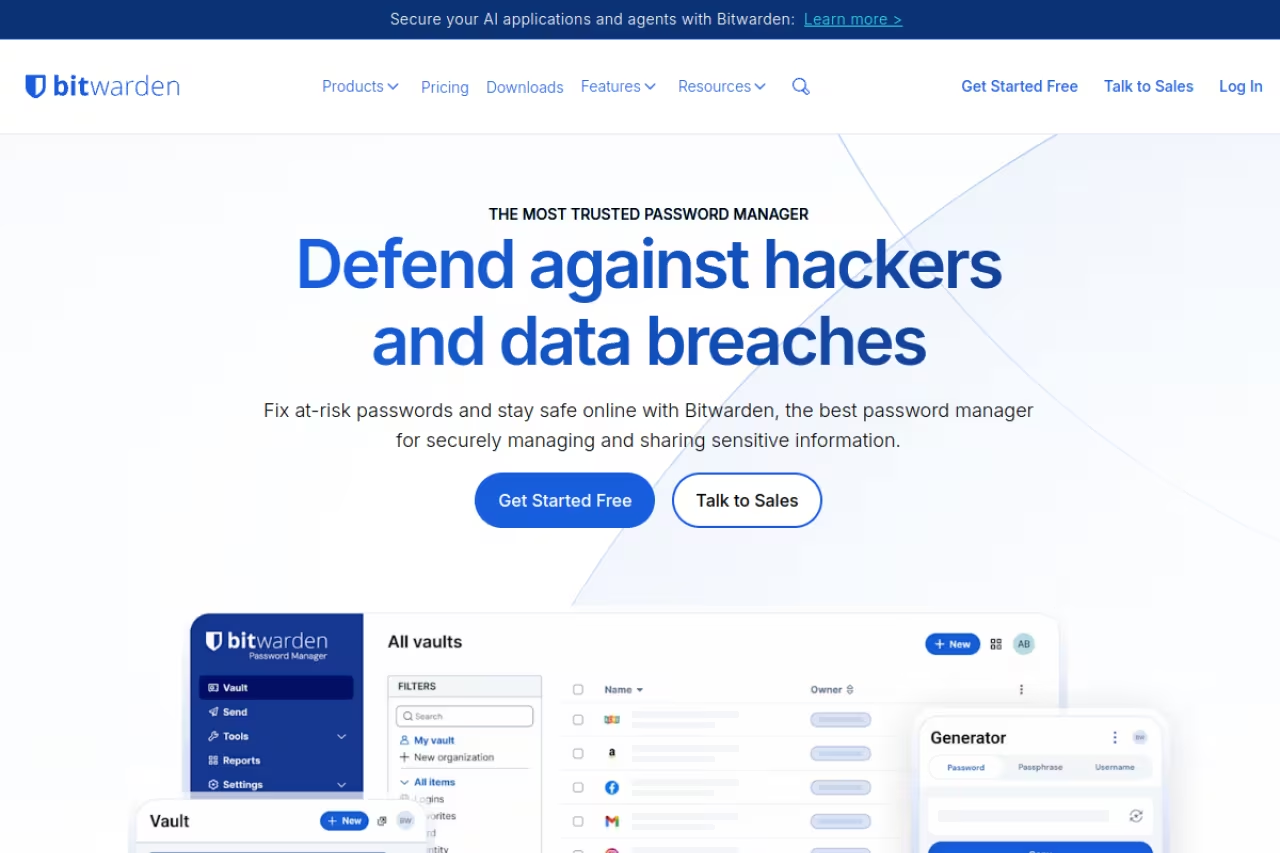
Bitwarden is the password manager I recommend first, and the January 2026 changes did not knock it off that spot. The free plan still gives you unlimited passwords, unlimited devices, secure notes, cards, identities, a password generator, and passkey support. That last part matters: you can create, store, and use passkeys, and sign in with Face ID or a fingerprint instead of typing anything. Once your vault syncs to a device, you can read your logins offline.
The default for anyone who wants one tool that works everywhere without nagging, with unlimited passwords, devices and passkey support on free. Integrated TOTP and attachments are now Premium only, at $19.80 a year, which is the trade-off this year.
Free covers the essentials. Premium is now $19.80 a year (about $1.65 a month), up from $9.99, the first price change in roughly a decade. Families is $3.99 a month for six users.
The standout: it is open source and gets regular third-party security audits, so you are not trusting a black box. The clients are fast, the browser extensions behave, and self-hosting is an option if you are the kind of person who runs a homelab.
The catch: the free tier lost real ground this year. Integrated TOTP (the built-in authenticator), encrypted file attachments, emergency access, and vault health reports are now Premium-only. If you were using Bitwarden to store your 2FA codes for free, that is gone. You either pay the $19.80 or move your TOTP codes to a separate authenticator app, which honestly is better security hygiene anyway.

Proton Pass, the privacy pick with built-in aliases
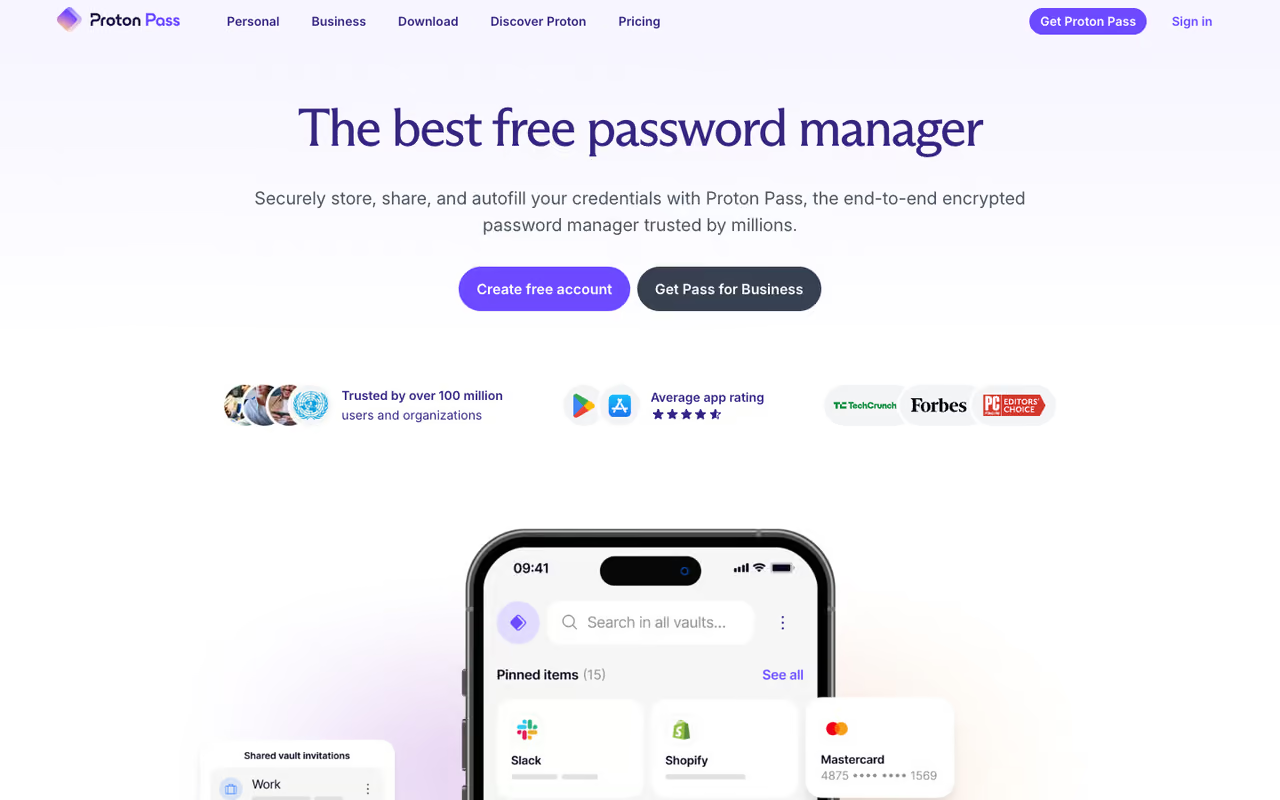
Proton Pass comes from the Proton team behind Proton Mail and Proton VPN, and its free plan is the most interesting one on this list. You get unlimited logins, unlimited devices, unlimited passkeys, automatic sync, weak-password alerts, and a password generator. None of that is unusual. The standout is what it adds on top.
The privacy pick for people who want to stop handing their real email to every signup form, thanks to ten hide-my-email aliases on free. The cap fills quickly, and the free plan lacks an integrated authenticator, item sharing and card storage.
Free is genuinely usable. Pass Plus runs around $2 a month on an annual plan, or you get it bundled inside Proton Unlimited at $9.99 a month with Mail, VPN, and Drive.
The standout: ten hide-my-email aliases on the free tier, powered by SimpleLogin (which Proton owns). Instead of giving a sketchy site your real address, you generate [email protected], and email still lands in your inbox. When a site leaks or starts spamming, you kill the alias. It is the single best anti-spam feature in any free password manager, and it pairs well with the privacy-first tools I cover in best free cloud storage.
The catch: the free plan caps you at ten aliases, has no integrated 2FA authenticator, no dark-web monitoring, no item sharing, and no credit-card storage. The ten-alias limit fills up faster than you expect if you go alias-happy. The encryption and privacy guarantees are identical between free and paid, though, so you are only paying for convenience features, not for actual security.
KeePassXC, the vault you actually own
KeePassXC is the choice for people who do not want their passwords living on anyone's cloud, including Bitwarden's or Proton's. It is a free, open-source, cross-platform app for Windows, macOS, and Linux that stores everything in a single encrypted database file on your own machine. No account, no subscription, no telemetry. The developers describe it as ad-free, tracker-free, and cloud-free, and the open code means you can verify that claim.
Choose KeePassXC if you do not want your passwords on anyone's cloud: a free, open-source vault in a file you own, ideal for developers, sysadmins and privacy purists. Sync is manual and it is power-user software, so non-technical family will struggle.
free forever. There is no paid tier because there is no company selling you one. It is a volunteer-driven open-source project.
The standout: you hold the keys, literally. Your vault is a .kdbx file you can back up, move, or destroy yourself. It supports passkeys, SSH agent integration, and browser autofill through an extension. For threat models where you do not trust any third-party server, this is the answer.
Where it falls short: sync is not automatic. KeePassXC does not run its own cloud, so to use the same vault on your phone and laptop you have to sync the database file yourself through Dropbox, Nextcloud, or similar, and pair it with a compatible mobile app like KeePassDX or Strongbox. That is real friction. There is no polished onboarding, no breach monitoring built in, and a non-technical family member will struggle. This is power-user software, and it does not pretend otherwise.
If you are assembling a wider privacy stack, KeePassXC sits naturally alongside the other tools in best AI cybersecurity tools.
NordPass, clean but device-limited
NordPass from the Nord team (NordVPN) has the most polished interface of the free options. The free plan stores unlimited passwords and passkeys, autofills credentials, and signs up without a credit card. It uses XChaCha20 encryption rather than the more common AES-256, which is a modern, fast cipher.
A clean app for people who only need a password manager on one device at a time, with the most polished interface of the free options. The free plan boots you off other devices, so most people juggling a phone and a computer should pick differently.
free for single-device use. Premium runs around $1.79 a month on a long-term plan, which unlocks multi-device sessions and extras.
The standout: the UX. NordPass is the easiest of these to hand to someone non-technical, and the autofill is reliable.
The catch: the free plan only lets you stay logged in on one device at a time. Log into your laptop and you get booted off your phone. For a tool whose whole job is following you across devices, that is a serious limit, and it is clearly designed to push you to Premium. If you live on a single laptop it is fine. For most people juggling a phone and a computer, it is the wrong free pick.
Apple Passwords, free if you live in the ecosystem
Apple turned the old iCloud Keychain into a standalone Passwords app, and it is a legitimately decent option if every device you own has an Apple logo. It stores passwords, passkeys, verification codes (it does keep TOTP, unlike free Bitwarden now), Wi-Fi passwords, and notes, all synced through iCloud with end-to-end encryption. Autofill is native at the OS level, so it just works in Safari and across apps.
Free and zero-setup for households that are all iPhone, iPad and Mac, with native autofill, passkeys and verification codes. It is an Apple island with no official Android or ChromeOS support, so cross-platform people should skip it.
free, included with your Apple devices.
The standout: zero setup. It is already there, the autofill is instant, and it handles passkeys and 2FA codes without you installing anything.
The catch: it is an Apple island. There is no official Android or ChromeOS support, sharing only works with other Apple users, and the Windows experience runs through a clunky iCloud browser extension. The moment you add an Android phone or a Linux box to your life, it breaks down. Cross-platform people should skip it.
Google Password Manager, the Chrome default
Google Password Manager is built into Chrome and Android, and for a lot of people it is the password manager they already use without thinking about it. It stores passwords and passkeys, autofills in Chrome and Android apps, flags compromised credentials through its breach-checking, and syncs through your Google account.
The password manager many already use without thinking, ideal for people who live in Chrome and on Android and want no extra app. It is tied to Chrome and Google, so it is convenient rather than private, and a step up, not a destination.
free with any Google account.
The standout: it is already running. If you use Chrome everywhere, the autofill and breach alerts are frictionless, and passkey support is solid.
The catch: it is tied to Chrome and Google. The desktop experience outside Chrome is weak, encryption is tied to your Google account unless you turn on on-device encryption, and you are trusting Google with your full credential set. It is convenient, not private. Treat it as a step up from reusing one password everywhere, not as a destination.
How to choose
Forget feature checklists for a second and answer three questions.
Do you use more than one device daily? If yes, NordPass free and Apple Passwords (outside Apple) drop off immediately. NordPass free is single-device, and Apple does not cross platforms. That leaves Bitwarden, Proton Pass, and KeePassXC as the real cross-platform free options.
How much do you trust a vendor cloud? If the answer is "not at all," KeePassXC wins by default because there is no cloud to trust. If you are fine with zero-knowledge encryption on someone else's server, Bitwarden and Proton Pass are both audited and open source.
Do you want email aliases? If hiding your real email from signup forms matters to you, Proton Pass is the clear pick with its ten free aliases. Nothing else here bundles that.
For most readers, the honest default is Bitwarden, and if privacy is your priority, Proton Pass. KeePassXC is the right call only if you actively want to manage your own vault file. And if you are already paying for productivity tools, check whether they bundle a manager before adding another subscription. The same "what does free actually include" logic applies to the picks in best free AI tools, where the gap between free and paid is just as wide. You can also browse the full directory of vetted picks in top tools if you want to compare options outside this list.
If you want a steady read on which security and productivity tools are worth your time, Dupple X tracks them so you do not have to dig through pricing-page changes like Bitwarden's January reshuffle yourself.
FAQ
What is the best free password manager in 2026?
For most people, Bitwarden is the best free password manager because it offers unlimited passwords across unlimited devices, passkey support, open-source code, and independent audits, all at $0. If privacy and email aliases matter more to you, Proton Pass is the stronger free choice thanks to its ten built-in hide-my-email aliases.
Is Bitwarden still free in 2026?
Yes, Bitwarden's free plan still exists and covers unlimited passwords, unlimited device sync, secure notes, and passkeys. But as of January 2026 it no longer includes integrated TOTP (built-in authenticator), file attachments, or emergency access, which moved to the $19.80-a-year Premium plan.
Are free password managers safe to use?
The reputable ones are. Bitwarden, Proton Pass, and KeePassXC all use zero-knowledge encryption, meaning the company cannot read your vault, and all three are open source so the code can be independently verified. The bigger risk is using no password manager at all and reusing weak passwords across sites.
What happened to Dashlane's free plan?
Dashlane discontinued its free plan on September 16, 2025. Since then, former free users can only export their data, with that export window open until September 2026. If you were on Dashlane free, you need to migrate to one of the alternatives in this guide before then.
Should I store my 2FA codes in my password manager?
It is convenient but not the strongest setup. Keeping your passwords and your TOTP codes in the same vault means one breach exposes both factors. Free Bitwarden no longer offers built-in TOTP anyway, so a dedicated authenticator app like Aegis or Ente Auth is a cleaner separation and costs nothing.
Can I use a free password manager across iPhone, Android, and Windows?
Yes, but pick carefully. Bitwarden, Proton Pass, and KeePassXC all work across iOS, Android, Windows, macOS, and Linux. NordPass free limits you to one device at a time, and Apple Passwords has no real Android support, so neither is a good cross-platform free choice.
Related guides
Some offers on this page may be paid placements or contain affiliate links.