
Last updated: April 2026
I am terrible at slide design. Give me PowerPoint and I will produce something that looks like a 2008 corporate training module. Misaligned text boxes, inconsistent fonts, bullet points that slowly drift off the edge of the slide. Last month I needed to build a 22-slide investor deck in 3 hours. I opened Beautiful.ai, typed my key points into DesignerBot, and had a polished first draft in 18 minutes. The final version, after editing and adding our brand assets, took 2 hours total. It looked like a designer built it. Nobody at the meeting guessed otherwise.
Beautiful.ai's core idea is simple: you should never be able to break a slide layout. The Smart Slides engine auto-adjusts spacing, alignment, and visual hierarchy every time you add or move content. The trade-off is you give up pixel-level control. For people who need that control, it is frustrating. For everyone else, it is the reason their decks finally look good.
Start Your 14-Day Beautiful.ai Trial Get started →How Smart Slides Actually Work
There are 300+ Smart Slide templates organized by purpose: title slides, comparison charts, timelines, team introductions, process flows, data visualizations, image galleries. Pick a template, start adding content, and the layout responds. Drop in a third bullet point and the spacing redistributes. Add an image and the text reflows to accommodate it. Drag an element and it snaps to the grid rather than floating wherever you release it.
I tested this by building a quarterly business review deck with 15 slides. I deliberately tried to make it look bad: oversized images, walls of text, too many data points on one chart. Every time, the Smart Slide engine pushed back. It capped image sizes, suggested splitting dense slides, and auto-formatted my data charts with proper labels and legends. You genuinely cannot produce an ugly slide unless you try very, very hard.
The constraint is real though. I wanted to place a logo in the bottom-left corner of a specific slide. Beautiful.ai's grid wouldn't let me put it exactly where I wanted. I had to pick the closest snap point, which was about 20 pixels off from my preference. For most presentations, this doesn't matter. For brand-obsessive creative teams, it will be a dealbreaker.
DesignerBot and the March 2026 AI Update
DesignerBot generates complete slides from natural language prompts. I typed "comparison slide showing our product vs. three competitors with pricing, key features, and star ratings" and it produced a clean four-column layout with placeholder content in about 8 seconds. The structure was right. I replaced the placeholder text and had a finished slide in under 2 minutes.
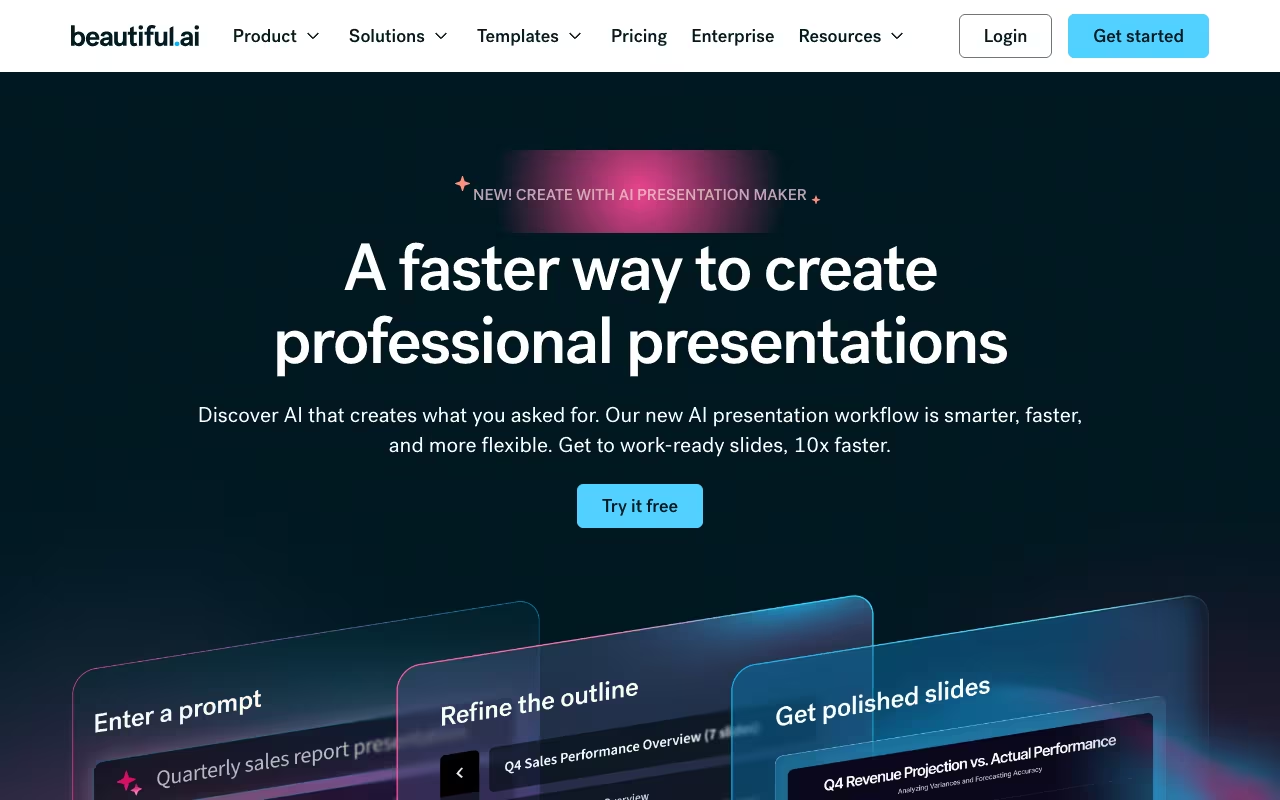
The March 2026 "Create with AI" update (powered by Anthropic's models) changed the workflow. Instead of generating slides immediately, it first produces a text outline of the full presentation. You can review the narrative, reorder sections, edit talking points, and then generate slides. This is a meaningful improvement. The old approach sometimes produced slides that didn't tell a coherent story. Now you shape the story first.
I generated a 12-slide sales pitch from the prompt "pitch deck for a B2B SaaS tool that helps HR teams automate onboarding." The outline nailed the structure: problem, solution, market size, product demo flow, pricing, team, ask. Slides generated in about 40 seconds. I spent 45 minutes refining copy and swapping in real screenshots. Total time from zero to finished deck: under an hour. Building the same deck from scratch in Google Slides would take me 3-4 hours minimum.
Build Your First Deck with Beautiful.ai Get started →Brand Controls and Slide Analytics
Custom themes let you set brand colors, fonts, logo placement, and default layouts. Locked templates restrict which elements team members can modify. For a 10-person sales team where everyone builds their own decks, this prevents the slow drift where every presentation looks slightly different. You set the guardrails once, and everyone's slides stay on brand.
Content locking goes granular: lock specific text blocks, images, or sections while leaving others editable. I set up a template with a locked intro slide (company overview, mission statement) and editable middle sections (custom for each prospect). Reps could personalize without accidentally deleting the company logo or changing the brand font to Comic Sans.
Salesforce integration tracks per-slide engagement after you share a deck: which slides recipients viewed, how long they spent on each, and when they opened the link. For sales teams sending pitch decks to prospects, this data changes the follow-up. If a prospect spent 4 minutes on the pricing slide and 10 seconds on the team slide, you know what to lead with on the next call.
What It Costs
- Pro: $12/month (annual) or $45/month (monthly). Unlimited AI generation, 300+ Smart Slide layouts, PowerPoint import/export, viewer analytics.
- Team: $40/user/month (annual) or $50/user/month (monthly). 2-20 seats, real-time collaboration, shared asset library, version control, advanced permissions.
- Enterprise: Custom pricing. 20+ users, SSO, SCIM provisioning, SOC 2 Type II, dedicated onboarding.
No free plan. 14-day free trial, but a credit card is required upfront. If you forget to cancel, you get billed. Students with a .edu email get a free year.
The pricing gap between monthly and annual is jarring. Pro at $45/month versus $12/month annual means you pay $540/year monthly or $144/year annual. That is a 3.75x difference. Beautiful.ai is clearly pushing annual commitments. The Team plan is even steeper: a 10-person team on annual billing pays $4,800/year. On monthly, $6,000/year. For comparison, Canva Teams costs $100/year per person ($1,000 for 10 seats), and Gamma's Pro plan is $10/user/month.
The Real Limitations
- No free plan: The 14-day trial requires a credit card and auto-renews. Gamma offers 400 free AI credits. Canva has a generous free tier. Beautiful.ai asks you to commit before you build anything real.
- Template rigidity is a feature and a flaw: Smart Slides prevent ugly layouts, but you cannot freely position elements outside the grid. Designers who want exact pixel placement will feel handcuffed. This is the fundamental trade-off of the product.
- PowerPoint export loses fidelity: I exported a 15-slide deck to .pptx and three slides had font rendering issues. Custom fonts reverted to system defaults. Animations didn't transfer. If your workflow requires sending editable PowerPoint files to clients, test the export before committing.
- No offline mode: Beautiful.ai is fully web-based. No internet, no slides. I lost work once when my connection dropped mid-edit. Auto-save caught most of it, but one slide reverted to a previous state.
- Collaboration is Team-tier only: Real-time co-editing requires the $40/user/month Team plan. On Pro, you work solo and share view-only links. For freelancers this is fine. For teams, the jump to $40/user is steep.
Beautiful.ai vs. Gamma vs. Canva Presentations
Design tools, published pricing
| Tool | Pricing | Model |
|---|---|---|
| Beautiful.ai | $12/mo (Pro annual), $40/user/mo (Team annual) | Paid |
| Shutterstock | $29/mo (10 images), $79/mo (5 videos), $15/mo (AI Generator), on-demand packs available | Subscription |
| Webydo | From $90/year per site | Subscription |
| SitesGPT | AI website builder, free tier available | Freemium |
| Rodin AI | Credits-based 3D model generation | Credits |
| Logome.ai | From $29 per logo package | Pay-per-use |
vs. Gamma ($0-20/user/month): Gamma is faster at generating presentations from scratch. Type a prompt and you have a full deck in under a minute. The free tier gives you 400 AI credits, enough for about 10-15 presentations. But Gamma's design output is more generic. It produces clean slides, but they all have a similar feel. Beautiful.ai offers more layout variety and better brand control. If you need speed and don't care about brand consistency, Gamma wins. If your presentations represent your company and need to look uniquely yours, Beautiful.ai wins.
vs. Canva ($0-13/user/month): Canva is a full design suite that happens to do presentations. It is cheaper, has a free tier, and gives you pixel-level control. But its presentations don't auto-format. You can break layouts. You can produce ugly slides. Beautiful.ai's auto-layout is the entire value proposition. If your team includes capable designers or you need flexibility beyond presentations, Canva makes more sense. If you specifically need non-designers producing polished slide decks week after week, Beautiful.ai's guardrails are worth the premium.
vs. Google Slides (free): Google Slides is free and works everywhere. Collaboration is excellent. But the templates are generic, there is no AI generation, and the design output depends entirely on the person building the deck. Beautiful.ai exists because Google Slides lets you make ugly presentations. If budget is zero, Google Slides works. If presentations are a regular part of your job and you want them to look professional without design skills, Beautiful.ai pays for itself in time saved.
Beautiful.ai is for teams that create presentations regularly and need them to look polished without a dedicated designer. Sales decks, investor pitches, client presentations, quarterly reviews. The Smart Slides engine is genuinely different from every other presentation tool I have used. You will miss the pixel-level control sometimes. You will never miss the hours spent aligning text boxes.
Create Your First Beautiful.ai Deck Free Get started →