How to Use AI in Google Docs (2026 Guide)


Key factsGemini AI in Google Docs needs a paid Workspace or AI Pro plan
- Gemini AI in Google Docs requires a paid plan, such as Business Standard at $14/user/month or Google AI Pro at $19.99/month.
- Audio summaries in Google Docs are typically under three minutes, with playback speeds from 0.5x to 2x.
- Grammarly's free tier includes 100 AI prompts per month; its Pro tier costs $12 per month annually for 2,000 prompts.
- Wordtune offers 10 free rewrites per day, with paid plans at $6.99 or $9.99 per month.
- Jasper pricing starts at $39 per month for one Brand Voice, rising to $59 per month for up to 5 users.
Google Docs now has Gemini AI built into the writing experience, and several third-party tools add capabilities Google doesn't cover. You can draft content from a prompt, rewrite paragraphs in a different tone, summarize long documents, get grammar fixes in real time, and even listen to AI-generated audio summaries.
The key difference from using ChatGPT or Claude separately: these tools live inside the document. No copy-pasting between apps. That alone cuts 5-10 minutes off every document you write.
Here's what's available, how to access each feature, and which third-party extensions are worth adding.
What you need
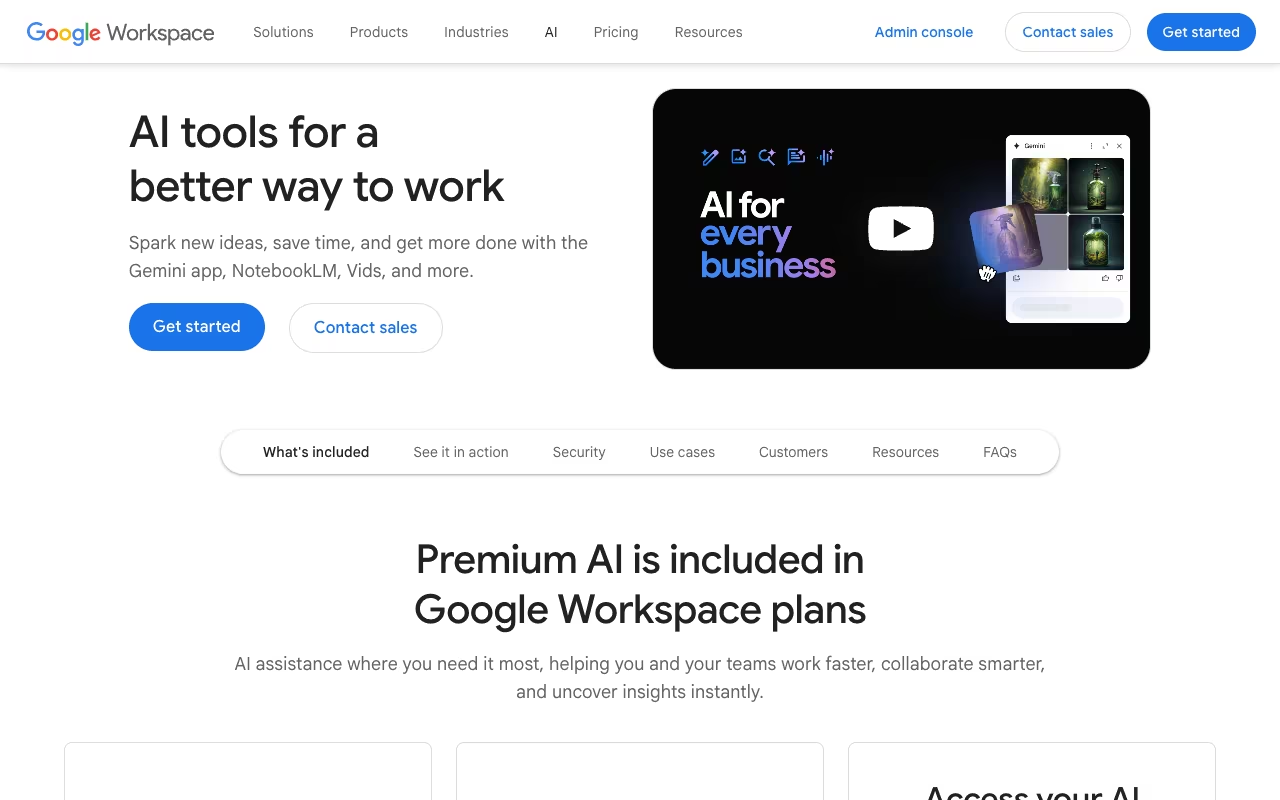
Gemini AI features in Google Docs require a paid plan:
- Google Workspace Business Standard ($14/user/mo), Business Plus ($22/user/mo), or Enterprise
- Google AI Pro ($19.99/month for individual users, includes NotebookLM Plus)
- Google AI Ultra ($249.99/month for the highest model access)
- Education plans with the Google AI Pro for Education add-on
As of 2026, Gemini AI is bundled into all paid Workspace tiers at no extra cost. This is a big change from 2024-2025 when it was a separate $30/user/month add-on. Business Starter ($7/user/mo) only gets Gemini in Gmail, not Docs.
If you're on a free personal Gmail account, you won't see these features. Check your plan status in Google Admin or your Google One subscription.
Help me write: drafting and rewriting
"Help me write" is the core AI writing feature. It handles two jobs: generating new text from a prompt, and rewriting existing text with different parameters.
Generating new text
- Place your cursor where you want the text to appear.
- Click the Gemini icon in the left margin (the sparkle/pencil icon).
- Enter your prompt. Be specific: "Write a project status update for Q1. The project is on track, budget is 5% under target, and the only risk is a delayed vendor delivery."
- Review the output. Gemini generates a draft directly in the prompt panel.
- Insert, refine, or regenerate. Click Insert to place it in your document, Refine to adjust, or regenerate for a different version.
What works well: Meeting agendas, status updates, email drafts, standard operating procedures, project briefs, job descriptions. Anything where the content is straightforward but the formatting takes time.
What doesn't work well: Highly technical content, documents needing specific data or citations, creative writing with a distinctive voice. Always review the output. Treat it as a first draft, not a final version.
Rewriting existing text
- Select the text you want to rewrite.
- Right-click and select "Help me write," or click the Gemini icon that appears.
- Choose a rewrite option:
- Shorten: condenses while preserving key points
- Elaborate: expands with additional detail
- Rephrase: different wording, same meaning
- Formalize: shifts tone to professional/academic register
- Casualize: makes the tone conversational
The tone adjustment options are useful in practice. A casual internal Slack message becomes a formal client email in one click. Meeting notes expand into a proper summary. A verbose paragraph gets cut to its essentials.
Stack rewrites for best results: Elaborate on a thin section, then Shorten if it got too wordy, then Formalize before sharing with leadership. This pairs well with workflows where you dump rough ideas quickly and then polish, similar to how many people use ChatGPT for writing work.
Document summarization
For long documents, Gemini generates summaries in two formats: text summaries you insert into the document, and audio summaries you listen to.
Text summary
- Go to Insert > Building Blocks > AI Summary, or type @ and select "AI summary."
- Gemini analyzes the entire document (including multiple tabs) and generates a concise summary.
- Edit as needed. The summary appears as editable text that other collaborators can see and modify.
This is useful at the top of long reports, research documents, or meeting notes, giving readers the key points without scrolling through 20 pages.
Audio summary
- Go to Tools > Audio > Listen to document summary.
- Gemini generates a spoken synopsis, typically under three minutes.
- Use the audio player with playback speed controls (0.5x to 2x) and voice selection (narrator, persuader, coach, and other styles).
The audio summary uses natural speech rather than robotic text-to-speech. I use it to review documents during my commute or get the gist of a long report before deciding whether to read it in full.
Gemini side panel: research and assistance
Beyond inline writing, the Gemini side panel (click the Gemini icon in the toolbar) acts as a research assistant that can reference your document.
- Ask questions about your document: "What are the main action items?" or "Does this mention any deadlines?"
- Research topics: "What are current best practices for employee onboarding?" Gemini searches the web and provides answers you can insert directly.
- Brainstorm: "Give me 5 alternative titles for this blog post" or "What sections am I missing in this proposal?"
- Get feedback: "Is this argument well-structured?" or "What are the weakest points?"
The side panel is context-aware. It knows what's in your document and references specific sections, so you don't need to copy-paste content into a separate AI chat. For deeper research, combine the side panel with Perplexity AI for source-backed answers you can then draft into the doc.
Third-party AI tools for Google Docs
Gemini handles the basics well, but dedicated third-party tools fill gaps in grammar checking, brand voice enforcement, and rewriting quality.
Grammarly
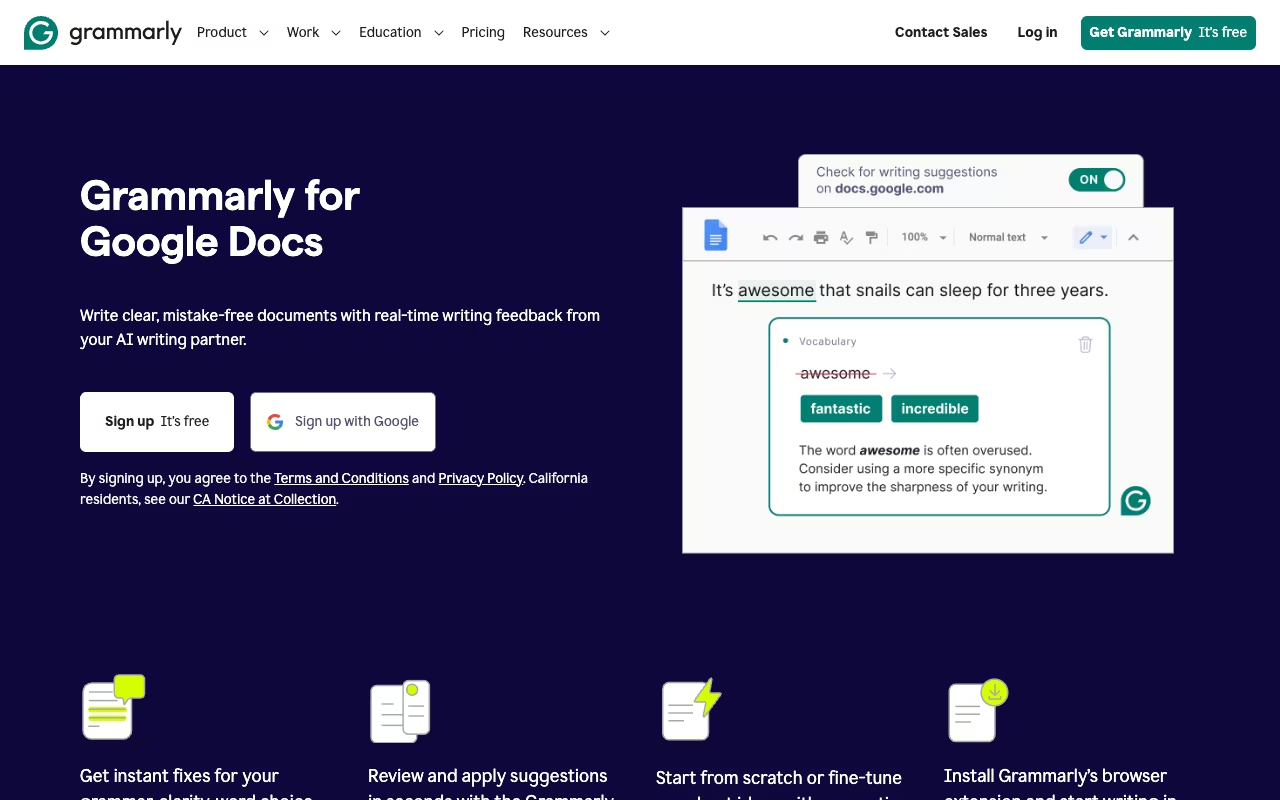
Grammarly works via a Chrome extension that overlays directly in Google Docs. It catches grammar, spelling, and punctuation errors in real time, suggests full-sentence rewrites for clarity, and detects tone.
The AI features go beyond corrections: highlight text and tell it "make this more professional" or "shorten this paragraph." The Pro tier adds plagiarism detection and AI-generated text detection.
Pricing: Free (100 AI prompts/month, basic grammar only). Pro at $12/month (annual) for full rewrites, plagiarism checker, and 2,000 AI prompts/month. Business pricing available for teams with style guides and admin controls.
Grammarly is the best complement to Gemini because they do different things. Gemini drafts content; Grammarly polishes it.
Wordtune

Wordtune is a Chrome extension focused on rewriting. Select a sentence and get multiple alternative phrasings with different tones (formal, casual, shortened, expanded). It's more focused than Gemini's rewrite options, often producing more natural-sounding alternatives.
Pricing: Free (10 rewrites/day). Advanced at $6.99/month, Unlimited at $9.99/month. Surprisingly affordable for a tool you'll use dozens of times per document.
Best for non-native English speakers or anyone who writes in Google Docs frequently and wants sentence-level polish that goes beyond what Gemini offers.
Jasper
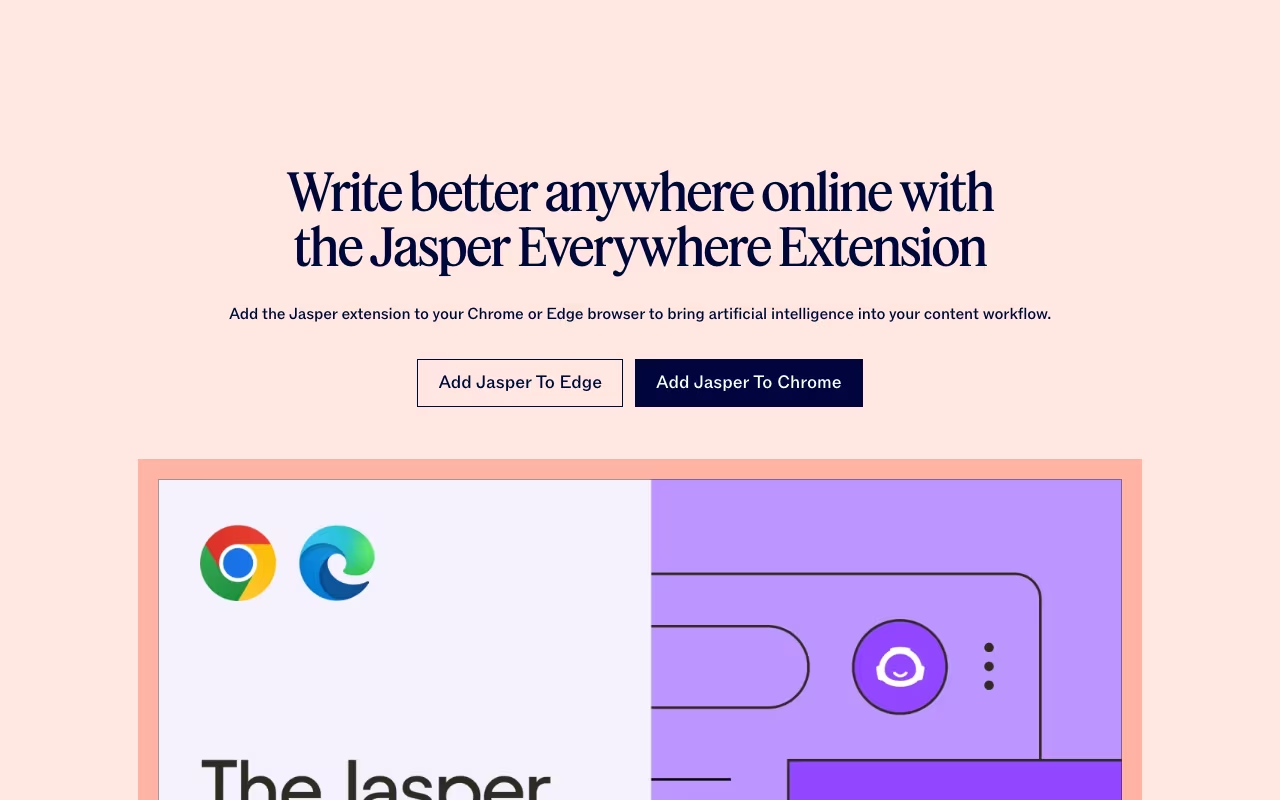
Jasper brings its Brand Voice and Knowledge Base features into Google Docs via a Chrome extension and a Workspace add-on. If your team has trained Jasper on your brand guidelines, tone, and terminology, the extension applies all of that inside Docs.
Pricing: Creator at $39/month (1 Brand Voice, unlimited words). Pro at $59/month (up to 5 users, 3 Brand Voices, Knowledge Base). Business pricing is custom. 7-day free trial available.
This is overkill for personal use. It makes sense for marketing teams that need every piece of content to match a specific brand voice, and who are already paying for Jasper.
Practical workflows
Meeting notes to action items
- Paste rough meeting notes into a Doc.
- Select the notes and use Help me write > Elaborate to expand shorthand.
- Ask the Gemini side panel: "Extract all action items with owners and deadlines."
- Insert an AI Summary at the top for stakeholders who weren't in the meeting.
Report writing
- Use the side panel to outline: "What sections should a quarterly sales report include?"
- Draft each section with specific prompts: "Write the executive summary for a Q1 report where revenue was $2.3M, 8% above target, driven by enterprise accounts."
- Select sections that are too long and use Shorten.
- Run Grammarly for grammar and clarity. Use Formalize on the full document before sharing.
Content repurposing
- Start with a long-form document (whitepaper, report, blog post).
- Select key sections and ask Gemini to "Rewrite this as a LinkedIn post under 200 words."
- Use Casualize for social media versions.
- Generate an AI Summary as the basis for an email newsletter.
This fits into a broader content creation workflow where Google Docs is the writing hub and AI handles format adaptations.
Tips for better results
Be specific in prompts. "Write a paragraph about our product" produces generic filler. "Write a 100-word description of our project management software for SaaS companies, emphasizing the Gantt chart feature and Slack integration" produces something usable.
Edit, don't accept blindly. Gemini's drafts are competent but generic. Your value is in the specific knowledge, examples, and perspective you add. Treat AI output as clay to shape.
Stack rewrites. Formalize first, then Shorten if it got too wordy. Or Elaborate on a thin section, then Rephrase to match your voice. Iterating is usually better than trying to get it perfect in one prompt.
Combine tools. Use Gemini for drafting, Grammarly for polish, and the side panel for research. Each does something the others don't. If you also work with spreadsheets, our guide on using AI in Google Sheets covers Gemini's formula generation and data analysis.
FAQ
Is AI in Google Docs free to use?
The built-in Gemini features require a paid plan: Google Workspace Business Standard ($14/user/mo) or higher, or Google AI Pro ($19.99/month). Grammarly and Wordtune both have free tiers that work inside Google Docs via Chrome extensions: Grammarly gives 100 AI prompts/month free, and Wordtune gives 10 rewrites/day.
How do I turn on AI in Google Docs?
If your account has an eligible plan, Gemini appears automatically. Look for the sparkle/pencil icon in the left margin or the Gemini icon in the toolbar. If you don't see it, check your Google Workspace plan or Google One subscription in your account settings. For Grammarly or Wordtune, install the Chrome extension from the Chrome Web Store.
Can Gemini write an entire document from scratch?
It can generate drafts from prompts, but the output works best as a starting point. It handles structured business writing well: status updates, meeting agendas, SOPs, job descriptions. For longer documents, draft section by section with specific prompts rather than asking for the whole thing at once. Always review and add your own expertise.
What's the difference between Help me write and the Gemini side panel?
"Help me write" generates or rewrites text directly inline. The side panel is a separate chat interface that answers questions about your document, brainstorms ideas, and does research without modifying your text directly. Use "Help me write" for content generation. Use the side panel for research and feedback.
Which third-party AI tool works best with Google Docs?
Grammarly is the most useful addition for most people. It catches errors Gemini misses, provides sentence-level rewrites, and works in the background without you having to invoke it. Wordtune is better for rewriting quality at a lower price. Jasper only makes sense if your team needs Brand Voice consistency across all content.
Does Google Docs AI work with other Workspace apps?
Yes. Gemini is integrated across Google Workspace, including Sheets, Slides, Gmail, and Meet. The features share context within the ecosystem, so similar workflows apply across all apps. Our guide on using AI to be more productive covers how to combine these tools effectively.
Write faster, edit less, and ship polished documents in half the time. Start your free 14-day trial →
Some offers on this page may be paid placements or contain affiliate links.