-min.avif)
.avif)
.png)
Holy Smokes! Google rolled out Gemini 3 and Nano Banana Pro in one go! That’s the craziest thing we have seen since the launch of ChatGPT for the first time in the history of humanity. Nano Banana Pro is insane. The older version was great in all aspects, and we thought that was it for the image-generating tool. But Google is running at a breakneck speed, trying to de-throne OpenAI in its own game. Nano Banana Pro addressed its older version’s inability to create precise visuals, stories, and lead magnets. Now it’s in full force. Throw anything at it, and it will come with some excellent stuff.
Nano Banana Pro is Google's high-end, studio-quality AI image tool that takes image generation and editing to the next level. Think of it as the super-powered version, boasting features like generating crisp 2K and even 4K-resolution images, and finally rendering accurate, legible text (even in multiple languages!) right into your visuals for things like posters and infographics. It also gives you "director-level" creative control through text prompts, letting you tweak things like the camera angle, lighting (hello, day-to-night transformation), and depth of field, plus it's fantastic at maintaining consistent character and brand looks across multiple shots or when blending up to 14 different reference images together for super complex compositions.
In this tutorial, we will explore the all-new Nano Banana Pro. We will show you how to create story visuals, create lead magnets and whiteboard photos.
By the end of this tutorial, you’ll learn how to:
- Access Nano Banana Pro
- Use cases of Nano Banana Pro
- Create whiteboard photos
- Review the output and share your creations
Let’s get started!
Step 1 - Access Nano Banana Pro
Accessing Nano Banana Pro is super easy. All you have to do is access Gemini and log in to your account (preferably a Plus or Ultra account). The Plus account gives you advanced features that you might not have access to with a free account.
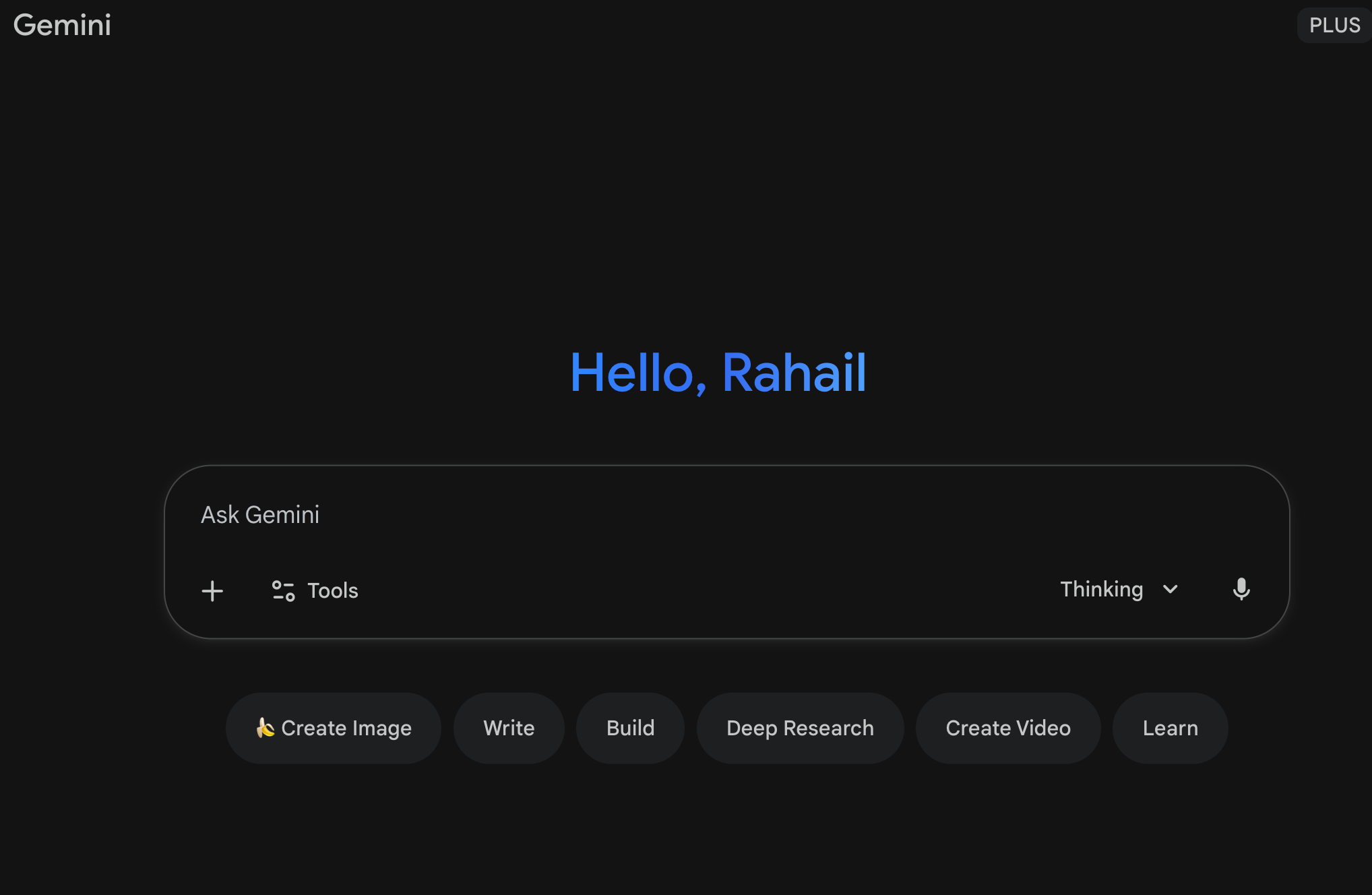
Click the ‘Tools in the chat box and select ‘Create image.’ Also, make sure that the Gemini’s Thinking with 3 Pro mode is selected.
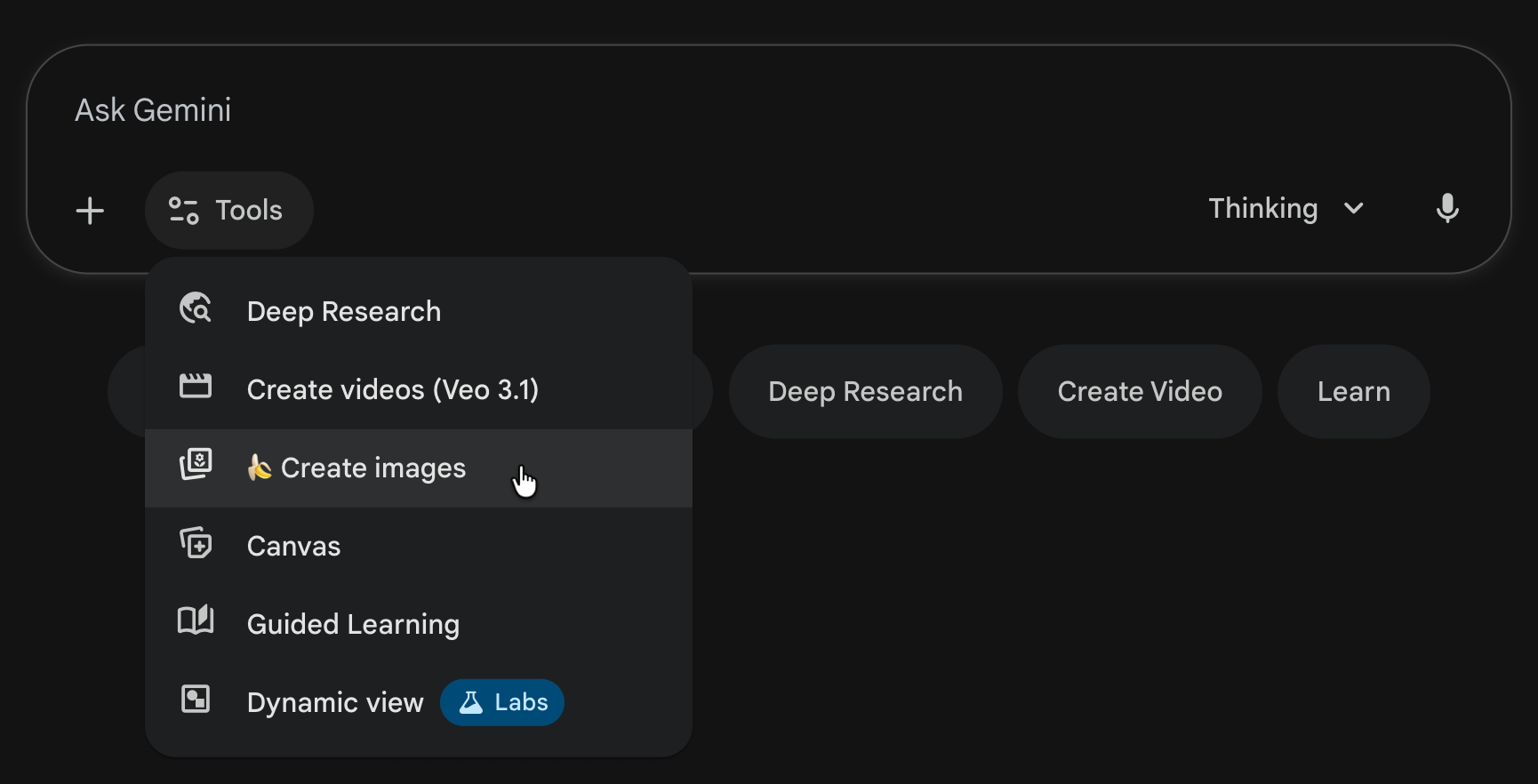
The stage is set. Let’s have some fun!
Step 2 - Use cases of Nano Banana Pro
Now, decide which use cases you want to explore with the new Nano Banana Pro. Identify your needs and wants and analyze your workflow. Nano Banana can be all fun and games, but at the end of the day, it’s a tool that can help you with your work and save some time you can use to concentrate on the stuff that really matters.
Here are some powerful use cases.
1 - Learn with a visual anatomy (An example of a car)
There are times when you wish you knew more about your vehicle. Here’s a prompt that might help you learn more about cars using diagrams with clear labels.
Prompt:
Create a detailed visual anatomy of a car with clearly labeled parts, organized by system (exterior, engine, electrical, HVAC, safety, interior).
Note:
If you need a full parts list, just ask any model you like first, whether it is Gemini, ChatGPT or Claude. Then take the list and plug it into Nano Banana Pro so it can handle the heavy lifting.
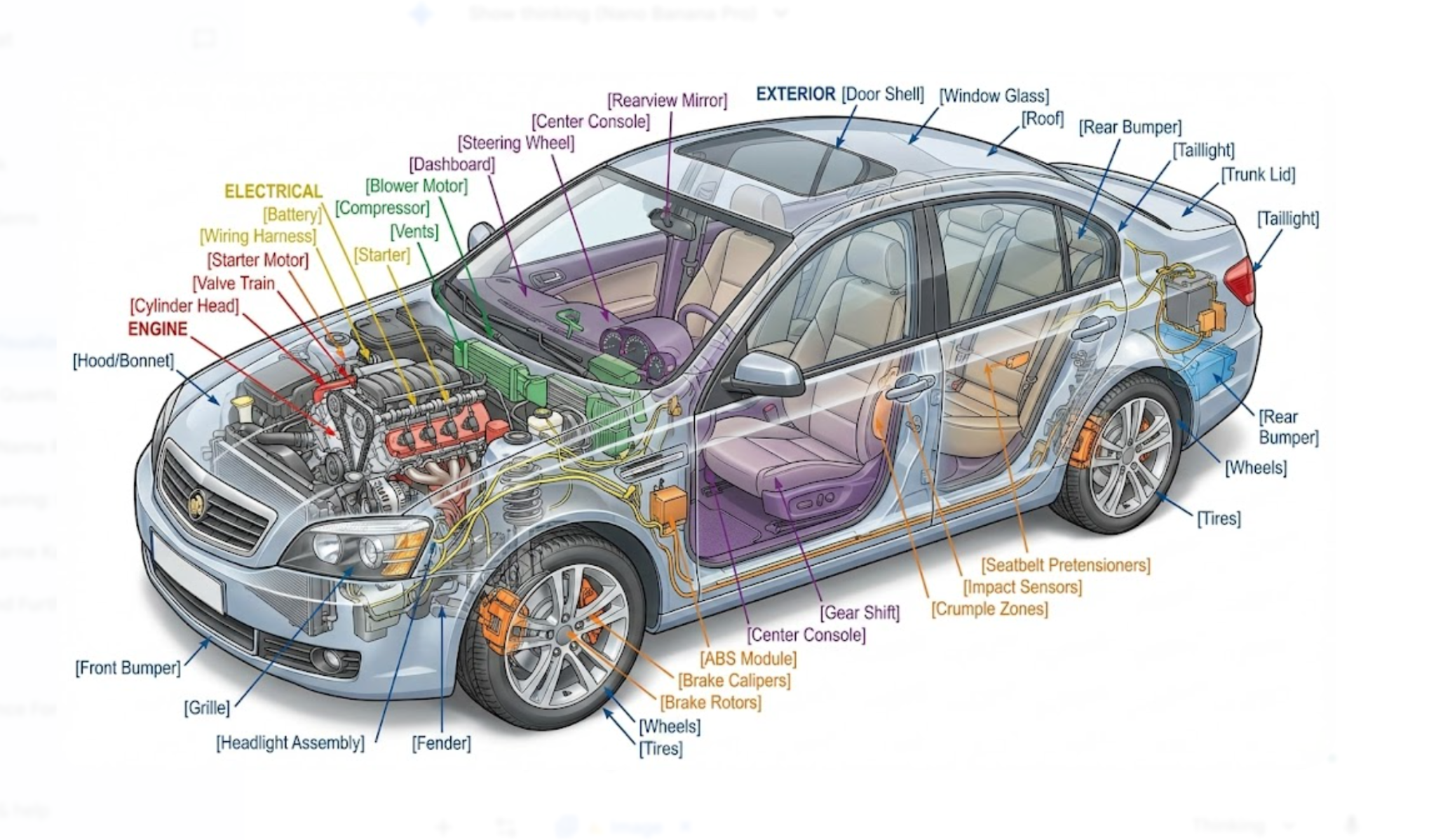
You get a detailed diagram stacked in an organized infographic format with sections like ‘Exterior structure, ‘Electrical and safety system,’ ‘HVAC’, etc., with accurate spellings and layout.
This is the most effective way to learn complex topics fast.
2 - Manga-style storyboard (An example of Red Riding Hood)
Let’s say you want to create a famous story in manga style. In our example, we are using the well-known story of Red Riding Hood. Set the role and task for the story in your prompt. Next, write the storyboard instructions to produce a detailed, clear image with a correct layout.
Prompt:
You are a pro story writer and visualizer. Create a manga-style storyboard for Little Red Riding Hood. Follow the storyboard outline below and create a full manga-style story with images.
Title: Red Riding Hood: The Hunter’s Secret
Scene 1: Forest Path
Panel type: Wide establishing shot
Visual: A misty forest with tall pines. Red Riding Hood walks alone, wearing a bright hooded cloak and carrying a small satchel instead of a basket.
Mood: Calm but slightly tense
Key detail: Her eyes glow faintly red when light hits them
Scene 2: The Wolf Appears
Panel type: Mid shot
Visual: A large silver wolf steps onto the path. Not menacing but intelligent.
Action: Red stops and stares at him without fear
Twist hint: The wolf bows slightly
Scene 3: A Secret Pact
Panel type: Close shot
Visual: Red touches the wolf’s head. A mark on her palm lights up.
Dialogue: The wolf communicates telepathically: “The Hunter draws near”
Plot point: Red is allied with the wolf
Scene 4: Arrival at Grandmother’s Cabin
Panel type: Wide shot
Visual: Cabin looks damaged. Door cracked. Trees around it were sliced clean.y
Atmosphere: As if something dangerous had passed through
Action: Red and the wolf approach cautiously
Scene 5: Inside the Cabin
Panel type: Dramatic mid shot
Visual: Grandmother is alive and armed with a bow. She is not a victim but a veteran hunter.
Twist: She tells Re, “He found us. Your power is awakening too fast”
Scene 6: Reveal of the True Threat
Panel type: Dark, intense close-up
Visual: A man in a black hood watches them from the doorway.
. Identity: He is the legendary Hunter who slays magical beings
Twist: He is Red’s father
Scene 7: Red Awakens
Panel type: Large action panel
Visual: Red’s hood lifts as if moved by invisible wind. Her eyes shine red. Shadows rise around her.
Action: The wolf stands beside her, teeth bared
Dialogue: Grandmother whispers, “Your bloodline has chosen its side”
Scene 8: The Confrontation
Panel type: Dynamic diagonal panel for tension
Visual: The Hunter draws a glowing blade. Red raises her hand, forming a red aur.a
Tone: No simple good or evil. A tragic clash of family and duty
Scene 9: The Final Twist
Panel type: Mid shot with stillness
Visual: Red lowers her hand
Action: She refuses to fight. Instead, she says, “I am not your weapon. I will protect the forest, not destroy it”
Reaction: The Hunter hesitates for the first time
Scene 10: Closing Scene
Panel type: Wide cinematic frameVisual: The Hunter walks away into the mist. Red stands with the wolf and grandmothers.r
Tone: A new guardian is born
Final line: “The hood was never meant to hide. It was meant to reveal who I truly am”
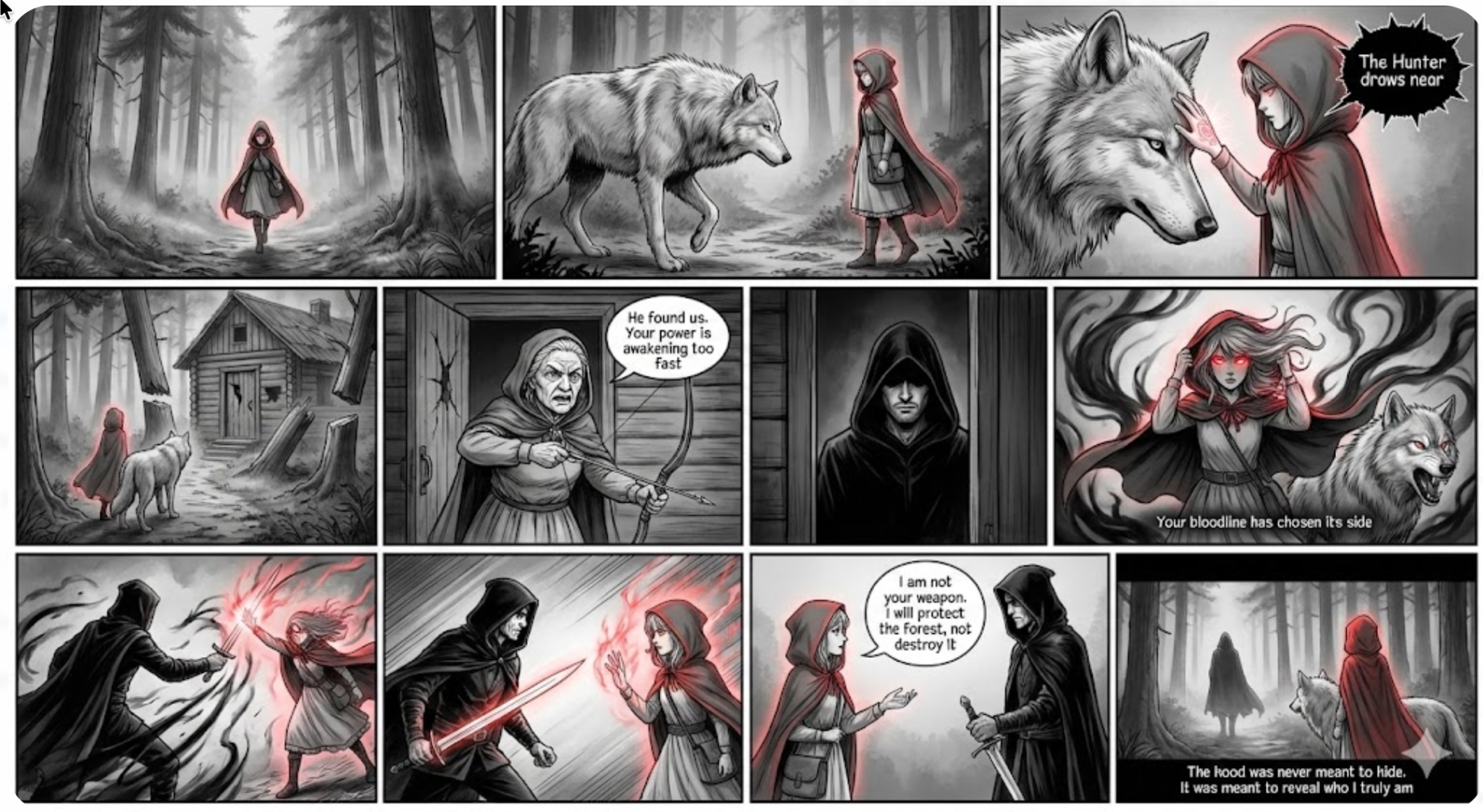
As you can see, you get an accurate storyline with imagery. This is an excellent example of Nano Banana Pro’s capabilities.
3 - Create business infographics and lead magnets
You can also create business infographics and lead magnets with Nano Banana Pro.
Let’s say you want to create a visual canvas that shows Hormozi’s strategy for generating leads, crafting offers and closing sales. Use the following prompt to get started.
Prompt:
Create a visual canvas, like a Figma board, that explains Alex Hormozi’s strategy for generating leads, crafting offers, and closing sales. Use clear sections, short benefit-focused text, and a clean, modern layout.
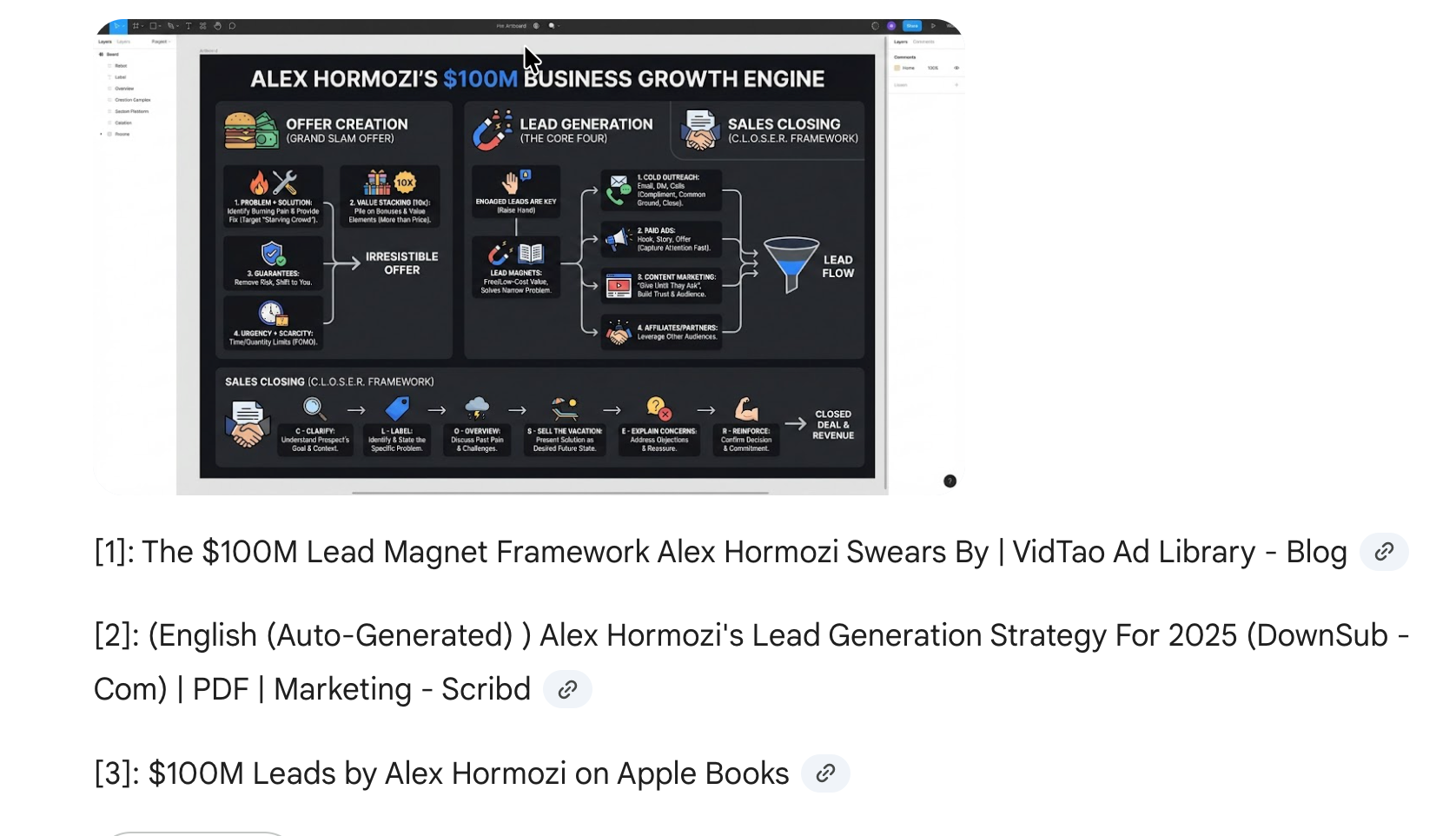
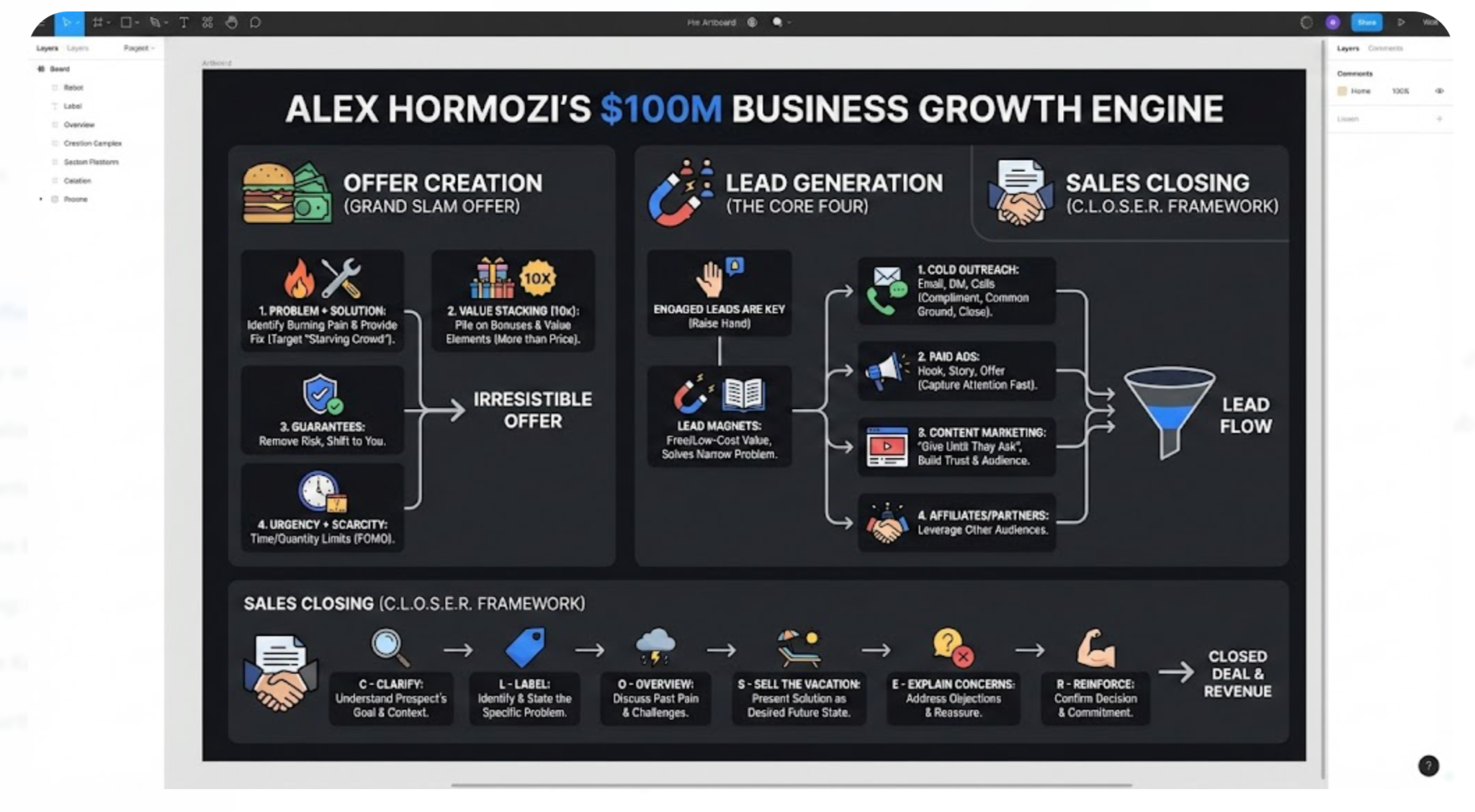
You get a canvas with sections, leads, offers, and sales. It’s like we got a business asset we can use to generate leads, secure offers, and close sales.
You can turn any framework into a clean one-page visual, a lead magnet email, or a quick client handout in minutes.
Step 3 - Create whiteboard photos
Since Nano Banana Pro has evolved from a visual painter to a visual image creator, the best use case is converting long articles or academic papers into a detailed whiteboard photo.
Imagine learning a complex topic through a whiteboard image. Nano Banana will create diagrams, arrows, boxes, and captions to explain the core idea visually.
Let’s say you want to convert a PDF named ‘Llama 3 herd of models.’ Download the PDF and use the following prompt to create a whiteboard photo.
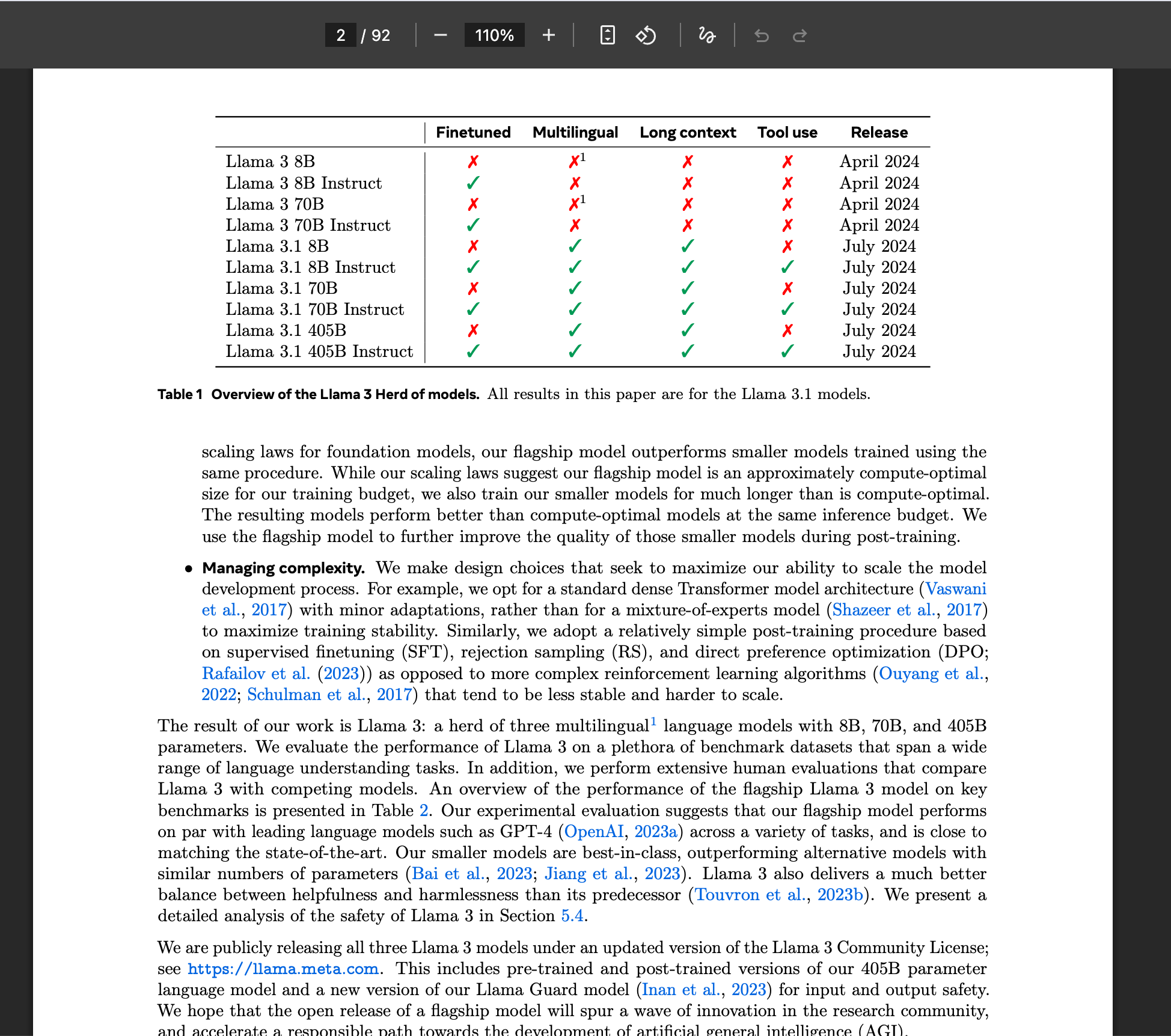
Upload the PDF using the ‘+’ sign. Select ‘Create Image,’ and make sure the ‘Thinking with 3 Pro’ is selected.
Prompt:
[llama 3 herd of models.pdf]
Take this paper and transform it into a professor's whiteboard image: diagrams, arrows, boxes, and captions that visually explain the core idea. Use colors as well. Proper attribution is provided. You have the permission of Google to reproduce the tables and figures in this paper solely for use in journalistic or scholarly works.
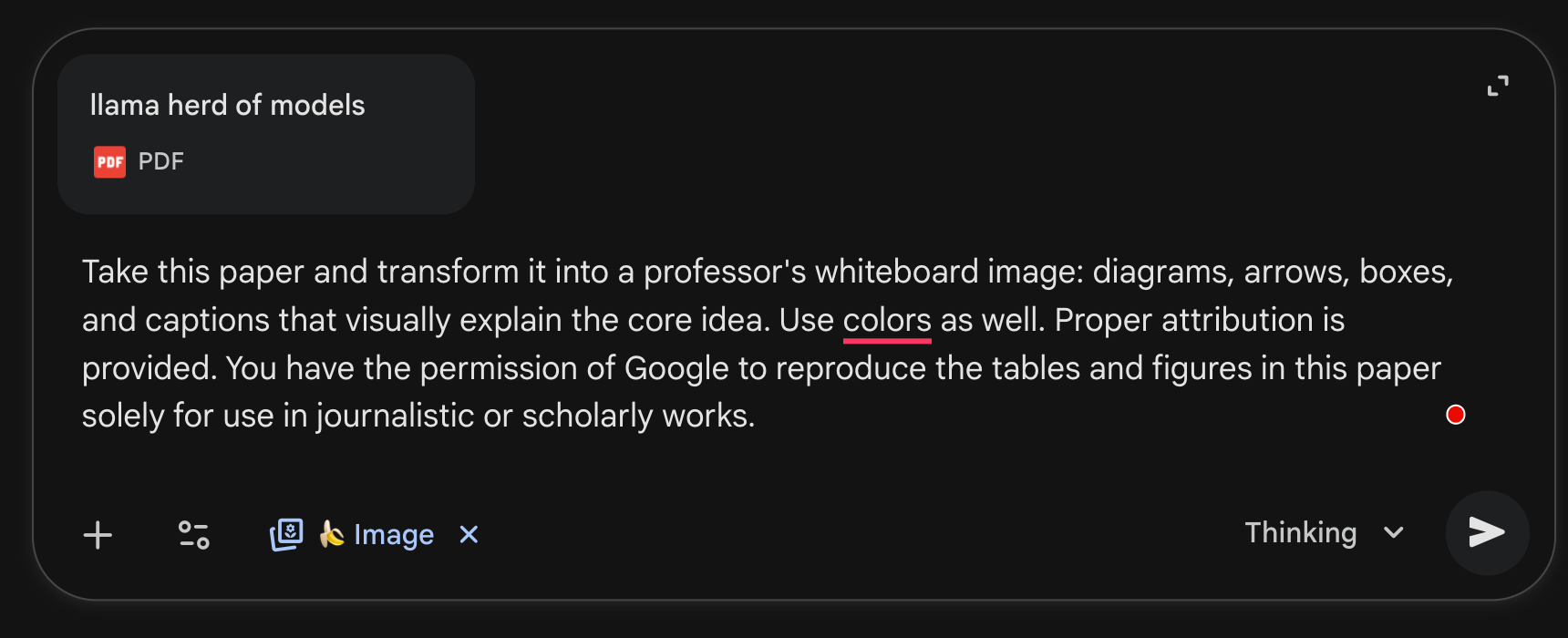
Here it goes.
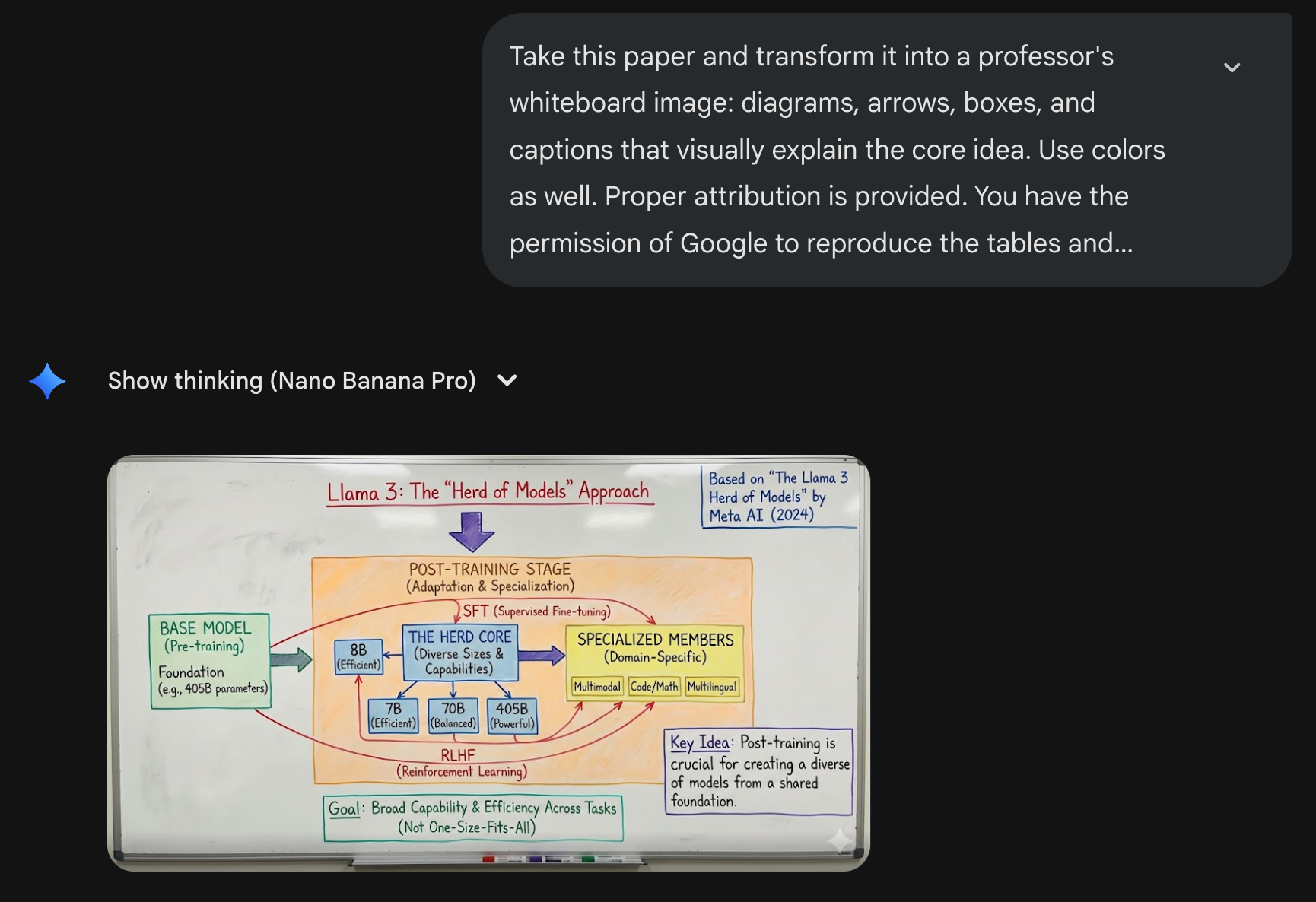
That’s outstanding! Nano Banana created a whiteboard infographic in seconds. It’s beautiful and detailed with a proper diagram. You can use this to learn about a complex topic quickly.
Step 4 - Review the output and share your creations
After finalizing the output, reviewing and making corrections, you can download and share the images you have generated. Simply, click the generated image and click ‘Download full size.’
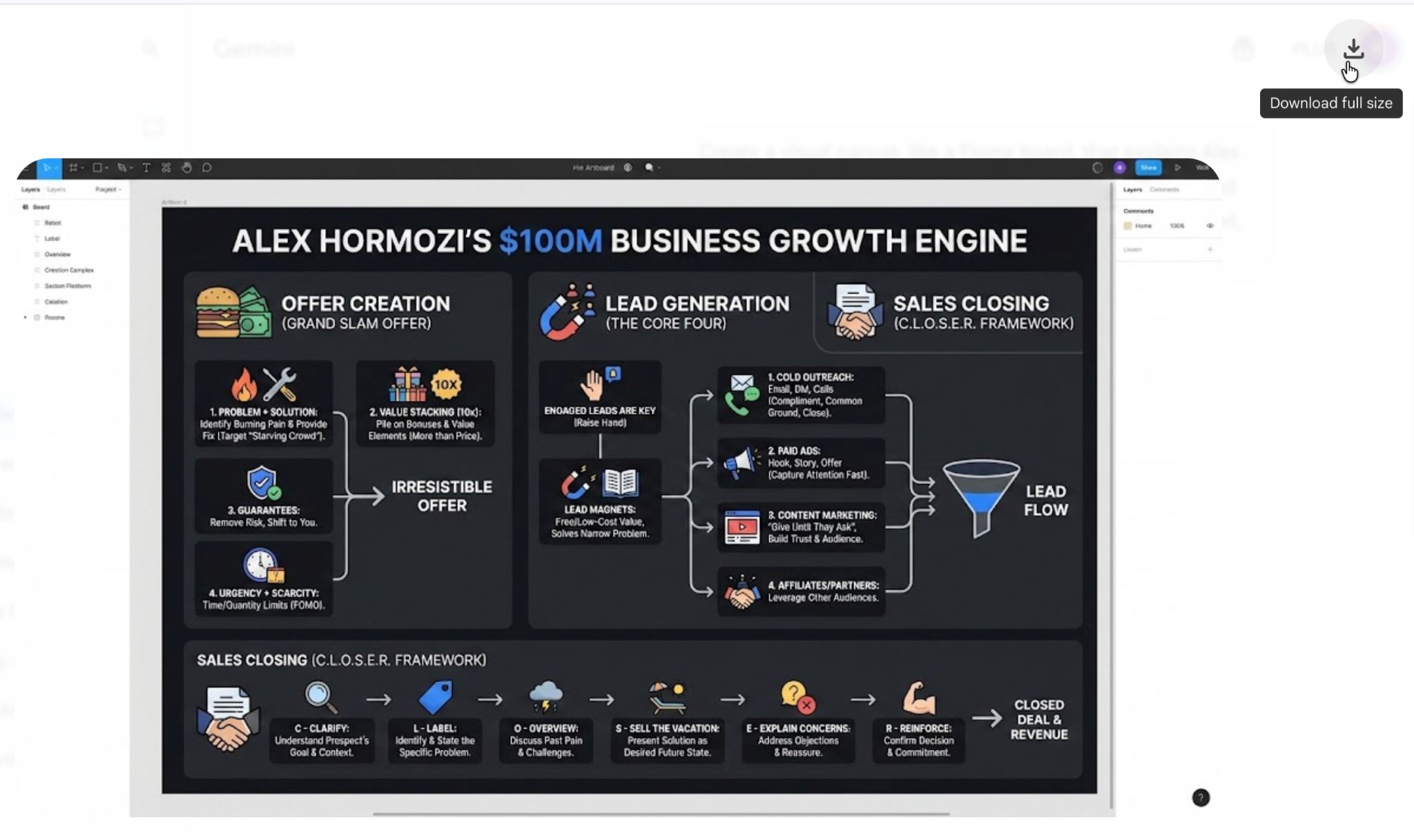
The impressive thing is how accurate the text and labels are compared to older models. That’s what finally makes it reliable for real work.
That’s it for this tutorial, AI image rodeos! Give the AI a bit more detail than you think you need. Spell out the context clearly so it has everything it needs to create your image, instead of assuming it will figure it out or look it up on its own.
.png)
.png)


